Beginning January 7, 2026, multifactor authentication (MFA), also known as two-factor authentication (2FA), will be required to log into your MLS account.
Why is CRMLS implementing MFA measures?
Cybersecurity threats evolve constantly and the real estate industry has seen multiple high profile security breaches in recent years. CRMLS looked into multiple ways to prevent potential fraud and data theft, and found that MFA is one of the simplest and most effective ways to ensure no bad actors can access the MLS or personal user data.
Getting Started
Log in to your REcore dashboard. When prompted, choose to either send a text message or email to verify your identity. Your contact details from the agent roster will display automatically.
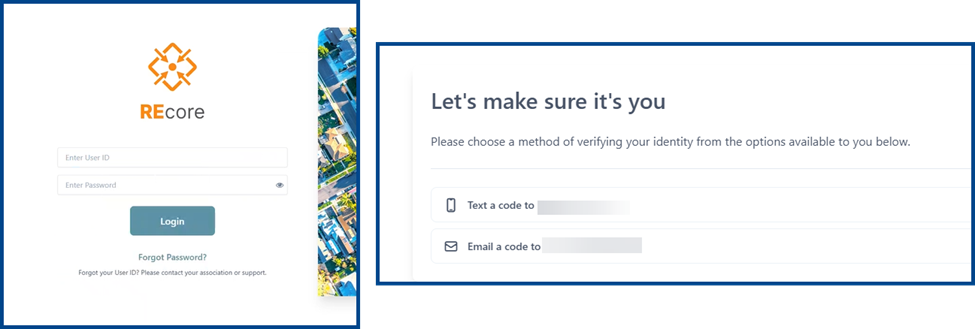
Note: The text option will display the last four digits of the phone number in the roster to ensure accuracy.
After choosing your verification method, retrieve the confirmation code sent to you via email or text. Enter the code in the verification field to confirm your identity.
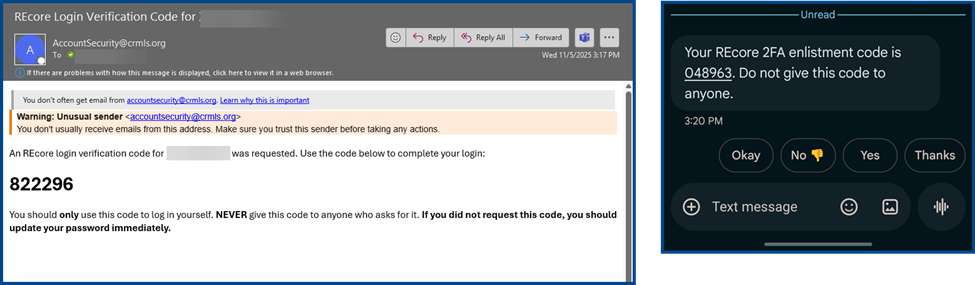
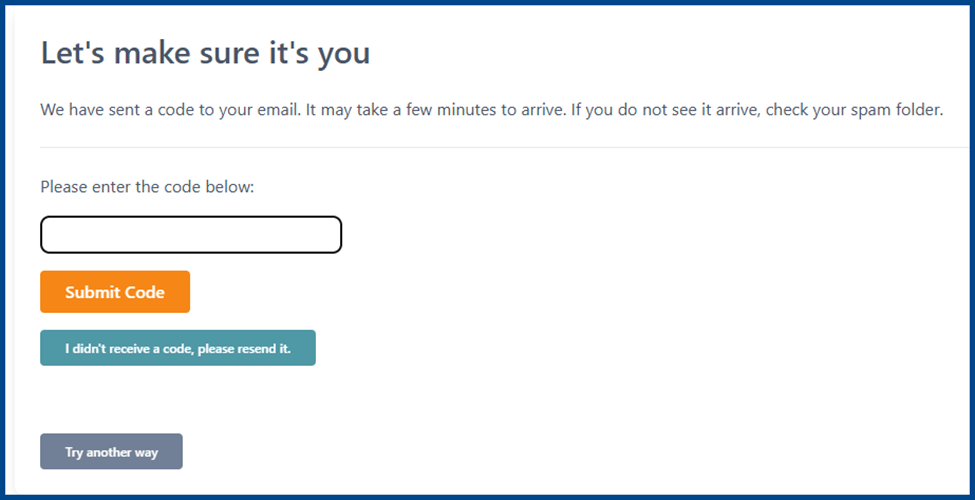
If the code doesn’t appear after a few minutes, click I didn’t receive a code, please resend it. If you experience continued issues, click Try another way to choose a different verification method.
Updating MFA Method
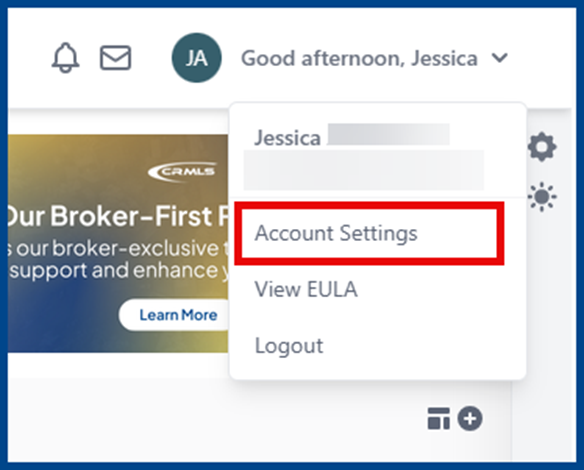
Log in to your dashboard, then go to your initials on the top right of the homepage. Click Account Settings to update the contact information for MFA.
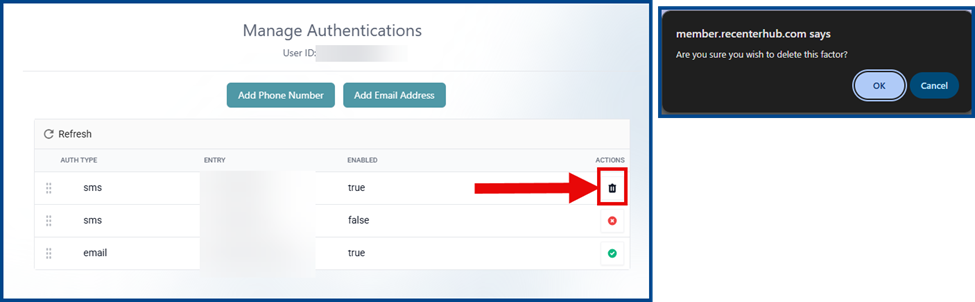
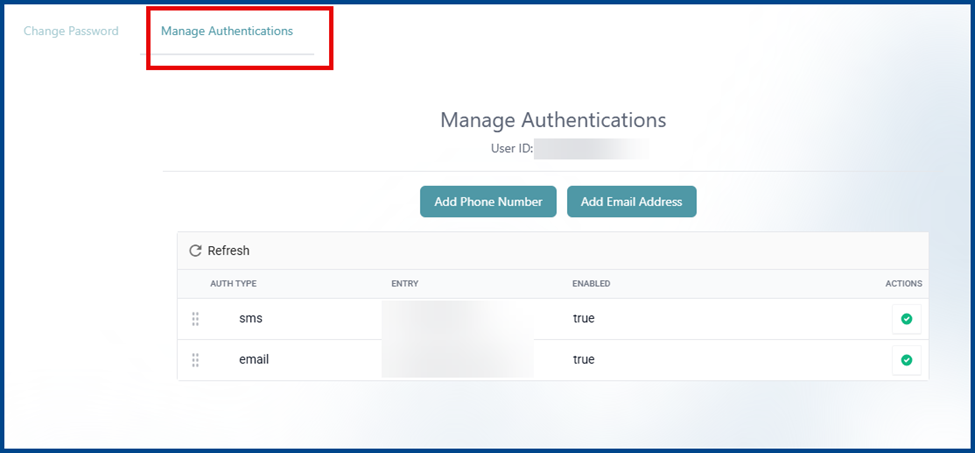
From the User Settings page, click Manage Authentications. You will see four verification options; two of them are pulled by default from the MLS roster.
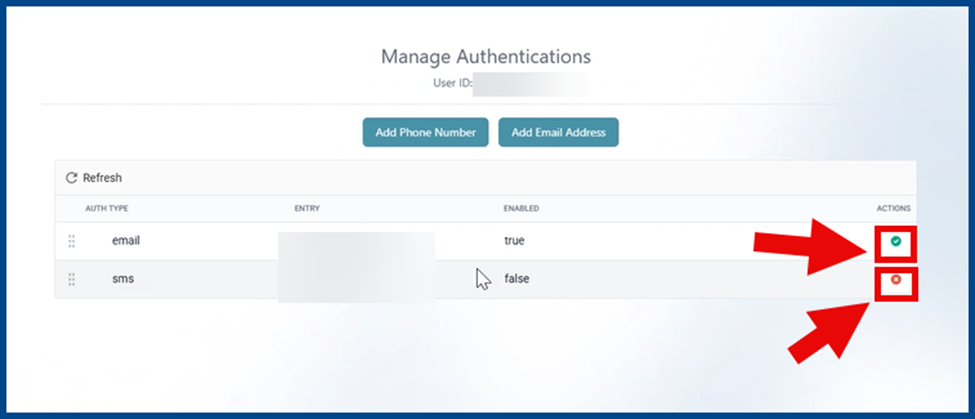
Click on the icons under the Actions column to enable or disable your chosen authentication type.
Click on the new authentication type you’d like to add. From there, enter the verification code sent to your device or email.
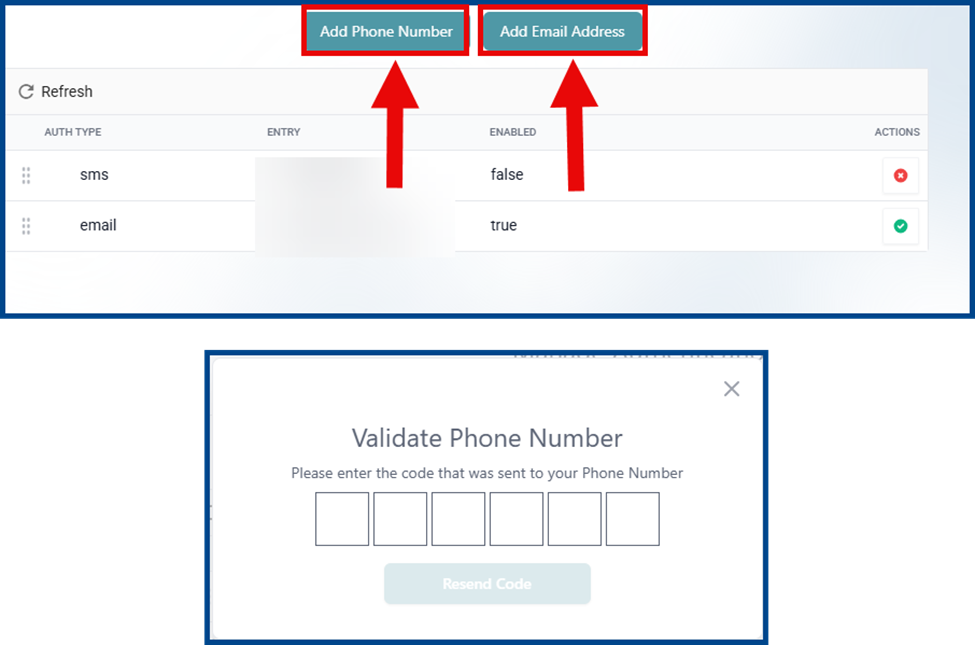
Your entry will appear on the authentication list once the code is entered. To remove an authentication type, click the trash can icon and click OK.