Per Rule 11.8 (b) and (c), CRMLS prohibits removing photos from a listing after it enters an under-contract status (Active Under Contract/Pending). Therefore, photo removal must occur before the listing goes under contract.
This guide explains how to remove photos while the listing is still Active and how to add concession details before marking it as Sold.
Photo Removal Rules
The listing agent is not required nor obligated to remove photos from a listing. Once a listing is updated to a finalized status, Rule 11.8 of the CRMLS Rules and Policies prohibits the removal of any historical data, including photographs, from the MLS.
Photos may be removed at the client’s request and before the listing goes under contract, provided that at least one (1) photo shows a substantial portion of the property’s exterior.
Additionally, the listing agent can ask their local association or CRMLS to update the listing to “Internet: NO,” which blocks third-party sites from retrieving listing photos. However, neither the association nor CRMLS can guarantee that third-party sites will remove all historical photos once they have circulated online.
Note: While photos cannot be removed once a listing is under contract, the Internet Display can still be turned on or off at any time, regardless of the listing’s status.
To learn more about your listing’s photo and concession options, select one of the links below and skip to your MLS system:
Flexmls
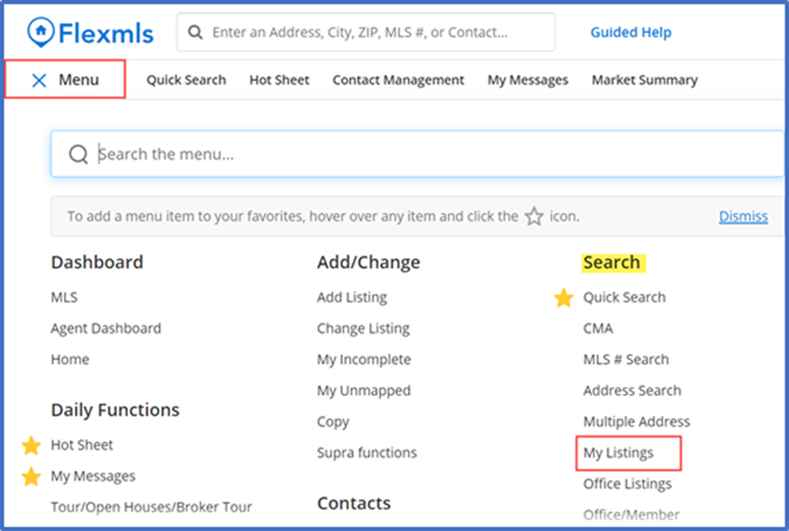
- Navigate to the Menu tab. Go to the Search section and click My Listings.
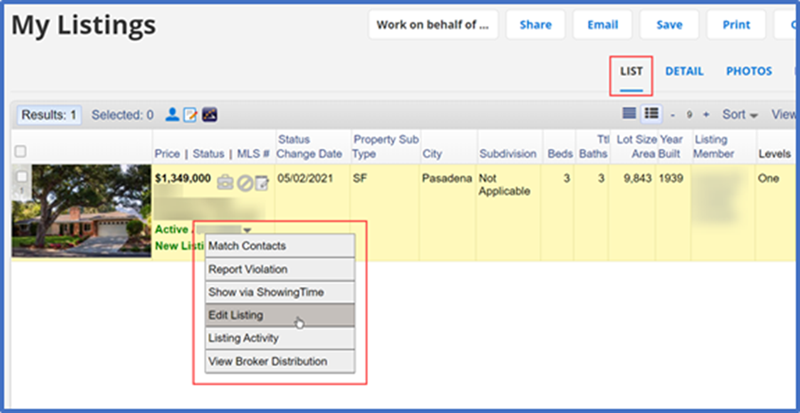
- From the List view, click the down arrow next to your listing’s MLS ID. Select Edit Listing from the dropdown menu.
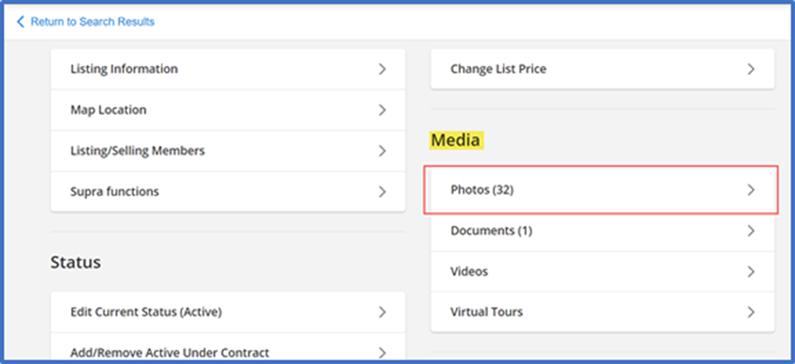
- Continue to the Media section and click on Photos
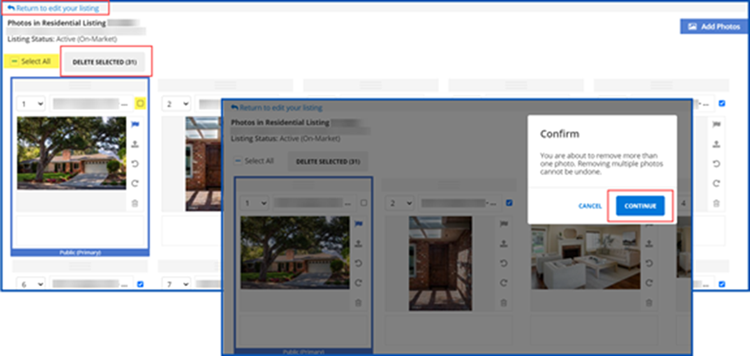
- Choose the photos you wish to delete (or click Select All and uncheck the ones you want to keep)
- Click Delete Selected. Once the dialog box pops up, click Continue to confirm your deleted items.
- Click Return to edit your listing in the top-left corner of the page
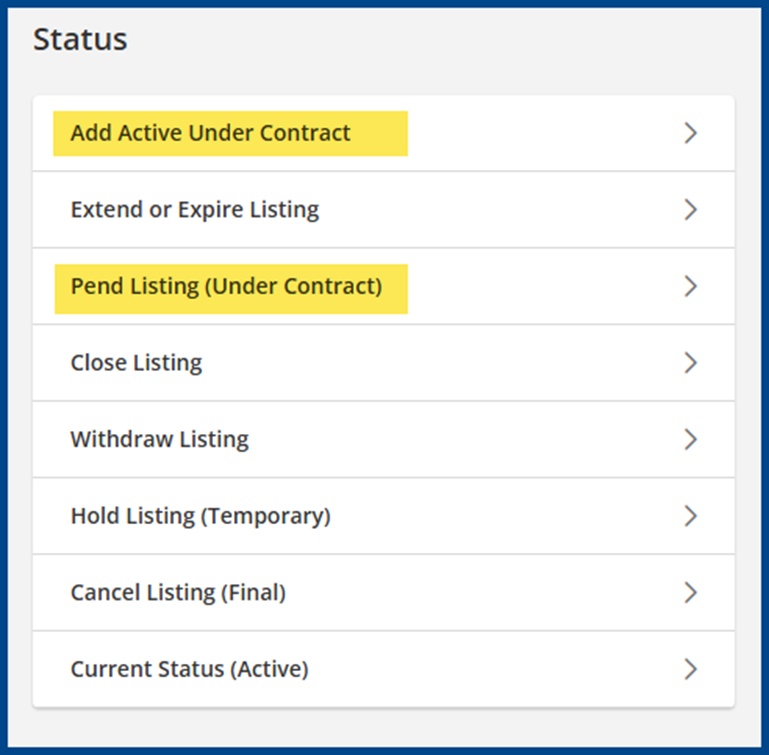
- To update the listing’s status, click Close Listing under the Status section
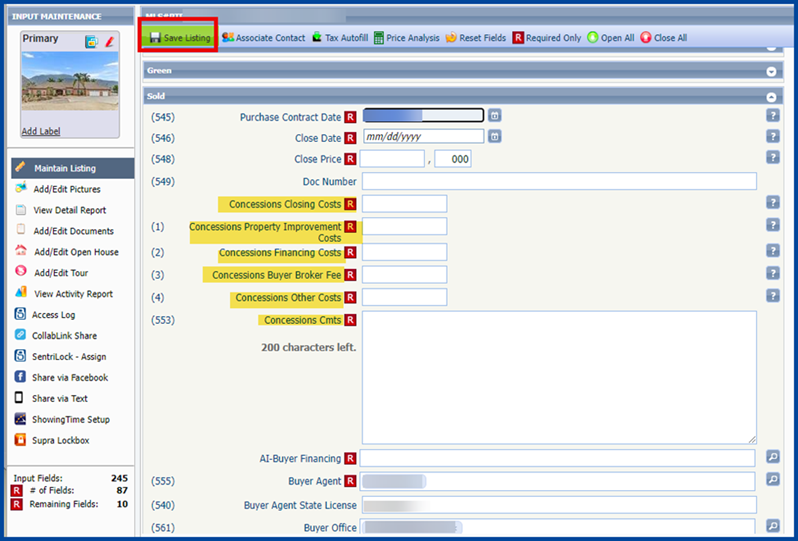
- Before closing the listing, complete all required and relevant fields, including the Concessions at Close fields
If you’re unfamiliar with the Concessions at Close fields, please read the FAQ below:
What new concession information will be recorded at the Close of a transaction?
Although concession information has always been required and recorded at Close, as of 8/13/24, CRMLS will require a category breakdown of how the seller concession amount was used. The following required concession fields will be added at the Close of a transaction:
- Closing Costs (escrow and title fees)
- Property Improvements (repairs and upgrades)
- Financing Costs (loan origination and discount points)
- Buyer Broker Fee (the amount the seller paid in concessions to the buyer, which were used to cover the agreed-upon buyer’s broker fees)
- Other

Note: For definitions of each field, click the (?) icon to the right of each field name. All required fields are indicated with a red asterisk (*).
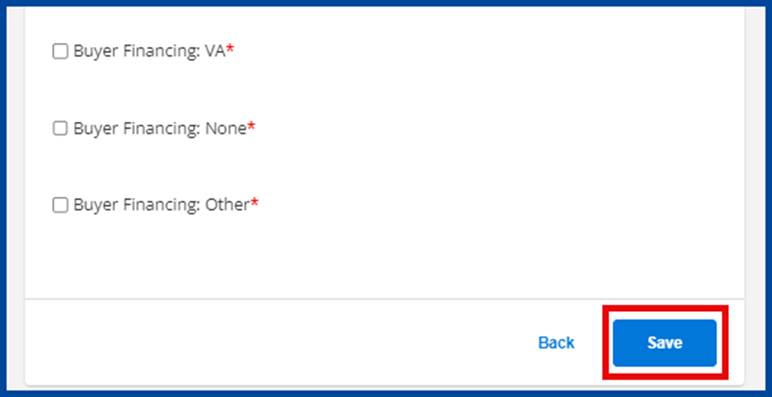
9. After adding all required fields, click Save to update your listing to Sold
Matrix
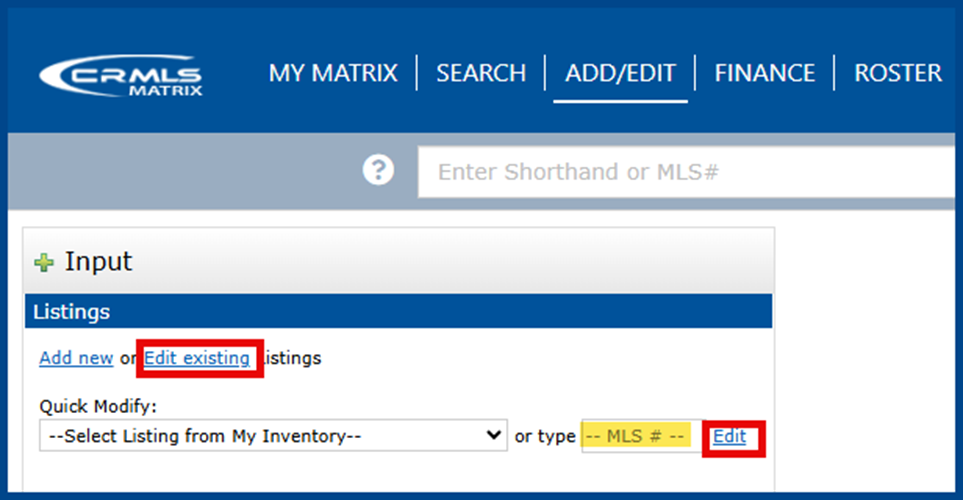
- Go to the Add/Edit tab and select Edit existing. Select your listing from the Quick Modify menu or enter the MLS #, then click Edit.
2. Scroll down and select Manage Photos under Other Options
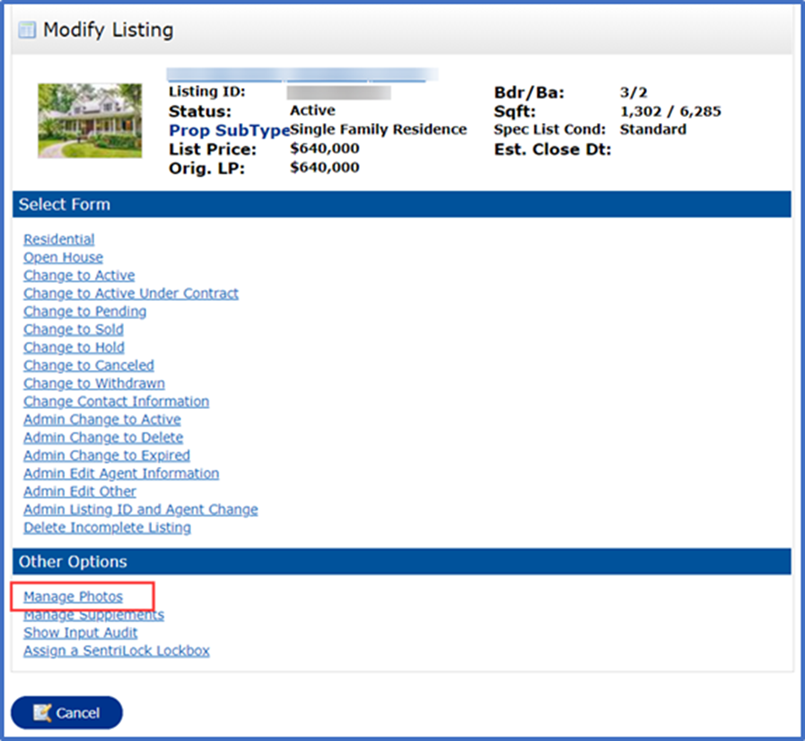
3. Choose the photos you wish to delete (or click Select All and uncheck the ones you want to keep)
4. Click Delete Checked on the bottom of the page. When the dialog box appears, click OK to confirm your deleted items.

5. From there, click Certify and Save

6. Click the desired under-contract status to update the listing
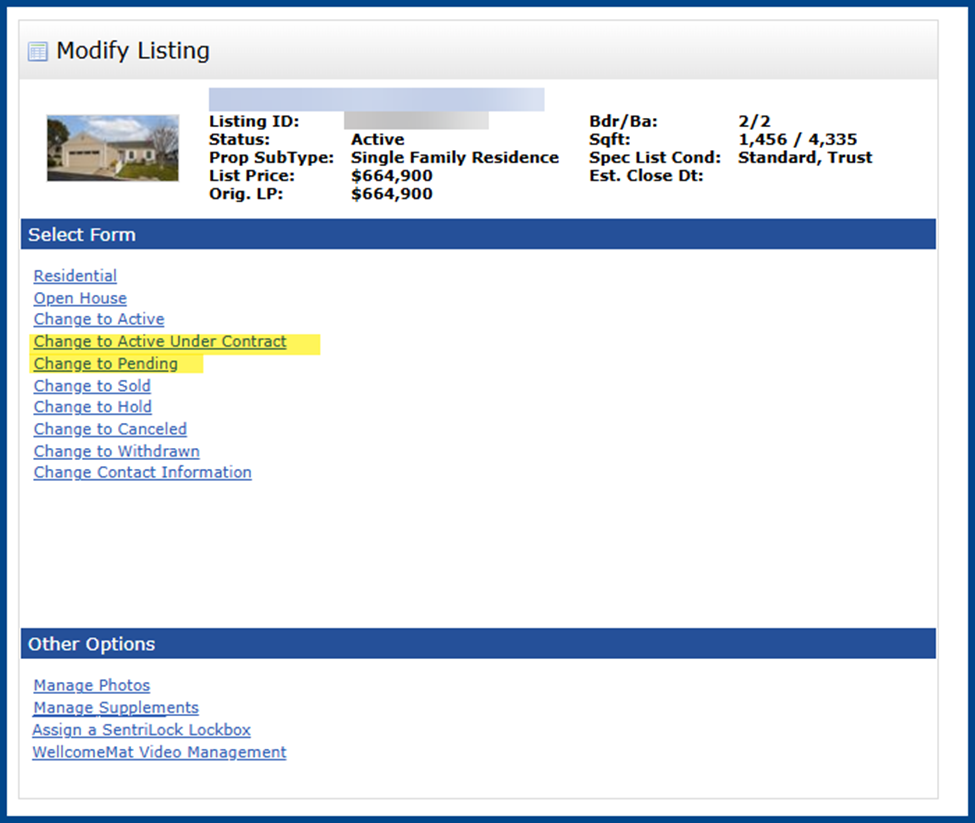
7. Before closing the listing, complete all required and relevant fields, including the Concessions at Close fields
What new concession information will be recorded at the Close of a transaction?
Although concession information has always been required and recorded at Close, as of 8/13/24, CRMLS will require a category breakdown of how the seller concession amount was used. The following required concession fields will be added at the Close of a transaction:
- Closing Costs (escrow and title fees)
- Property Improvements (repairs and upgrades)
- Financing Costs (loan origination and discount points)
- Buyer Broker Fee (the amount the seller paid in concessions to the buyer, which were used to cover the agreed-upon buyer’s broker fees)
- Other

Note: For definitions of each field, click the (?) icon to the right of each field name.
8. After adding all required fields, click Submit Listing at the bottom left of the page
Paragon
- From the homepage, go to the Listings tab. Click on Listings under the Maintain section.

2. From there, locate your listing’s MLS ID and click Select an Action on the right side of the page. Then, select Picture Administration (A).
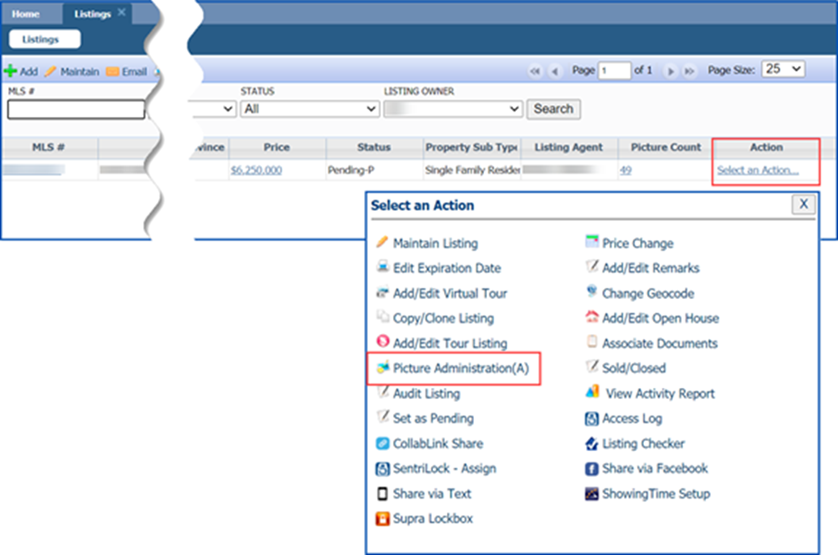
3. Choose the photos you wish to delete (or click Select All and uncheck the ones you want to keep)
4. Click Delete at the top of the page
5. When the dialog box appears, click Delete Photo to confirm your permanent changes
6. Click the Close button to exit the Picture Administration (A) section

6. From the Listings page, click Select an Action to update the listing to the desired under-contract status
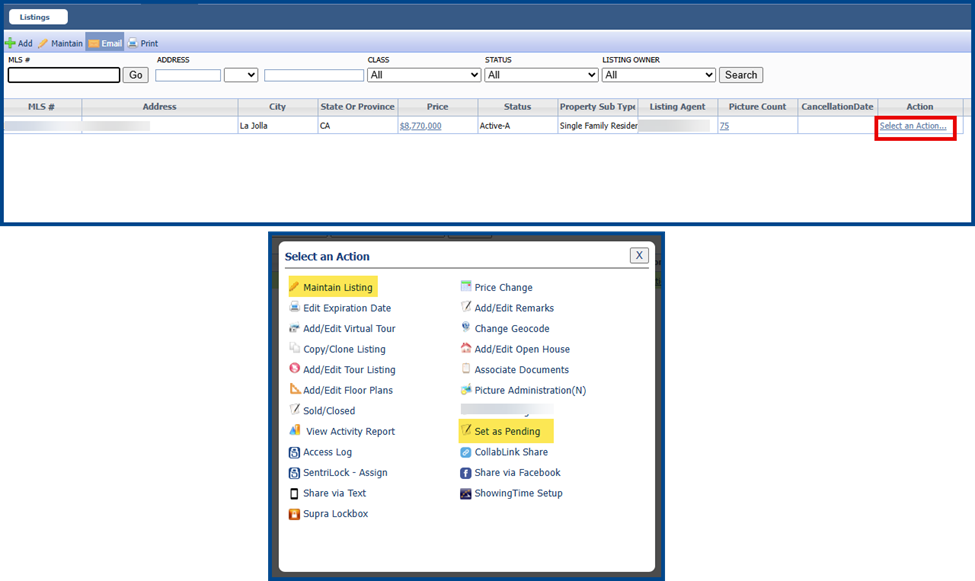
What new concession information will be recorded at the Close of a transaction?
Although concession information has always been required and recorded at Close, as of 8/13/24, CRMLS will require a category breakdown of how the seller concession amount was used. The following required concession fields will be added at the Close of a transaction:
- Closing Costs (escrow and title fees)
- Property Improvements (repairs and upgrades)
- Financing Costs (loan origination and discount points)
- Buyer Broker Fee (the amount the seller paid in concessions to the buyer, which were used to cover the agreed-upon buyer’s broker fees)
- Other
7. Complete all required and relevant fields, including the Concessions at Close fields
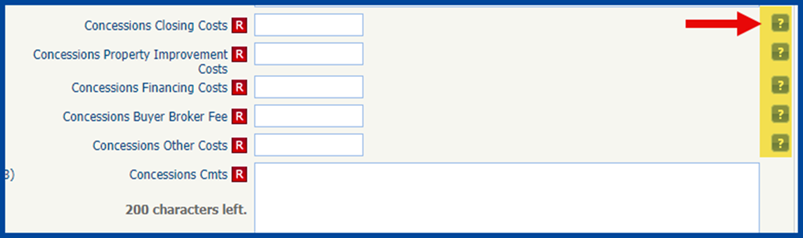
Note: For definitions of each field, click the (?) icon to the right of each field name.
8. After adding all required fields, click Save Listing to confirm your changes