Multifactor authentication (MFA), also known as two-factor authentication (2FA), is now required to log into your MLS account.
Why is CRMLS implementing MFA measures?
Cybersecurity threats are evolving constantly, and the real estate industry has seen multiple high-profile security breaches in recent years. CRMLS investigated multiple ways to prevent potential fraud and data theft and found that MFA is one of the simplest and most effective ways to ensure no bad actors can access the MLS or personal user data.
Getting Started
Log in to your REcore dashboard. When prompted, choose Text, Email, or Passkey to verify your identity. Your contact details from the agent roster will display automatically.
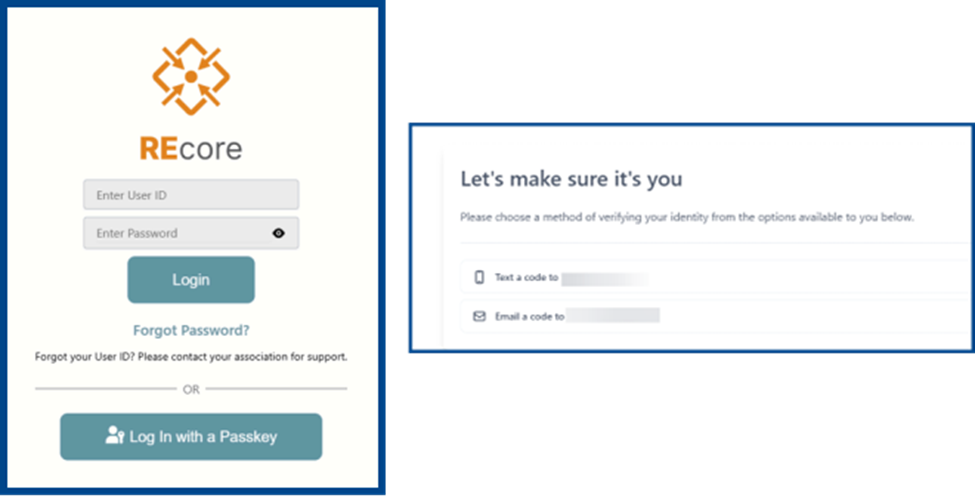
Note: The text option displays the last four digits of the phone number in the roster to ensure accuracy.
If you choose text or email verification, the confirmation code will be sent to your selected number or address. Retrieve the code and enter it in the verification field to confirm your identity.
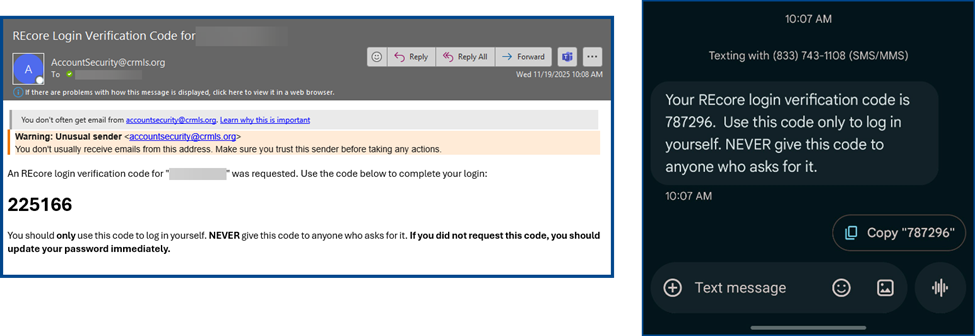
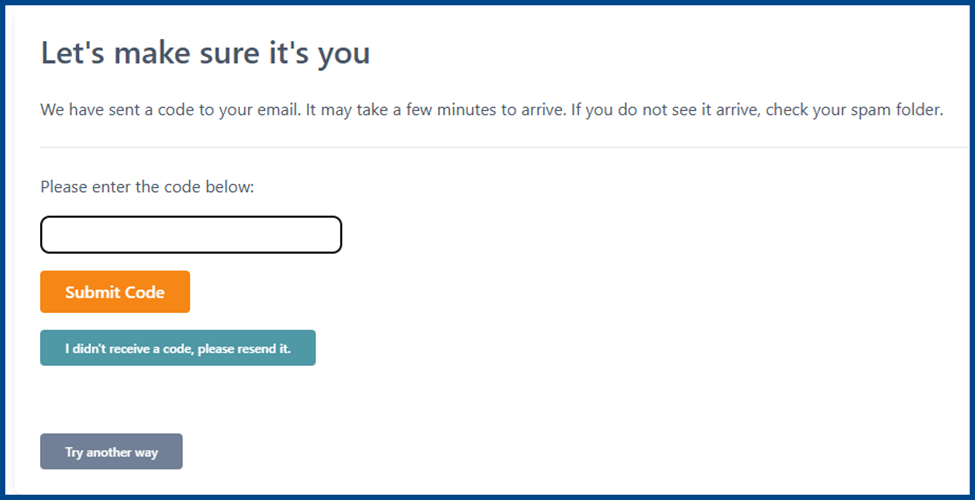
If the code doesn’t appear after a few minutes, click I didn’t receive a code, please resend it. If you continue to experience issues, click Try another way to choose a different verification method.
If you choose the Passkey option, how to proceed depends on your device:
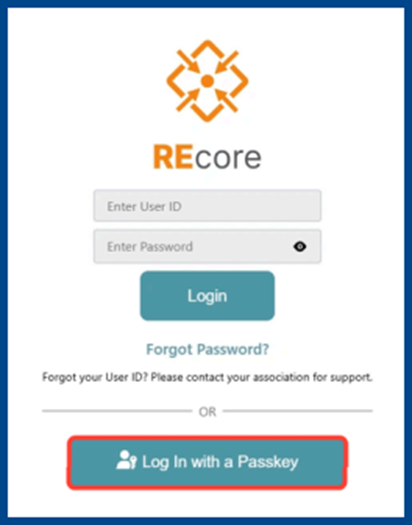
iPhone, iPad, or Android device
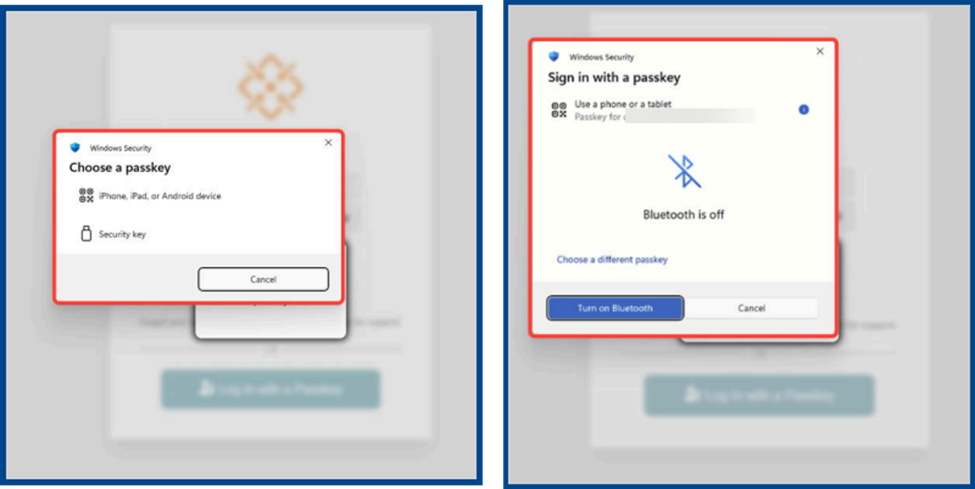
- Turn on Bluetooth
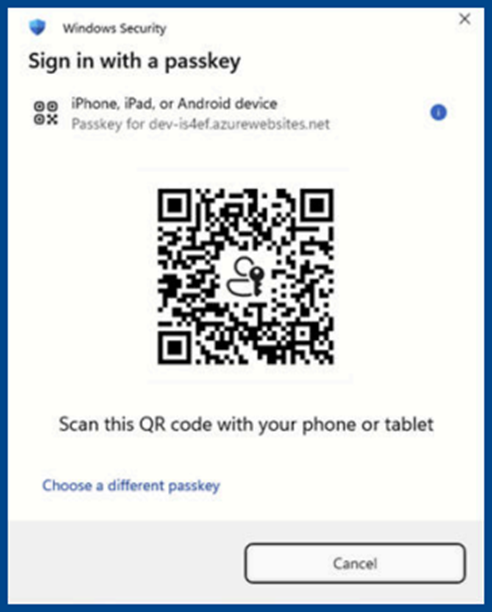
- Scan the QR code with your device
- Approve the login with Face ID, Touch ID, or PIN
Security Key (USB device)
- Insert your hardware security key into the USB port
- Tap or press the key when prompted
Note: If you select an iPhone, iPad, or Android Device, you may be prompted to turn on Bluetooth.
Scan the QR code with your device and follow the prompts to complete authentication.
Updating MFA Method
From the left menu of your dashboard, click your username to launch the Account window. Select Manage Authentications to open your verified MFA methods.
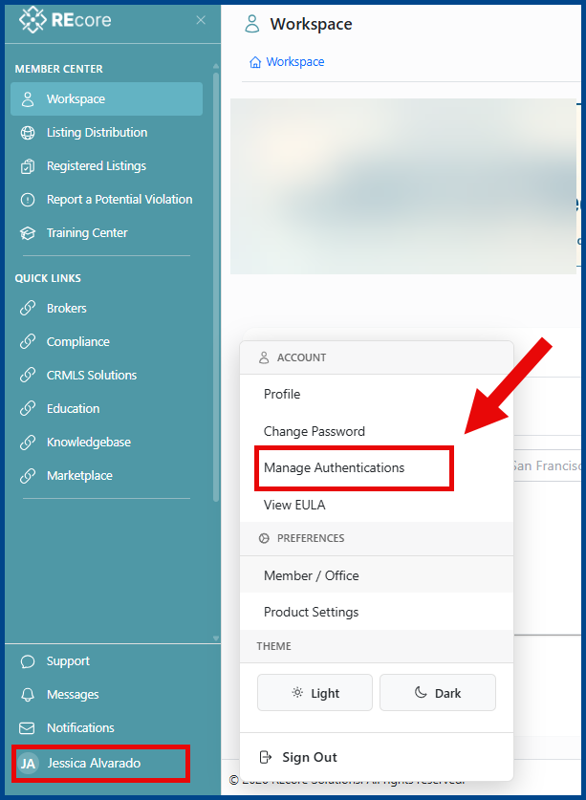
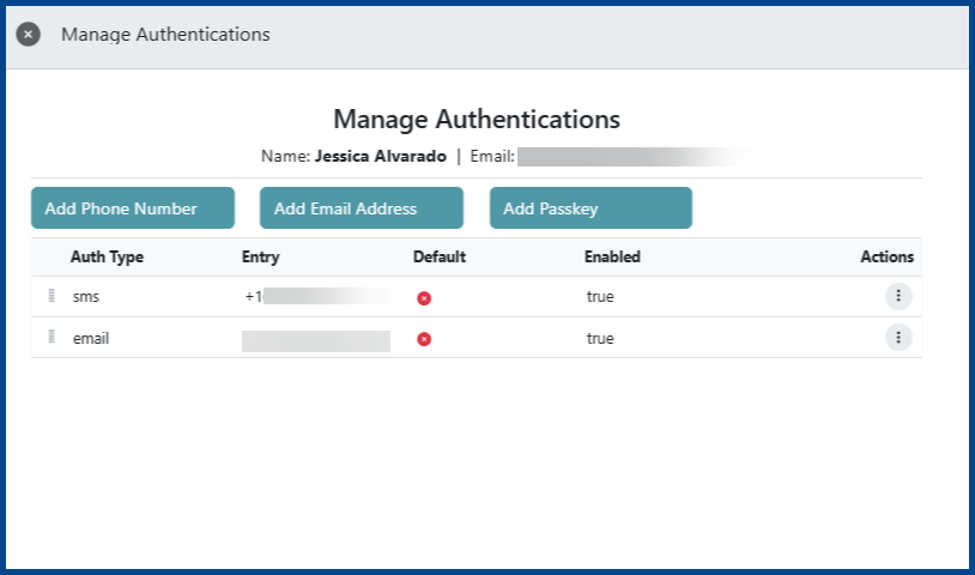
If opting to Add Phone Number or Add Email Address, a verification code will be sent your mobile device or email, respectively.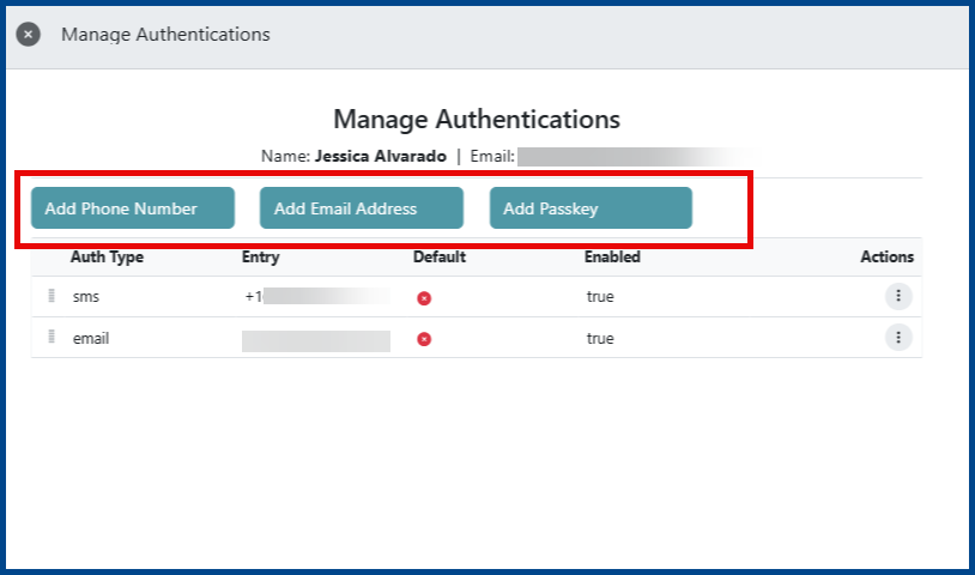
Enter the verification code to save your new entry.
To Add Passkey, select one of the following options:
Desktop Passkey (Windows and macOS)
- Save the passkey directly on your desktop
- This passkey will be tied to your device for secure login
iPhone, iPad, or Android device
- Turn on Bluetooth in your device settings
- Scan the QR code
- Approve the login with Face ID, Touch ID, or PIN
Security Key (USB device)
- Insert your key into the USB port of your computer
- Tap or press the key when prompted
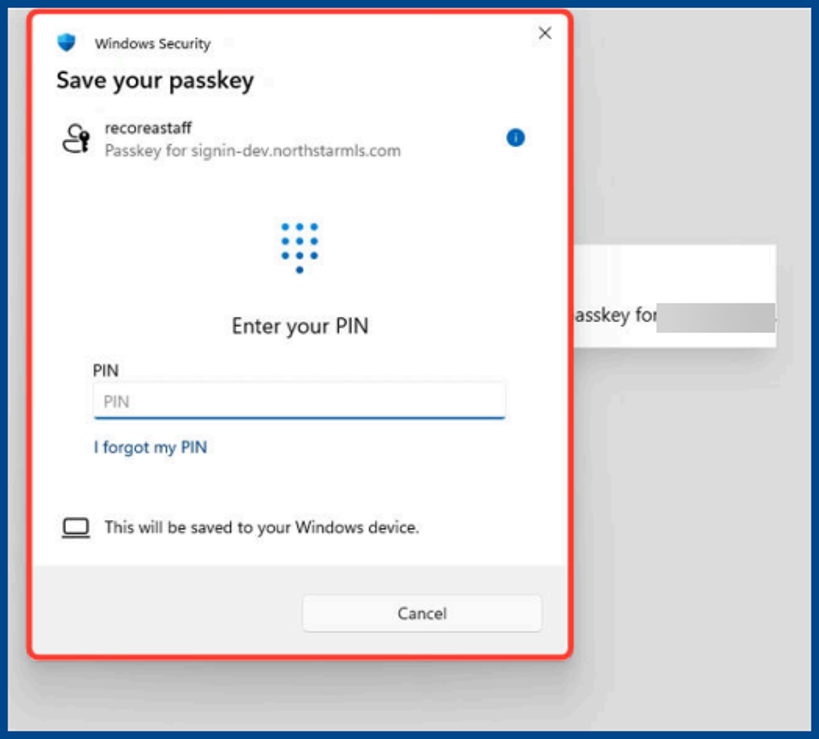
Your new Passkey will appear once the registered passkey is entered
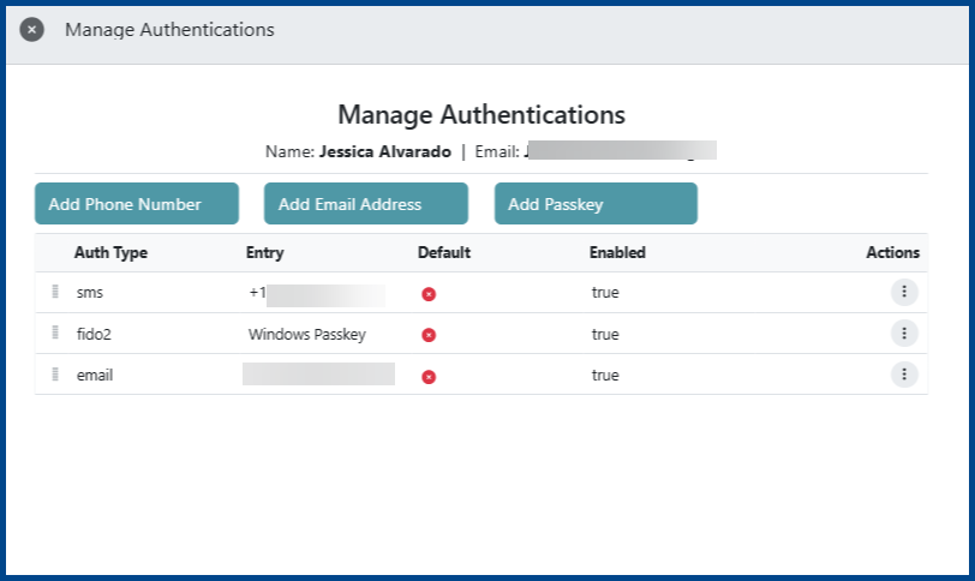
How to Remove an MFA Method
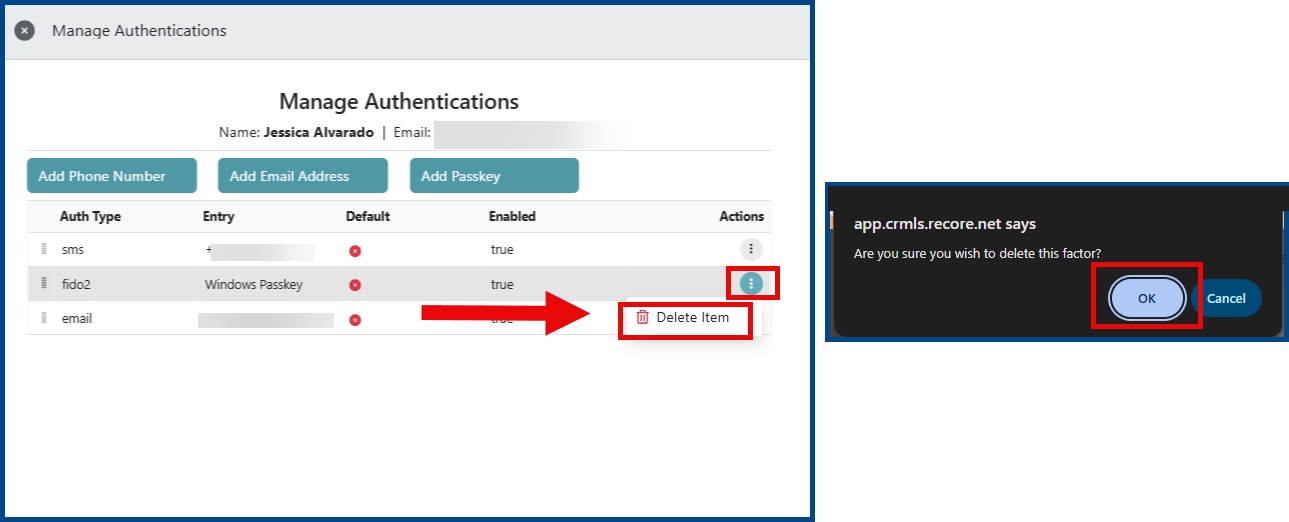
Click the three dots to the right of an authentication type and select delete item. A confirmation window will ask “Are you sure you wish to delete this factor?” Click OK to remove the entry.