Workspace is the next evolution of your REcore dashboard, providing quick, centralized access to tools and resources included in your MLS membership.
This guide covers how to access Workspace and what features, functions, and customization options are available at launch.
CRMLS Resources, Assocation, Broker, and Product Apps
Accessing Compliance Live Chat
How to Access Workspace
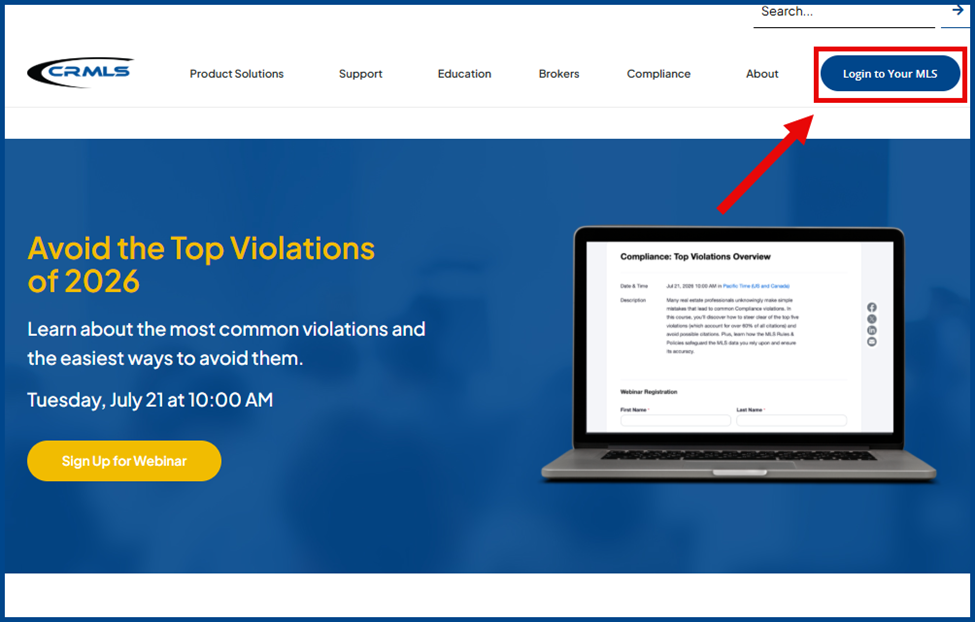
From go.crmls.org, click Login to Your MLS to launch your REcore login page, then log into Workspace by using your MLS credentials.
Note: The login page is also accessible from your Board and Association websites.
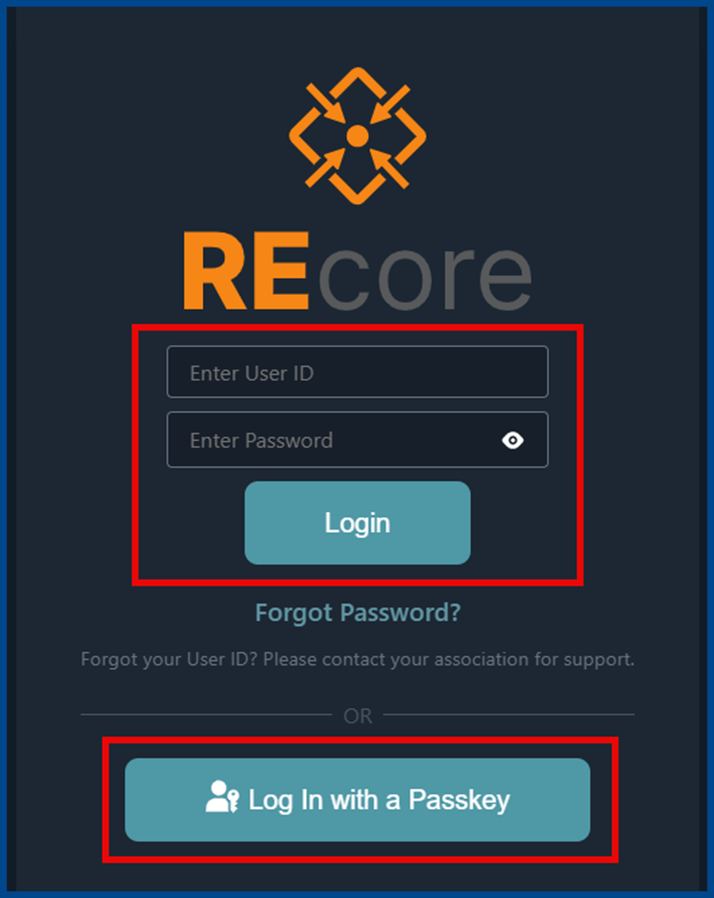
Enter your MLS User ID, password or the Passkey registered on your device.
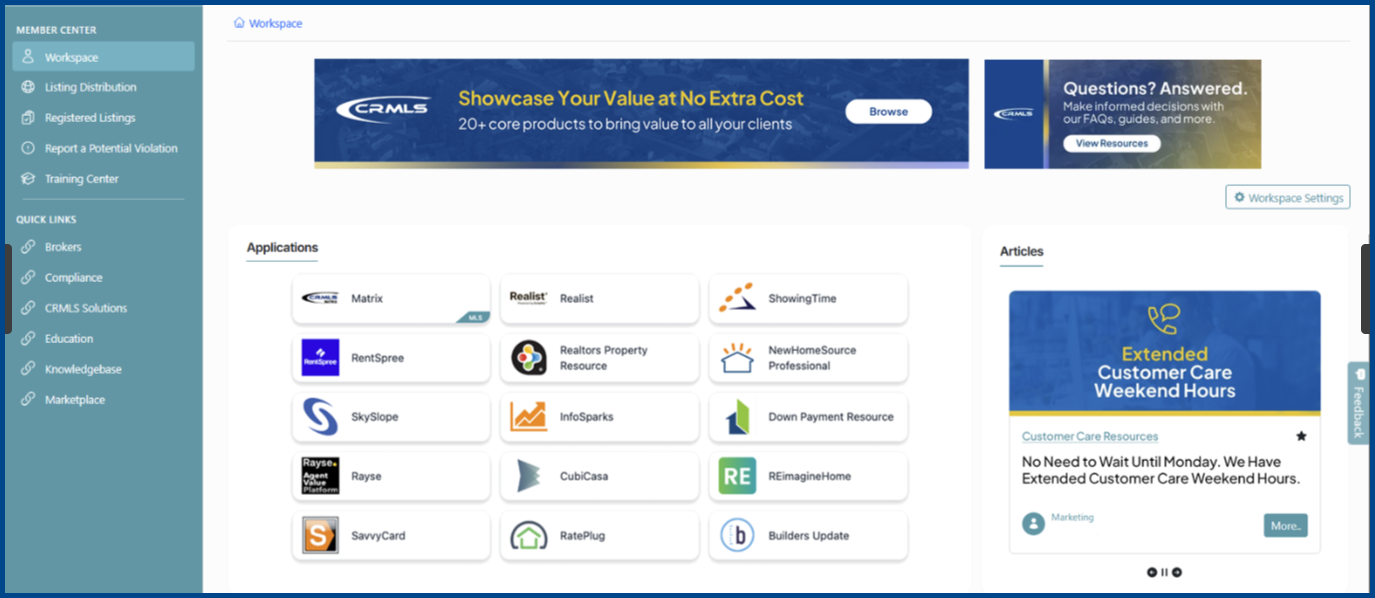
Your new REcore Workspace will display on the homepage.
Save Passwords
Your browser, mobile device, or password manager can securely auto-save passwords for future logins.
NOTE: Passwords are case sensitive; usernames are not. If you experience trouble at login, click the Forgot my Password button to begin the password process. If issues continue, contact our support team at 1.800.925.1525 for further assistance.
System Messages Center
The System Messages Center stores all CRMLS alerts and messages, including news, system outage updates, vendor announcements, and more.
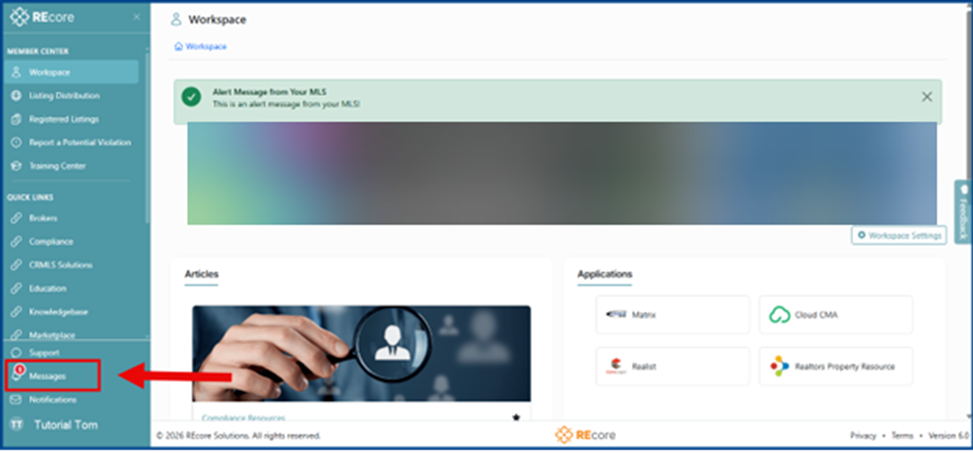
Click Messages to open the Systems Messages Center.
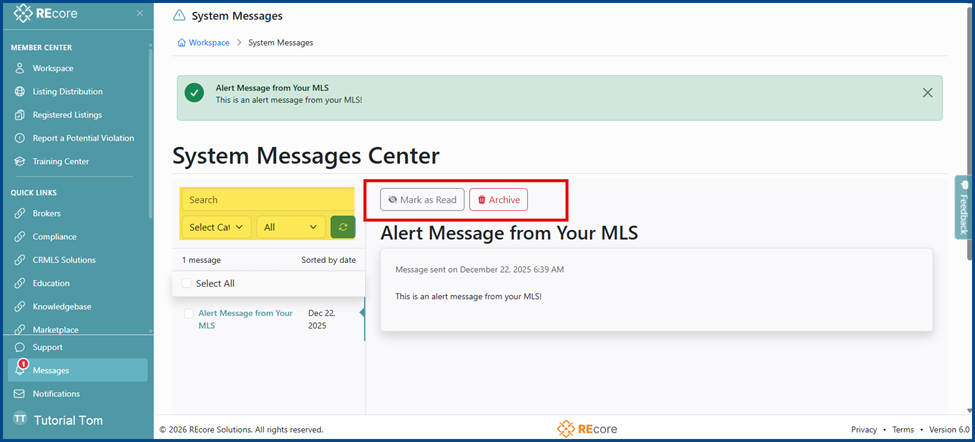
From there, search, read, or archive messages.
Notifications Center
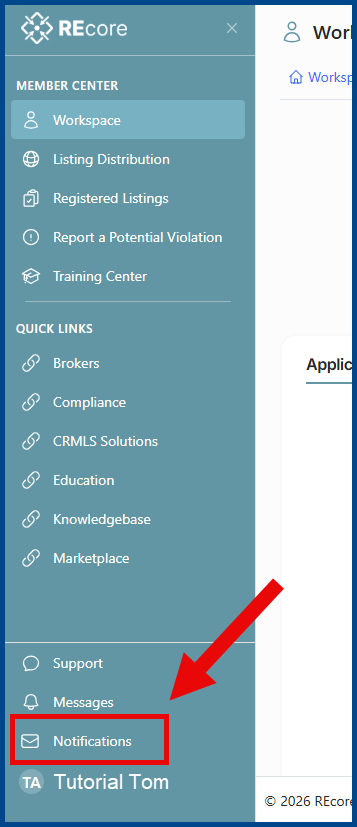
The Notifications Center is next to the System Messages Center. All CRMLS email communications are located here, including eConnects, broker reports, marketing updates, training events, and more.
Click Notifications (envelope icon) to view new communications.
Logout
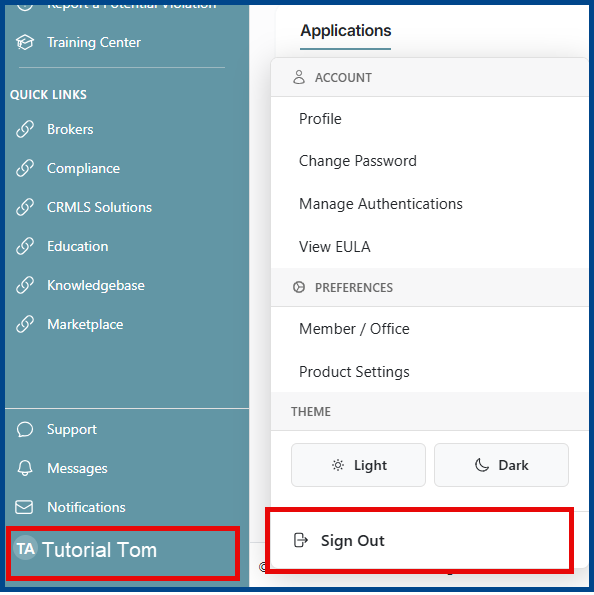
To log out of your workspace, select your name, then click Sign Out.
Personalize Your Dashboard
Widgets
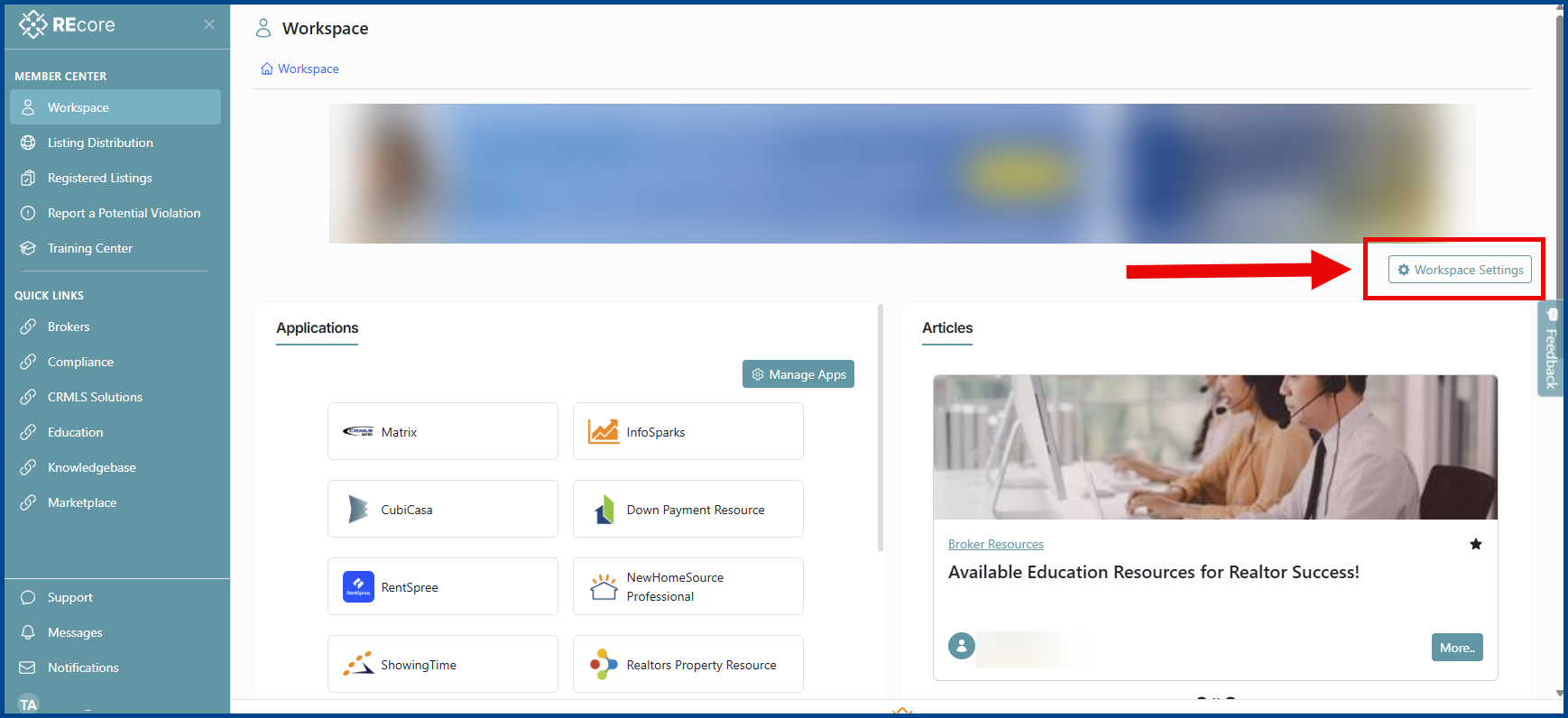
Click Workspace Settings on the right to select widgets to display on your homepage.
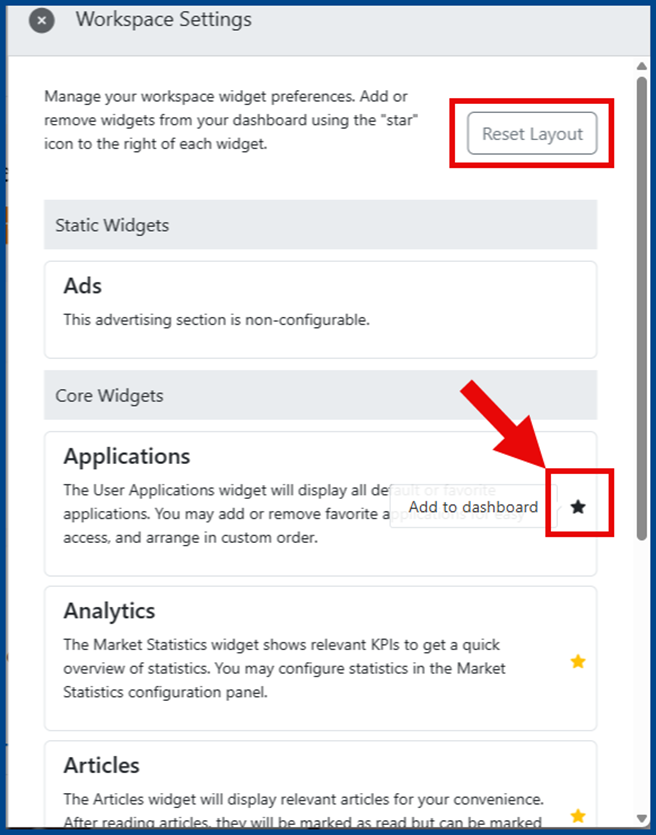
A window will display all available widgets. Click the star icon to add them to your landing page. Clicking the star icon again will remove the widget from your main page. Click Reset Layout to revert your widgets to their default setting.
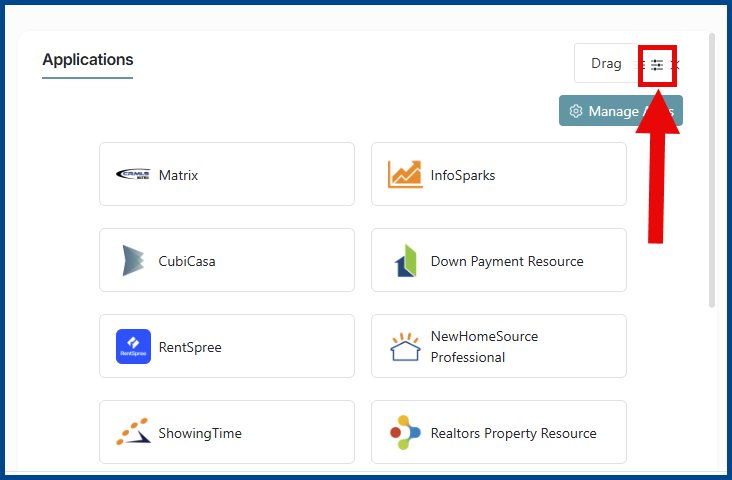
To update your layout, click the slider icon on the top right. Select the widget and drag it to reorder it to your desired location.
Workspace Display Theme
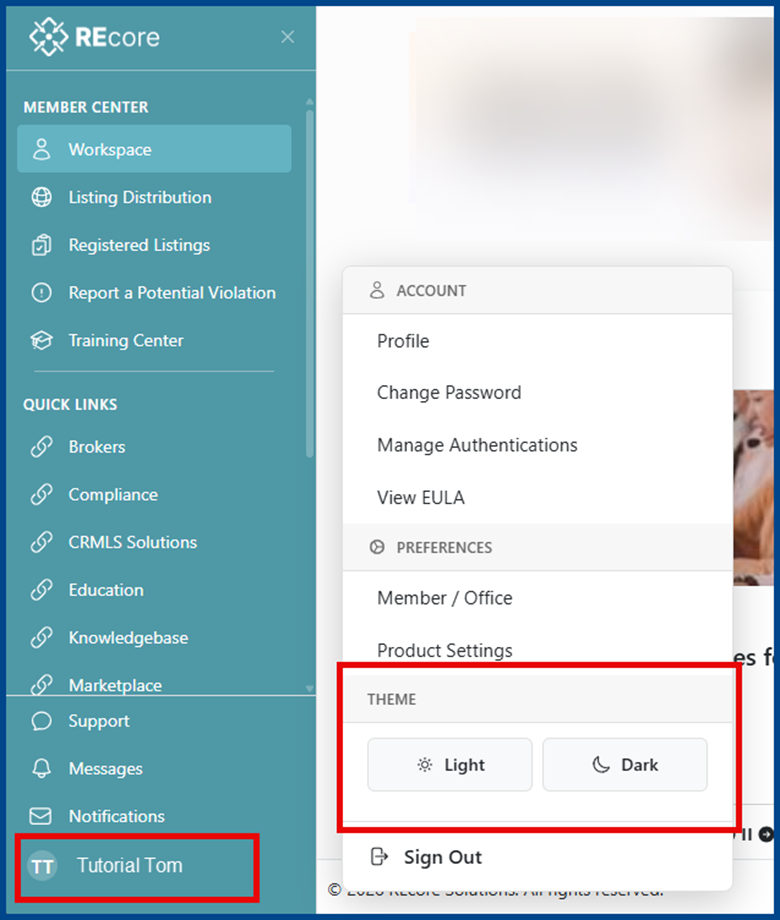
Click your name on the bottom left, then select Light or Dark. Your preference will save automatically.
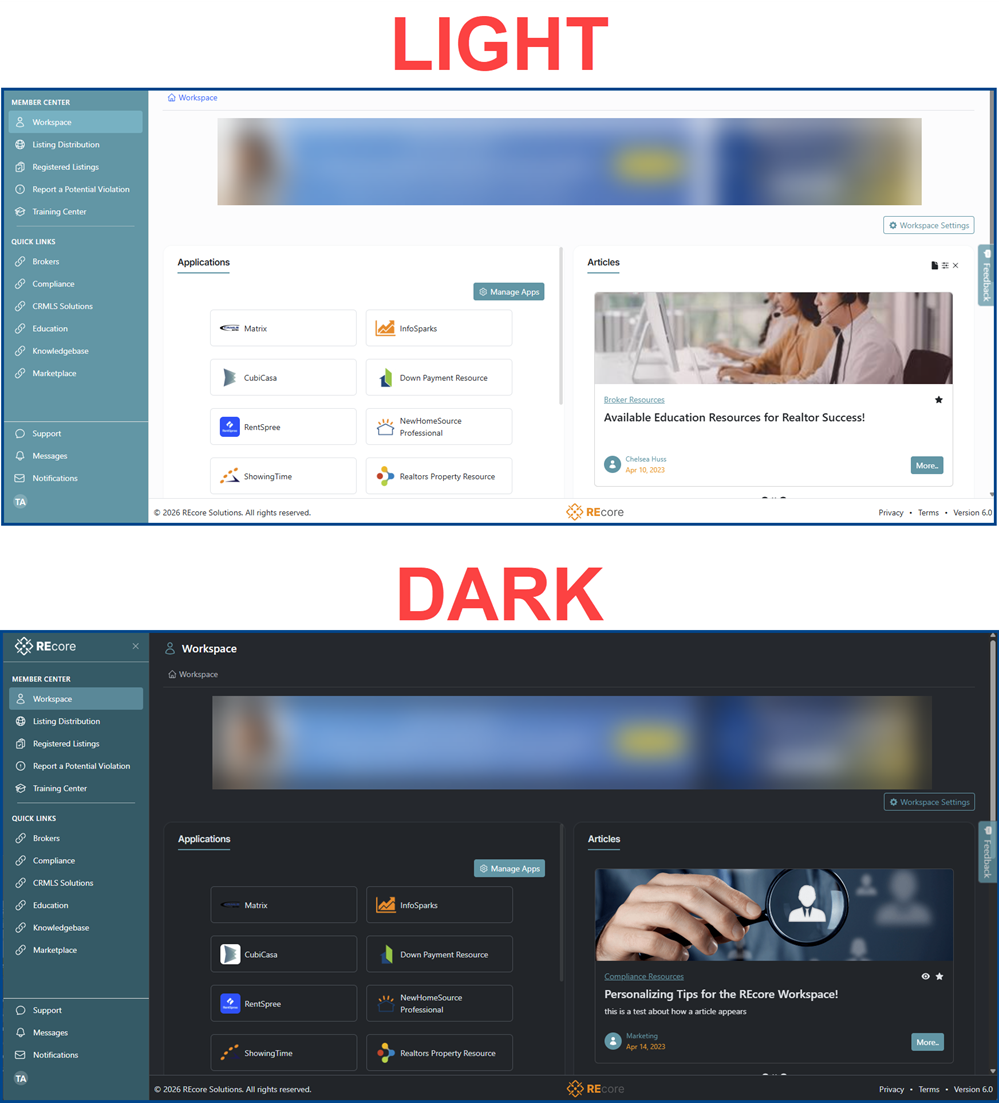
CRMLS Resources, Association, Broker, and Product Apps
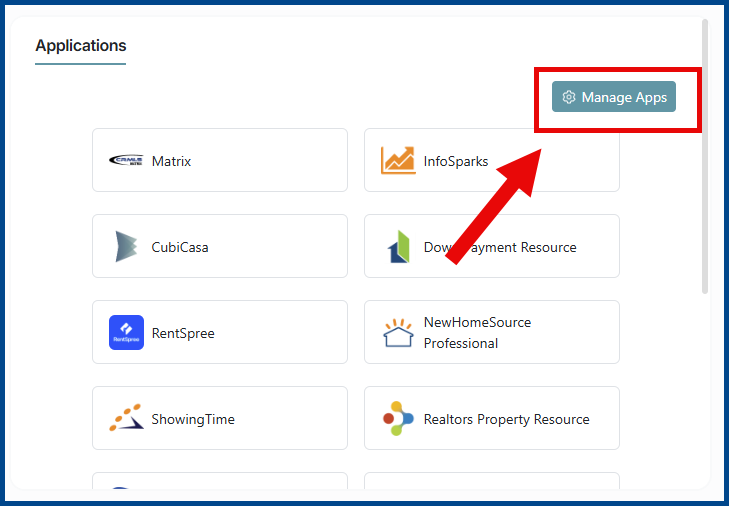
To view all available systems and products, click the Managing Apps button on the top right of the Applications widget.
A window will open from the right side of the page, providing access to all the available applications. Find your desired product then click the star icon to favorite a product and display it on the Application widget. To remove or unfavorite a product from your Applications widget, click the yellow star icon.
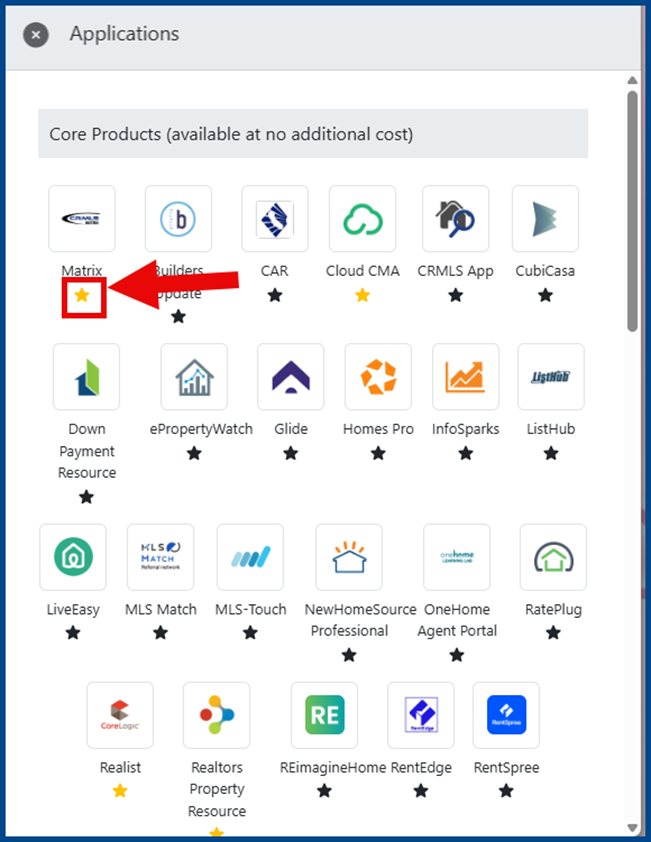
Note: Available applications may vary based on your AOR/BOR.
Click and drag products to rearrange them in the Applications widget.
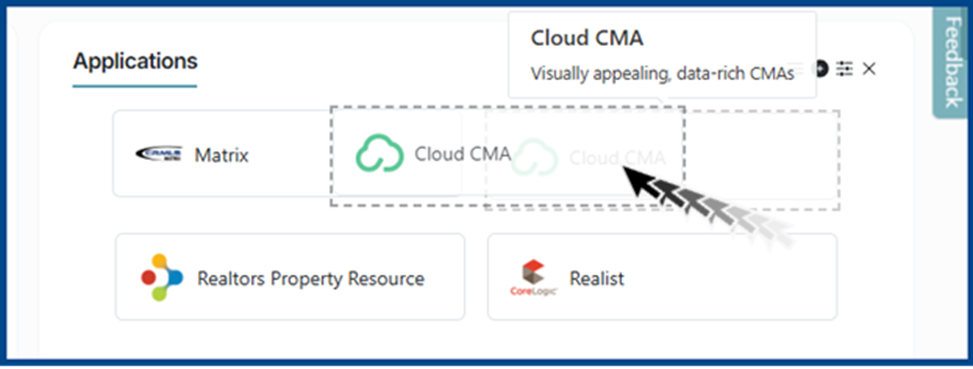
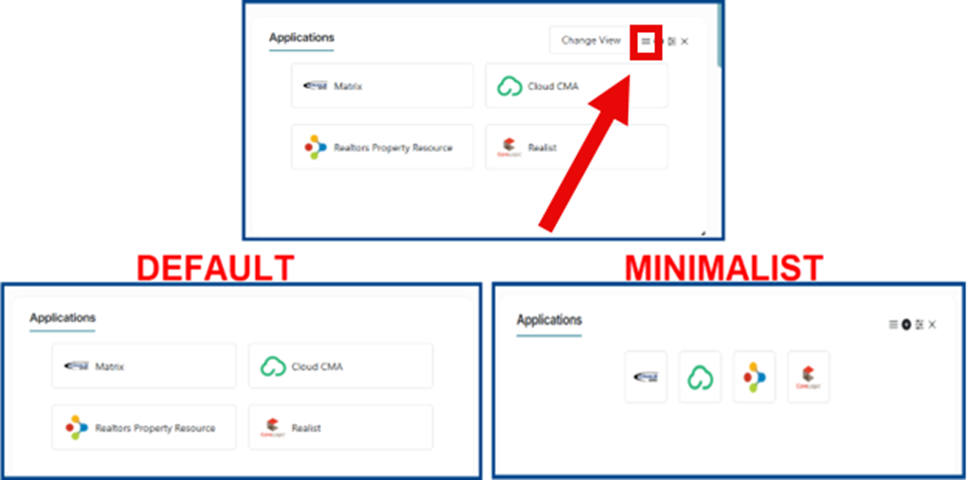
Click the stack icon to the right of the widget to update your applications layout. Select either the Default or Minimalist view.
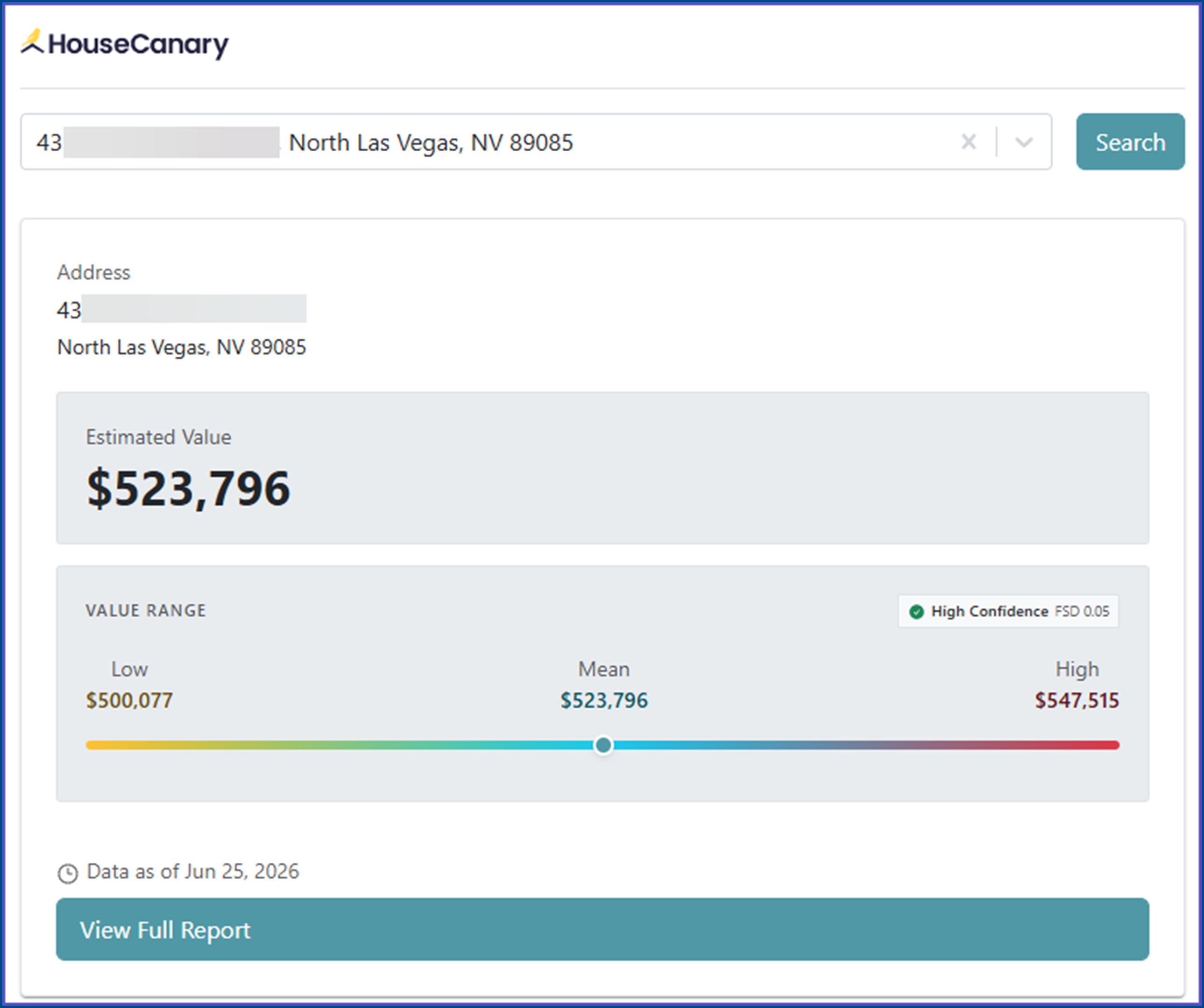
HouseCanary
HouseCanary is an Automated Valuation Model (AVM) tool. You can get instant access to property data, valuations, market forecasts, and more.
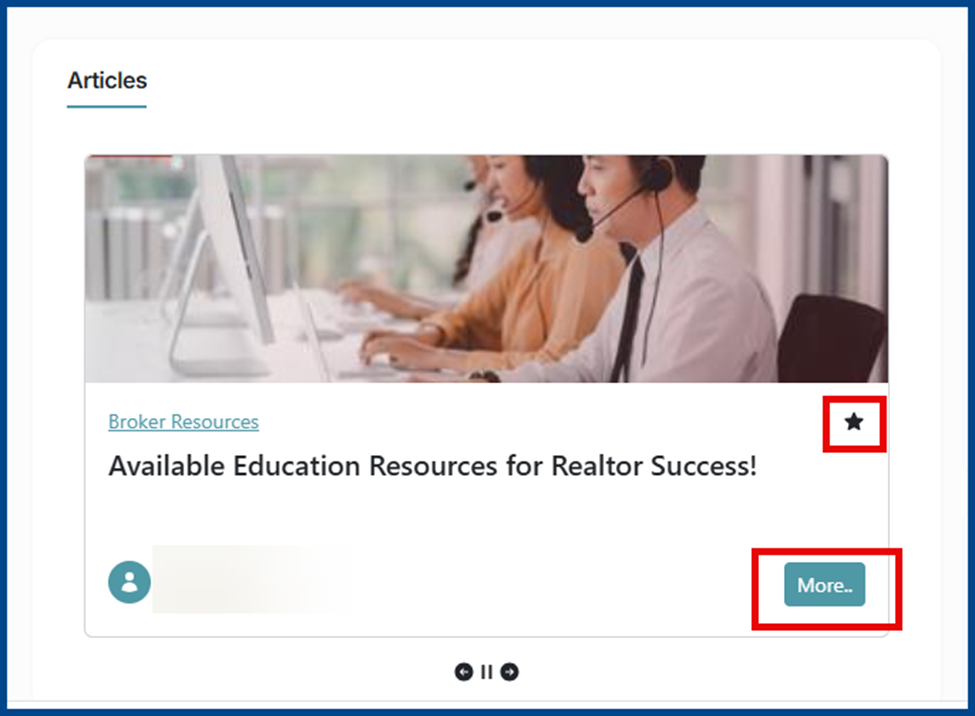
Articles
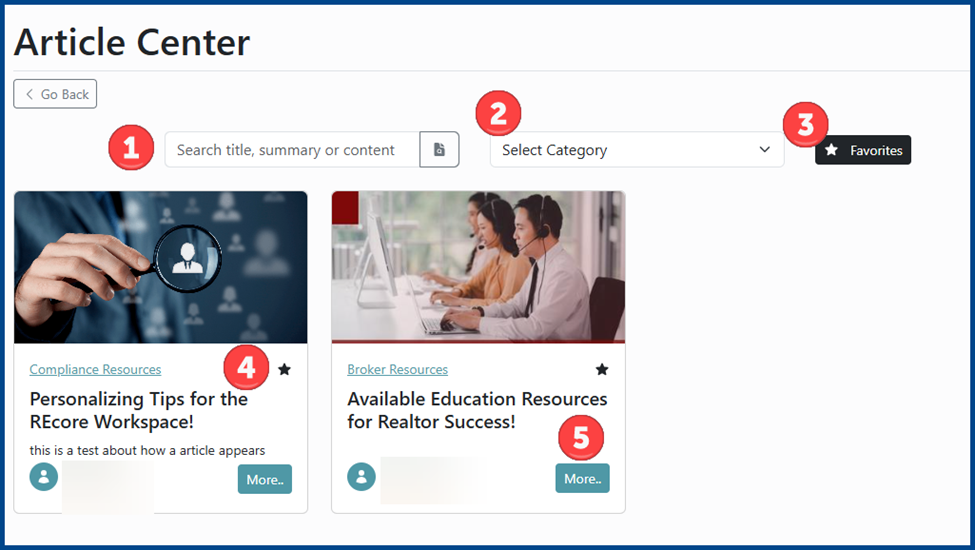
To stay on top of the continuously evolving real estate industry, CRMLS has created a carousel or articles that provides timely updates and news. Articles can include marketing news, training classes/events, policy changes, and other industry developments. Click the star icon to save an article. Select More.. for additional details.
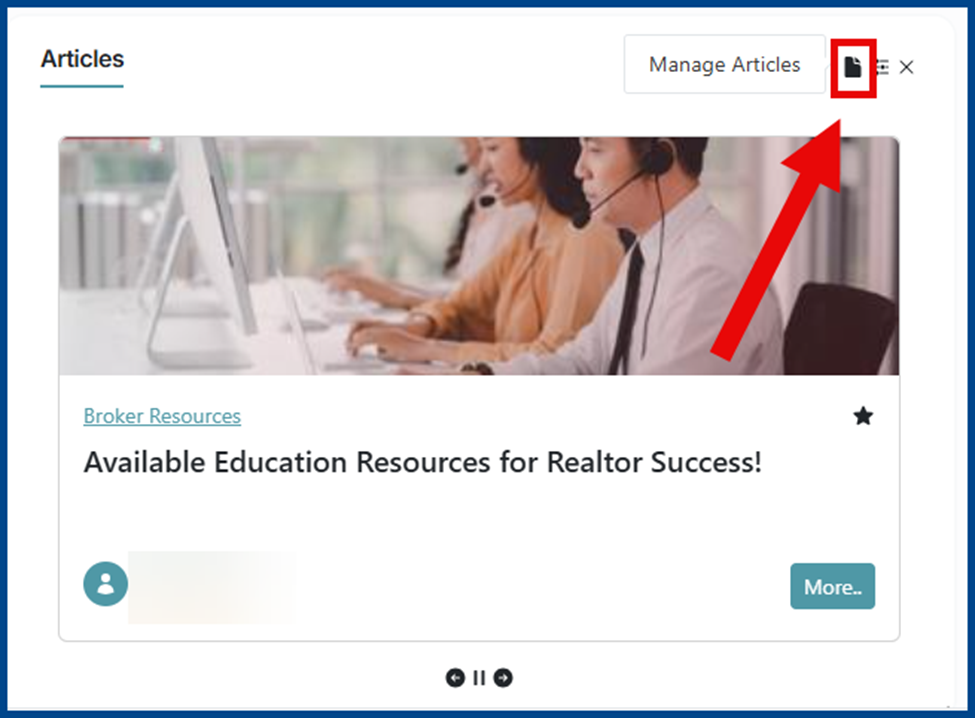
Hover over the Articles widget, then click the page icon to open the Article Center.
There are multiple ways to navigate the article archive:
- Use the Search box to find articles by title, summary, or content
- Click the Select Category dropdown to refine results
- Filter by Favorites
- Select the star icon to mark favorite articles
- Click the . button for additional details
Additional CRMLS Hubs
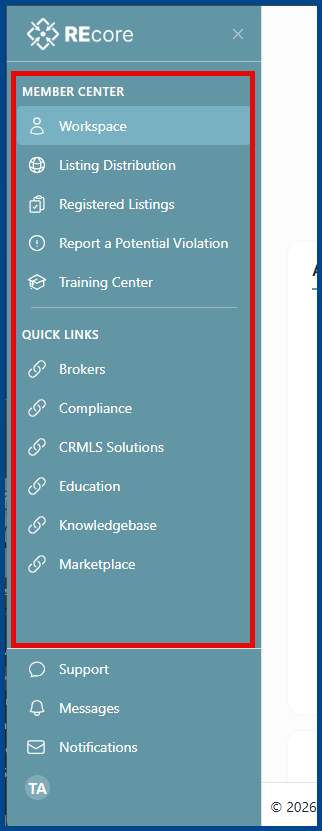
The left-hand navigation panel provides access to various CRMLS hubs and services such as Listing Distribution, Registered Listings, Report a Potential Violation, and the Training Center.
Quick Links offers easy access to different CRMLS departments and resources.
Forgot or Change Password
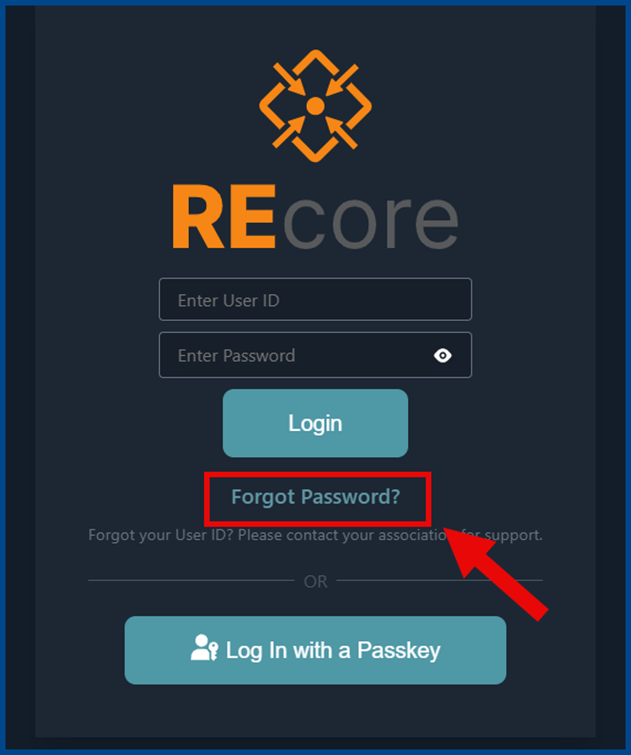
If you forget your password:
- Click Forgot Password from the login screen
- Enter User ID and click the Send password reset email button
- Contact your association or board if you have forgotten your User ID
- The Password Reset Email Sent confirmation will display
- Open the email sent to your inbox. Click Reset Password.
Note: If you cannot find the email, please check your spam/junk folder - Create a new password, click Confirm, then select Reset Password
- Check your email to confirm the updated password
Password Requirements:
- One capital letter
- One lowercase letter
- One number
- One special character (!”#\$%&, etc.)
- At least 8 characters long
Note: Passwords are case sensitive.
To change your password:
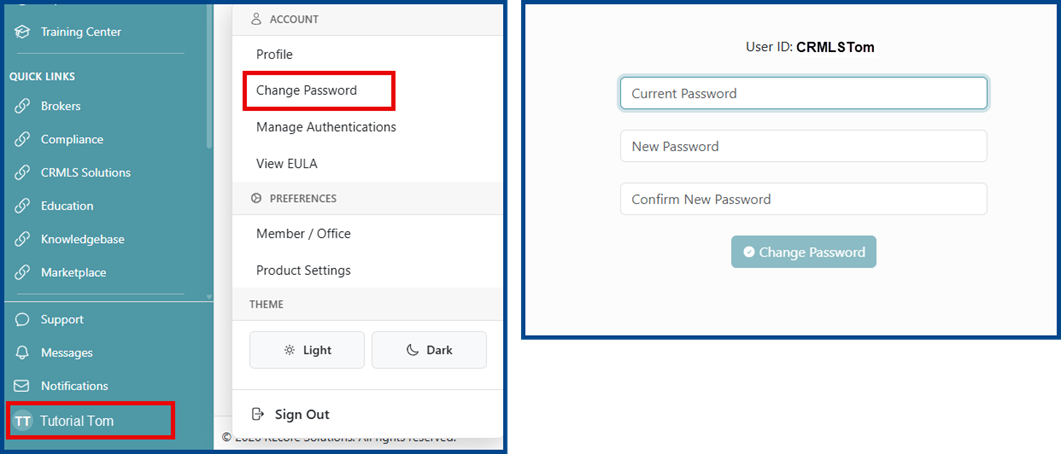
- Click on your name in the bottom-left corner
- Select Change Password
- Create a new password, click Confirm, then select Change Password
- Check your email and confirm the updated password
Password Requirements:
- One capital letter
- One lowercase letter
- One number
- One special character (!”#\$%&, etc.)
- At least 8 characters long
Note: Passwords are case sensitive.
Accessing Support
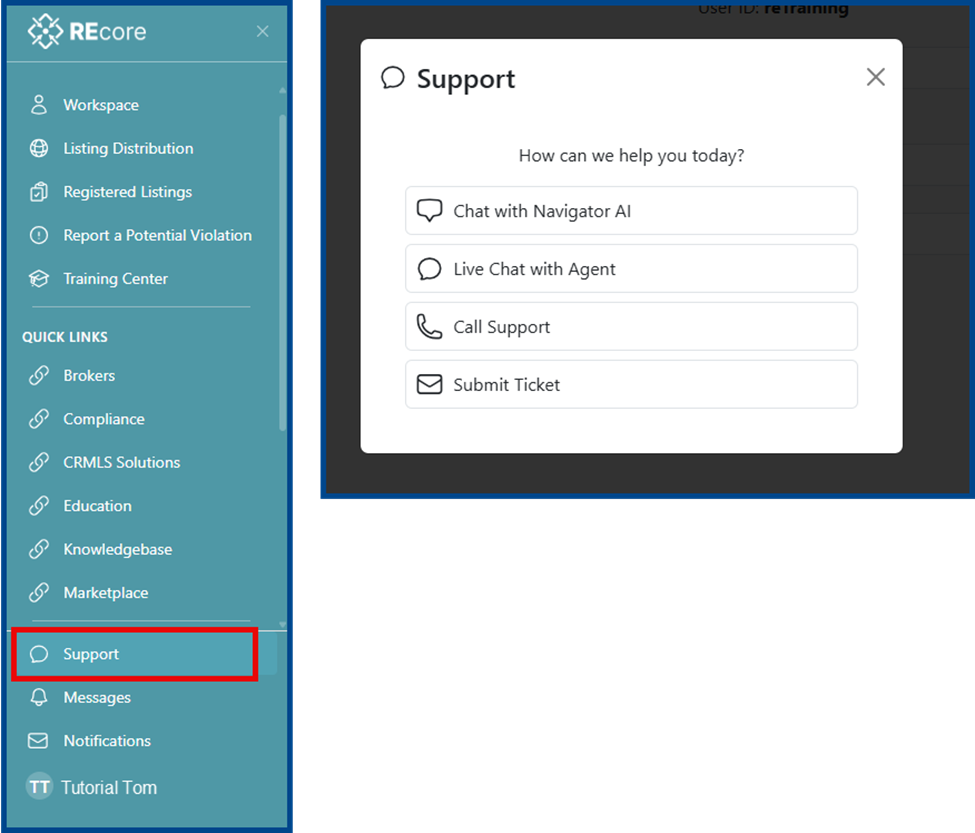
Click Support on the bottom left of the page. When the pop-up window appears, select a support method, then follow the subsequent prompts.
Accessing Compliance Live Chat
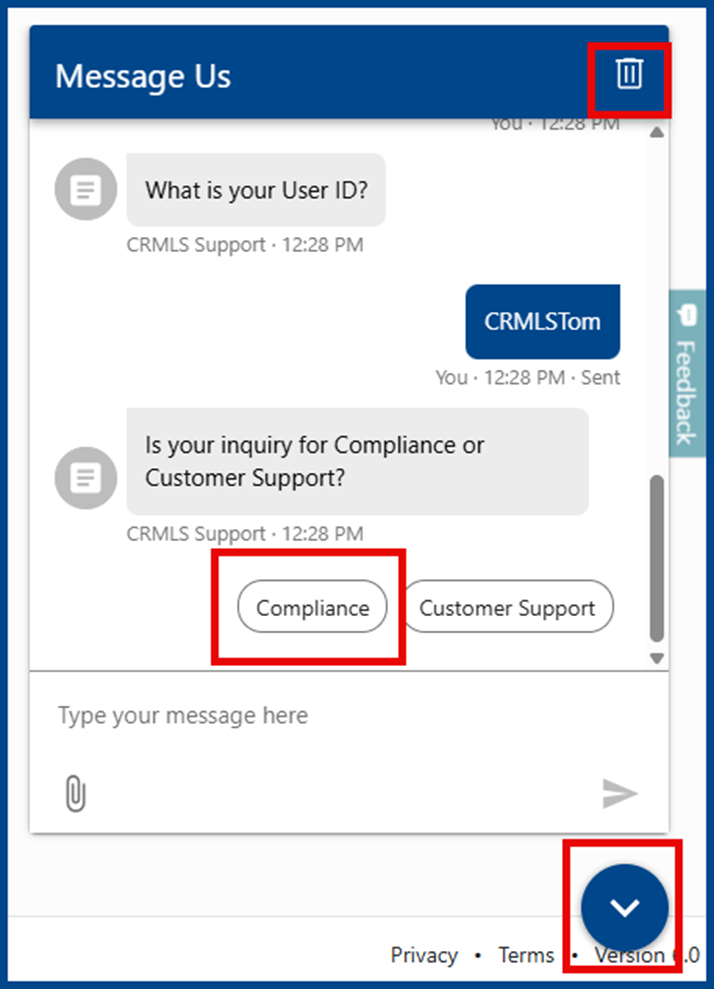
Click the Support icon on the bottom left of the page. When the pop-up window appears, select Live Chat with Agent. A chat window will open and prompt you for your first name, last name, email, and User ID. Choose whether your inquiry is for Compliance or Customer Support.
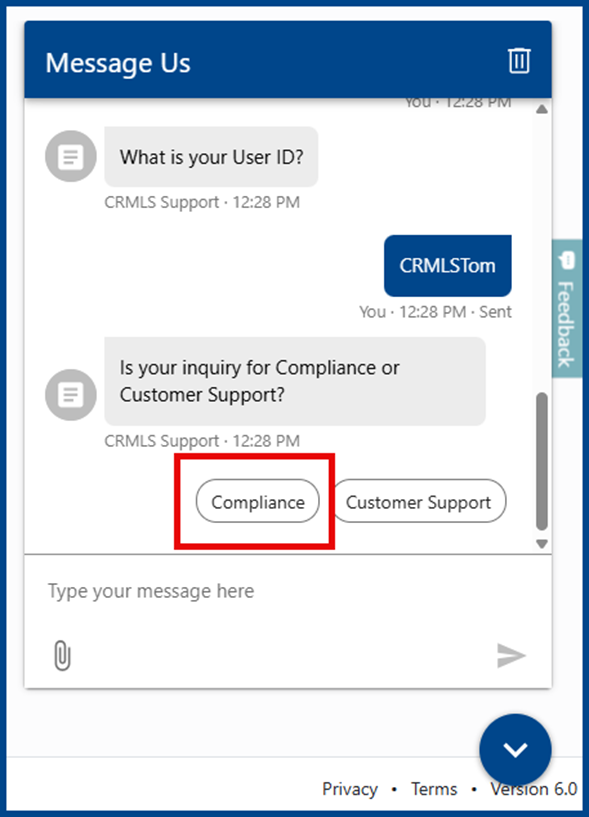
Click the down arrow to minimize the chat window. Click the trash can icon on the top right to end the chat.