This guide covers searching for office information, agent information, and office inventory.
Search for Office Contact Information, Agents, & Inventory
Use the Matrix Roster to find detailed office and inventory information. This method does not support filters such as location, status type, or property characteristics.
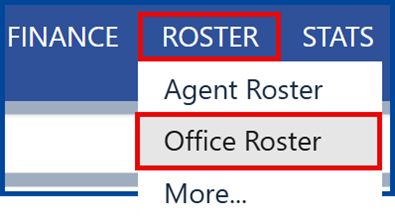
Hover over the Roster tab and choose Office Roster
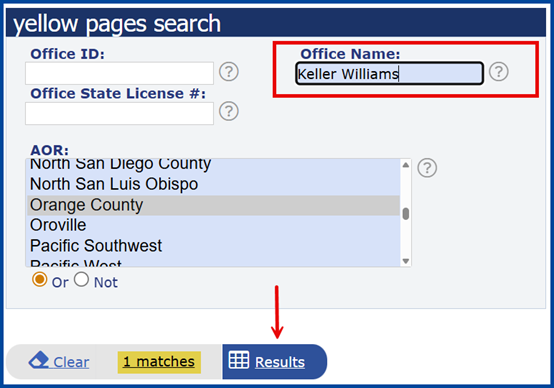
Add the Office Name or Office ID
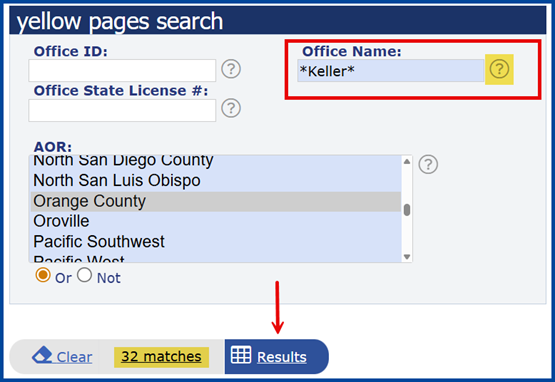
Use asterisks (*) to view all results containing a specific word (e.g., *Keller* finds all offices with “Keller” in the name)
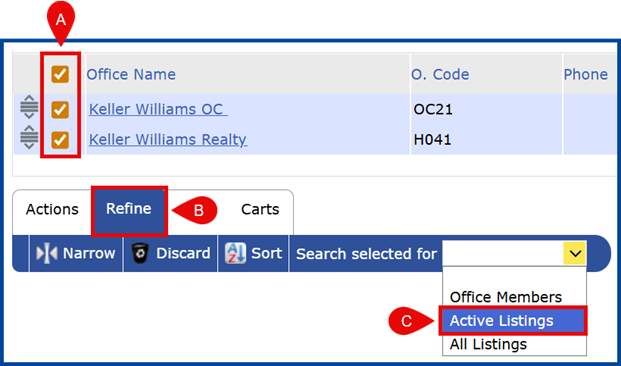
A: Select the desired office(s)
B: Click the Refine tab
C: Select Active Listings in the “Search selected for” drop-down
Note: Inventory results will include Coming Soon, Active, and Active Under Contract listings.
Quick Search for Your Office Inventory
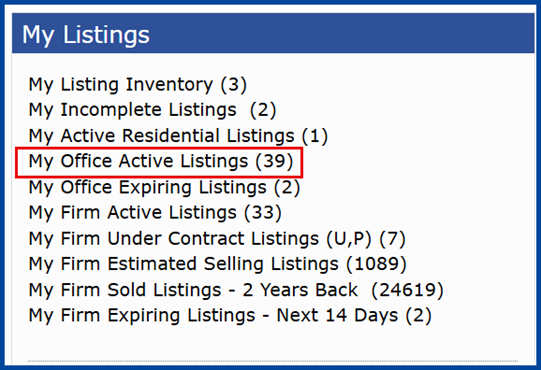
From the homepage, use the “My Listings” widget to access your office or firm’s inventory.
Note: This feature may only be available to brokers, office managers, and admins.
Advanced Search for Office Inventory
Find specific inventory information using additional search filters such as location, status type, or property characteristics.
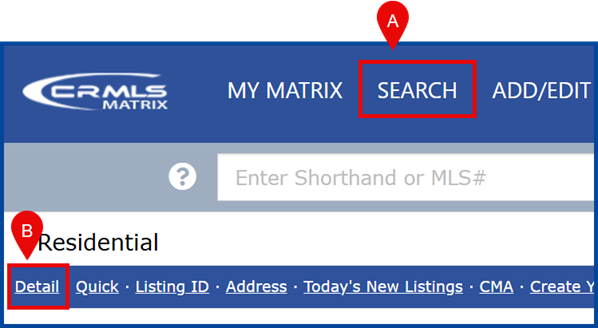
Go to Search, then click Detail under the preferred property type (e.g., Residential)
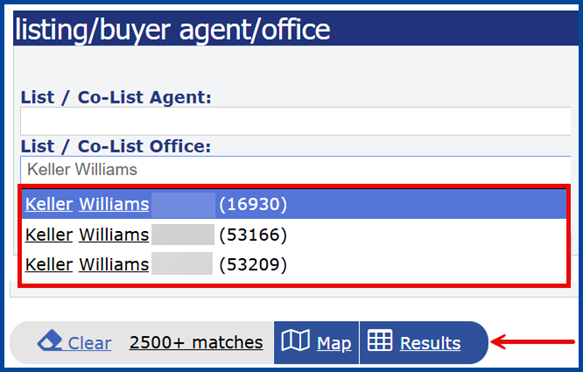
Apply any desired filters, then locate the List/Co-List Office field towards the bottom of the form
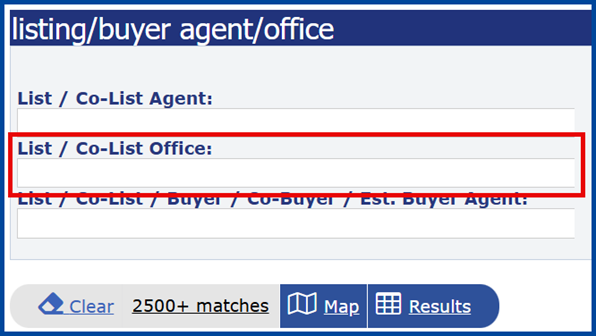
Add the Office Name or Office ID.
Note: An office may show multiple entries due to different locations or associations. To ensure a more accurate inventory view, it is best practice to add each entry.