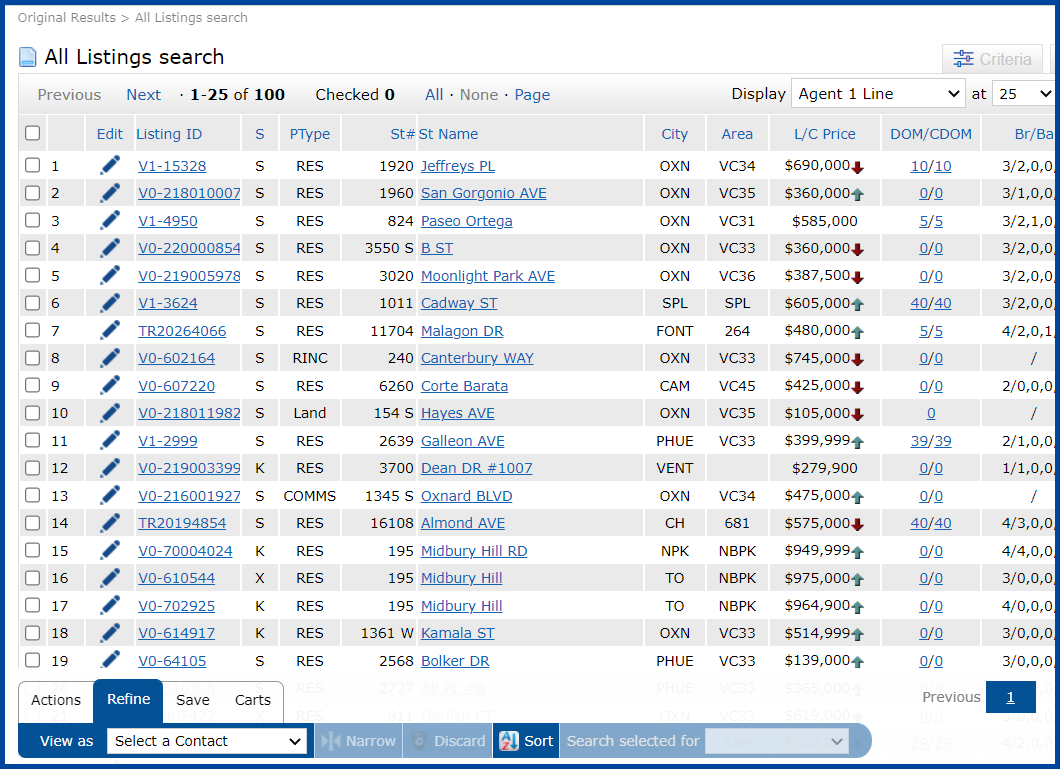
Use this guide to search for an agent’s listing inventory from the Matrix Roster.
Looking to search for Office Inventory? View Matrix: Search for Office Inventory.
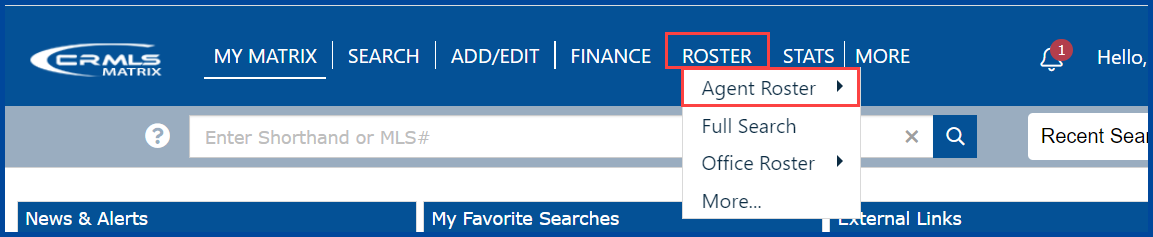
Select Roster, then Agent Roster.
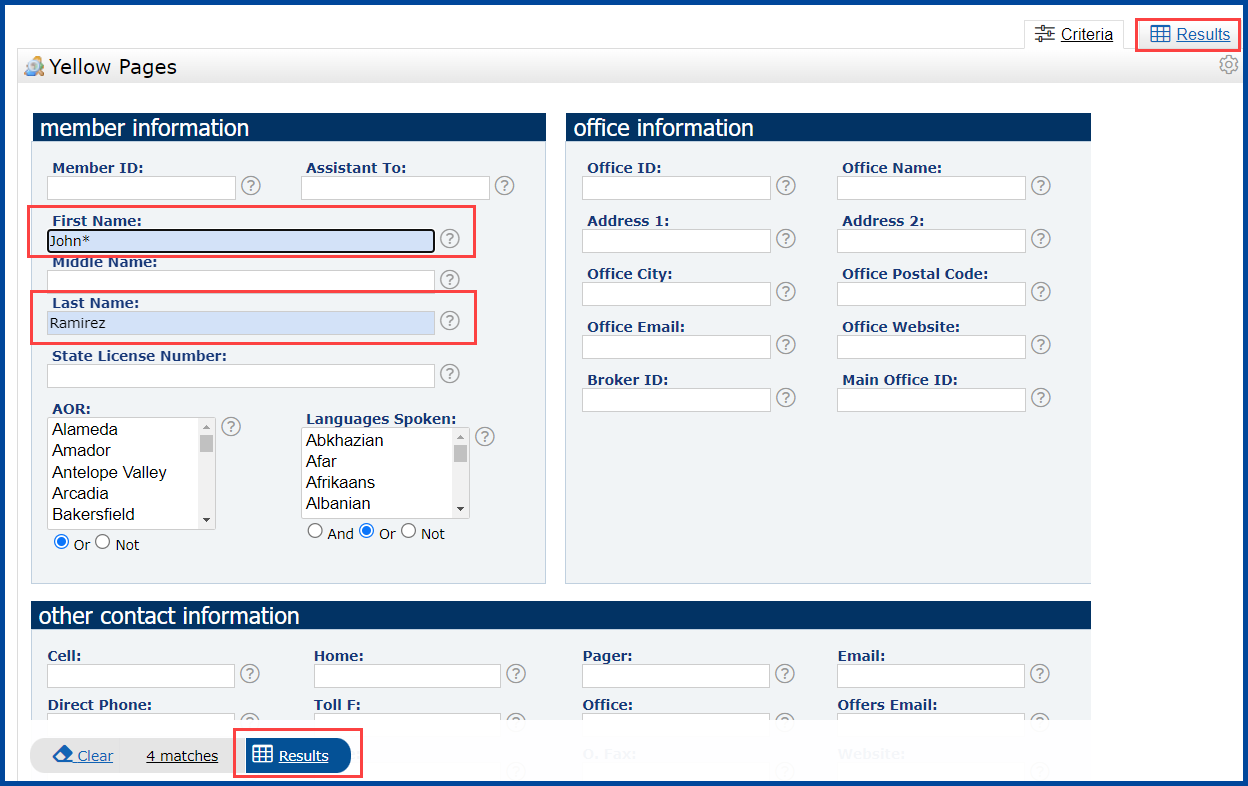
Enter in the Agents information (ex. Member ID, Name, Etc). Click on Results.
Note: in this example, we entered the Agents First Name followed by an asterisk (*).

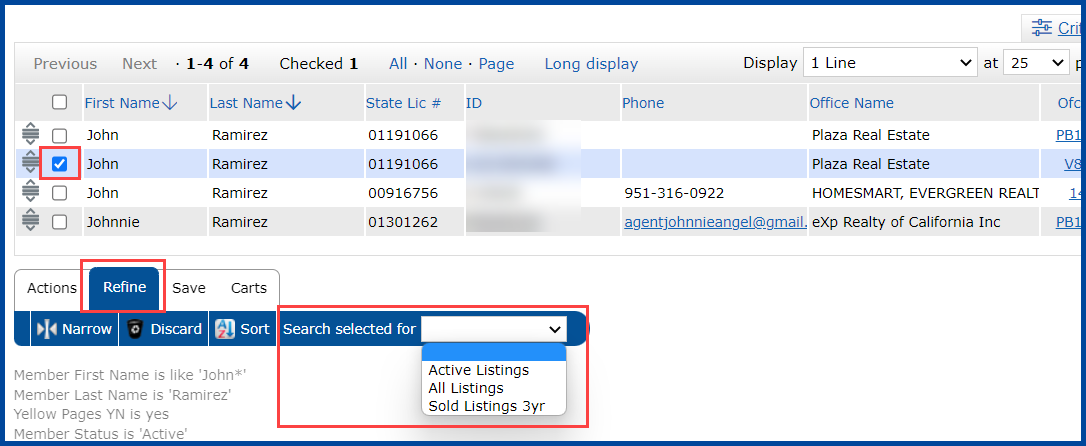
As you can see by the results, by using the asterisk (*), it came up with the results of John as well as Johnnie.

Check the box for the agent you would like to view inventory. Click on Refine.
Click on the drop down box next to Search selected for and choose from Active Listings, All Listings or Sold Listings 3 yr.
The Agent Inventory results will be displayed.