Search for Listings by Key Words.
Adding keywords to searches allows you to locate or eliminate listings from your search results based on keywords that a listing agent may have used to describe a property in the Public Remarks or Agent Remarks without attributing that data in the features or because the intended filter does not exist.
Open a Search screen and go to either the Public Remarks or Agent Remarks field. Enter in your key words you want to include in your search and/or to exclude from your search.
Note: Refrain from using both remarks fields. Using both fields requires the listing to contain all keywords in both sections, which may be less likely.
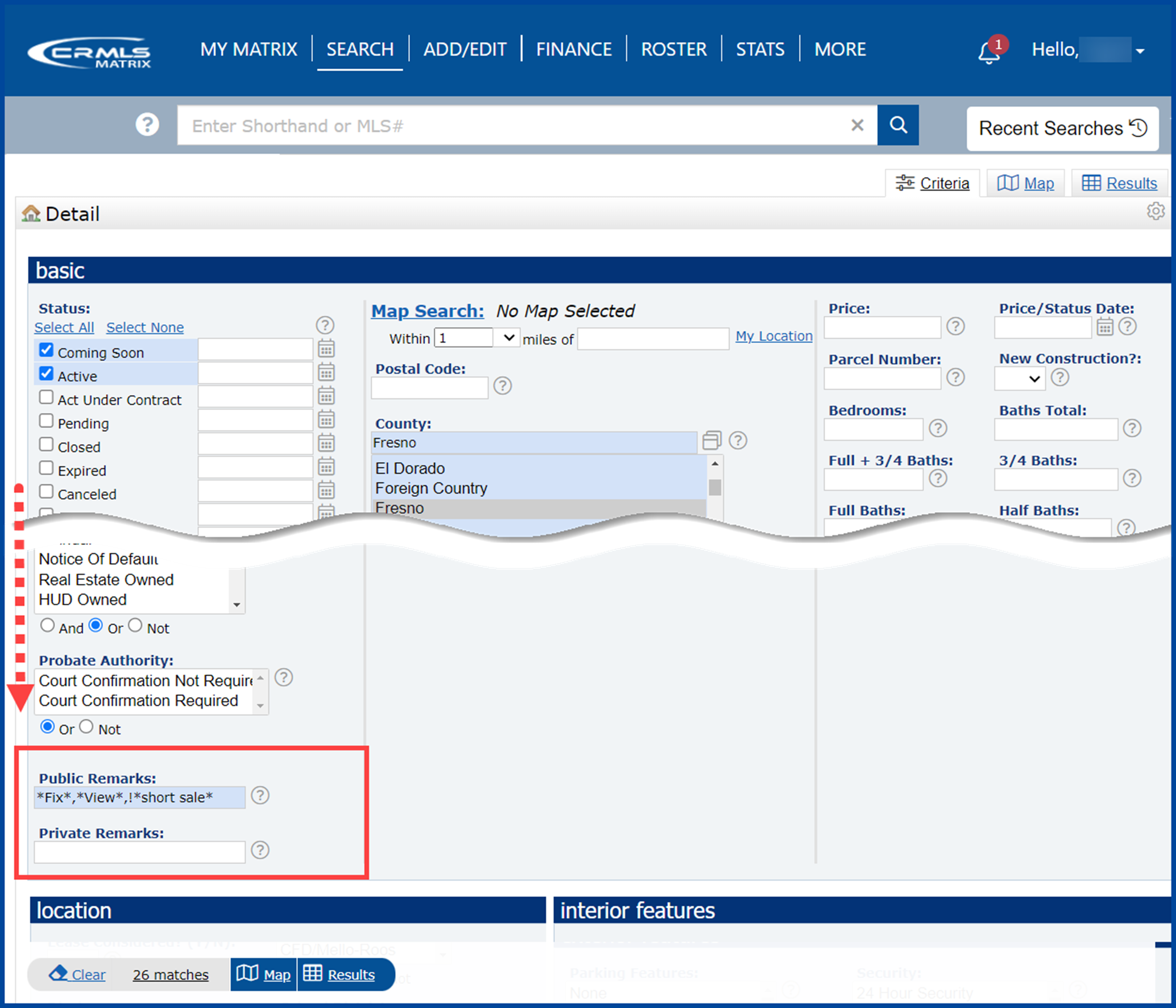
Note: The Asterisk (*) is the Wildcard searching symbol, used to search for unknown letters and/or numbers. Place an * before and after the key word(s) you will be searching for. You can search for a partial word. You can search multiple key words in a single search, just separate the words with a comma (,). Ex. *Fix*,*View* – which will bring up matches like Fix, Fixer, Fixing, View, Preview.
Note: The Exclamation Point (!) is used to Exclude a specific value. When using the ! character, it must precede the value you enter. Ex. Year Built: !*1960* will exclude all listings that contain properties that were built in 1960.
Note: To search for multiple keywords, separate each keyword with commas (,). For example, to include the keyword fixer and exclude the keyword short sale, type *fixer*, !*short sale* in the Property Description or Agent Remarks fields. The search results will return all listings that contain “fixer” but do not contain “short sale”