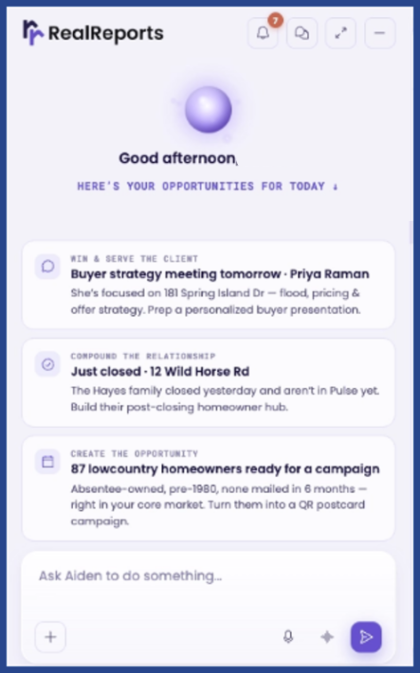
RealReports generates detailed reports using data from top providers and includes an AI property advisor to help guide you through the information.
Accessing RealReports
Log into the Workspace and select the RealReports tile.

This will enable automatic sign-in.
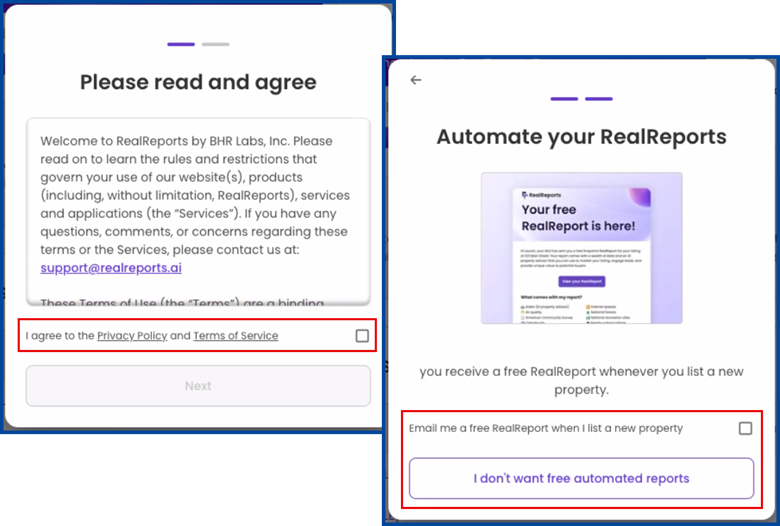
Accept the terms and conditions and choose whether to receive automated reports.
Creating a RealReport
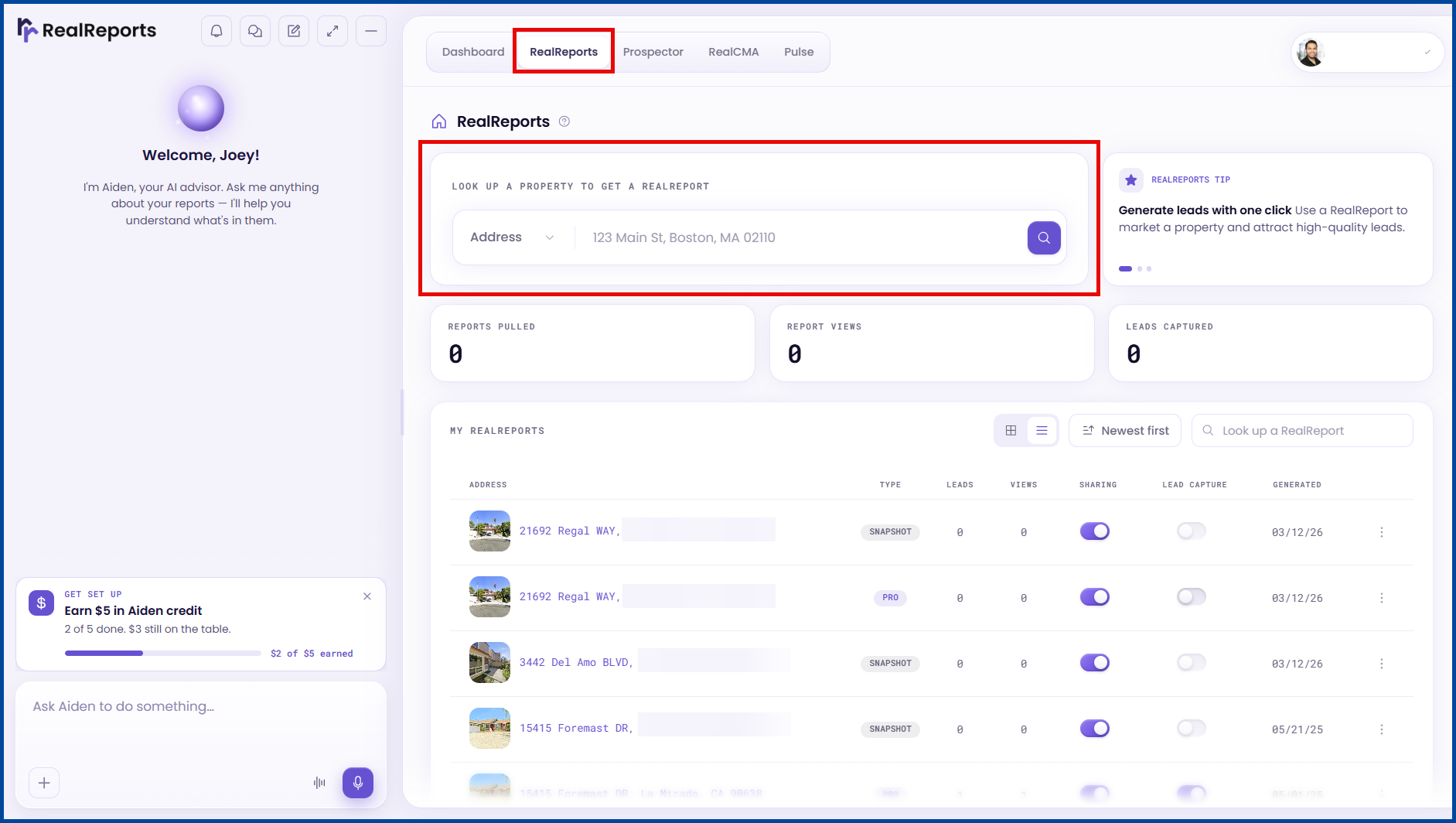
Navigate to the RealReports tab and enter a property Address.
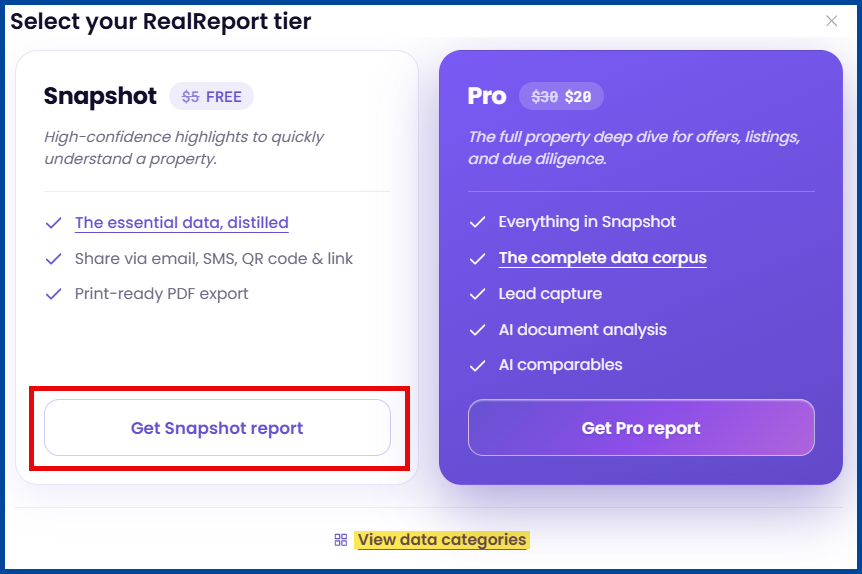
Select a RealReport tier: Snapshot or Pro.
Note: CRMLS users receive unlimited Snapshot reports and Pro reports at a discount.
Reading the RealReport
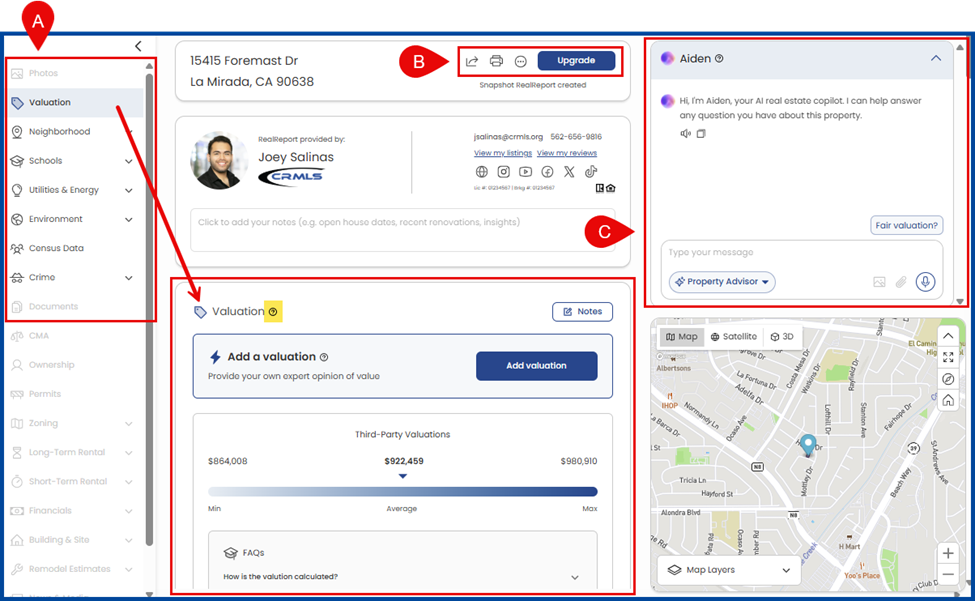
A: In the left panel, select an available section. Each section contains helpful question mark icons (?) to learn more about the data.
B: Access sharing options and report settings.
C: Ask questions to Aiden, the AI property advisor, in the chat box on the right.
Note: The interactive map changes throughout each section to provide additional information.
Adding Personal Branding (optional)
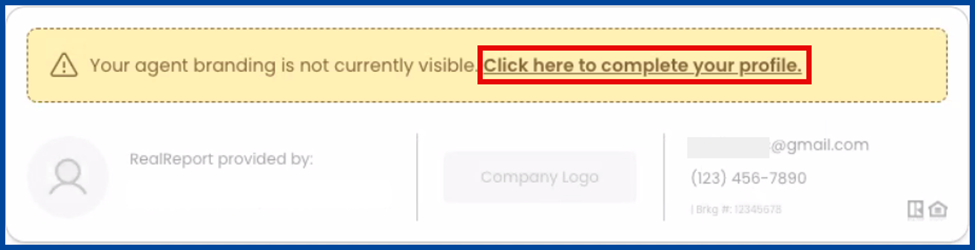
Click the “complete your profile” link to access Agent Branding.
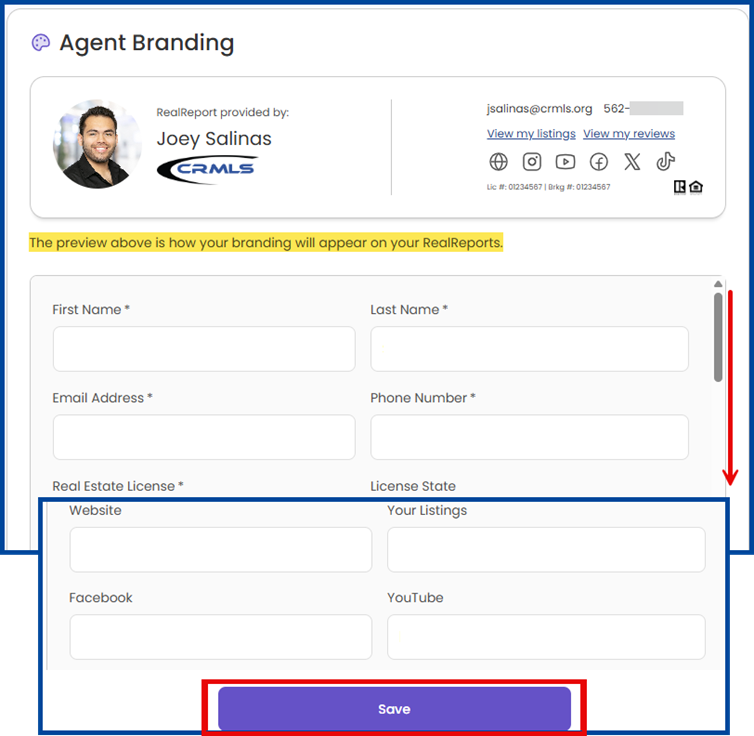
Add contact information and other details, then click Save.
Note: The live preview shows how your branding will appear on the RealReport.
Sharing the RealReport
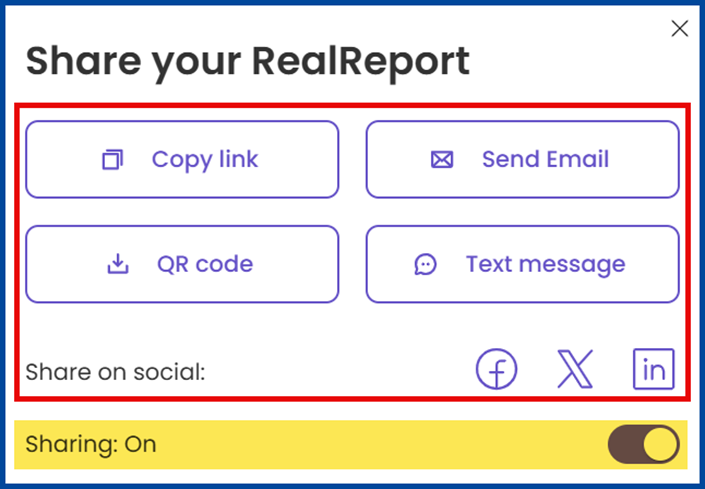
Select the Share icon at the top of the report or, for a hard copy, click on the printer icon to print as a PDF.

Select your preferred Share option.
Note: Use the Sharing toggle to pause RealReport access.
RealReport Settings
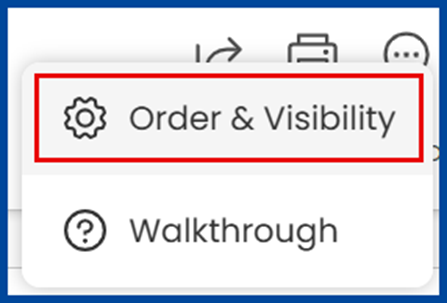
Click the 3-Dot menu icon to manage your report.

Select Order & Visibility from the drop-down.
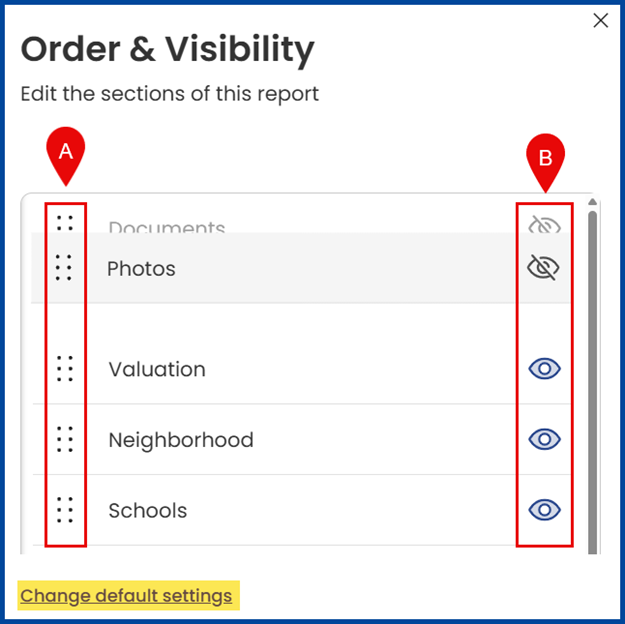
Manage your RealReport sections:
A: Drag to reorder sections.
B: Click the eye icon to hide sections.
Note: Click “Change default settings” to save the order and visibility for all future RealReports.
Aiden (AI Assistant)
Aiden is the AI assistant integrated throughout RealReports. It can now perform tasks directly on the platform as well as answer property and workflow questions. Use Aiden to track progress, monitor goals, and maintain access to what’s open on your dashboard. Each prompt submitted to Aiden will be charged credits, and the number of credits is determined by the prompt’s complexity.