Use this quick reference guide to create a Comparative Market Analysis (CMA) report.
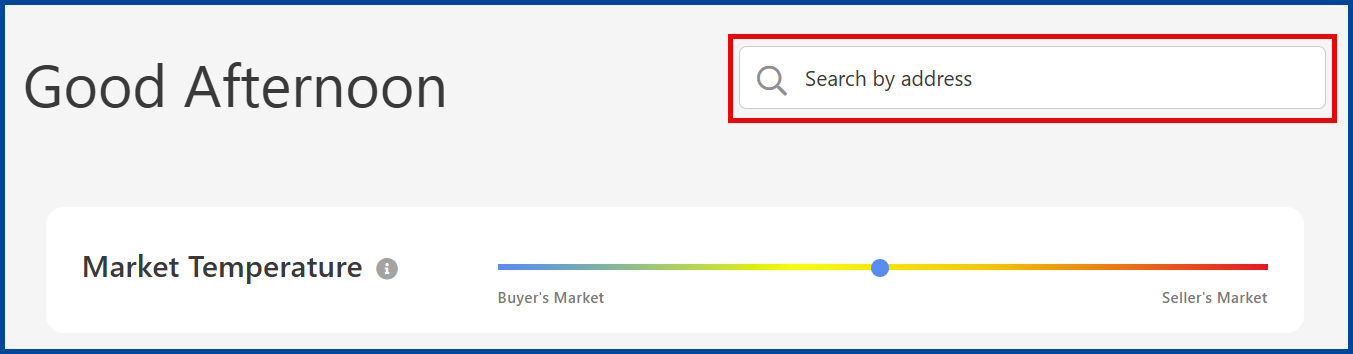
From the Realist homepage, use the Search by address bar to find the subject property.
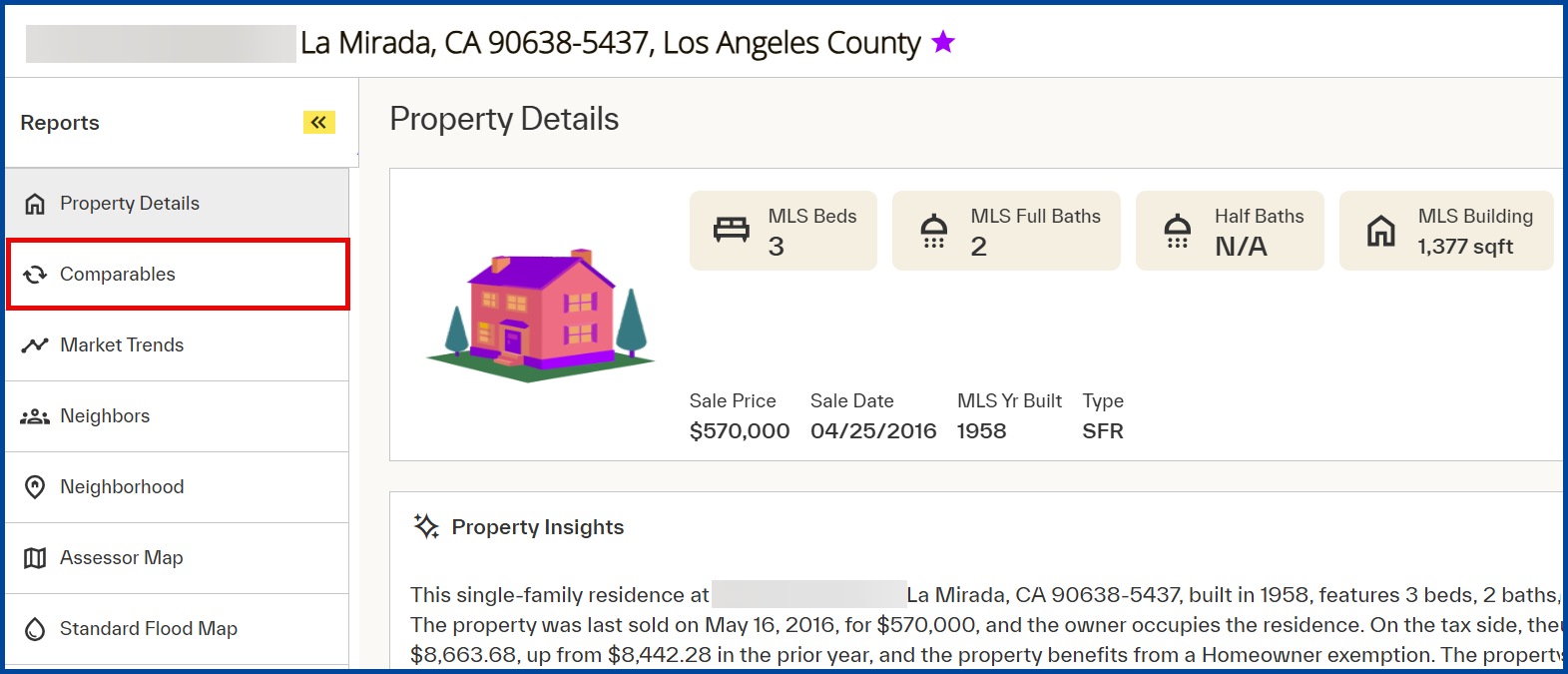
Navigate to the Comparables tab.
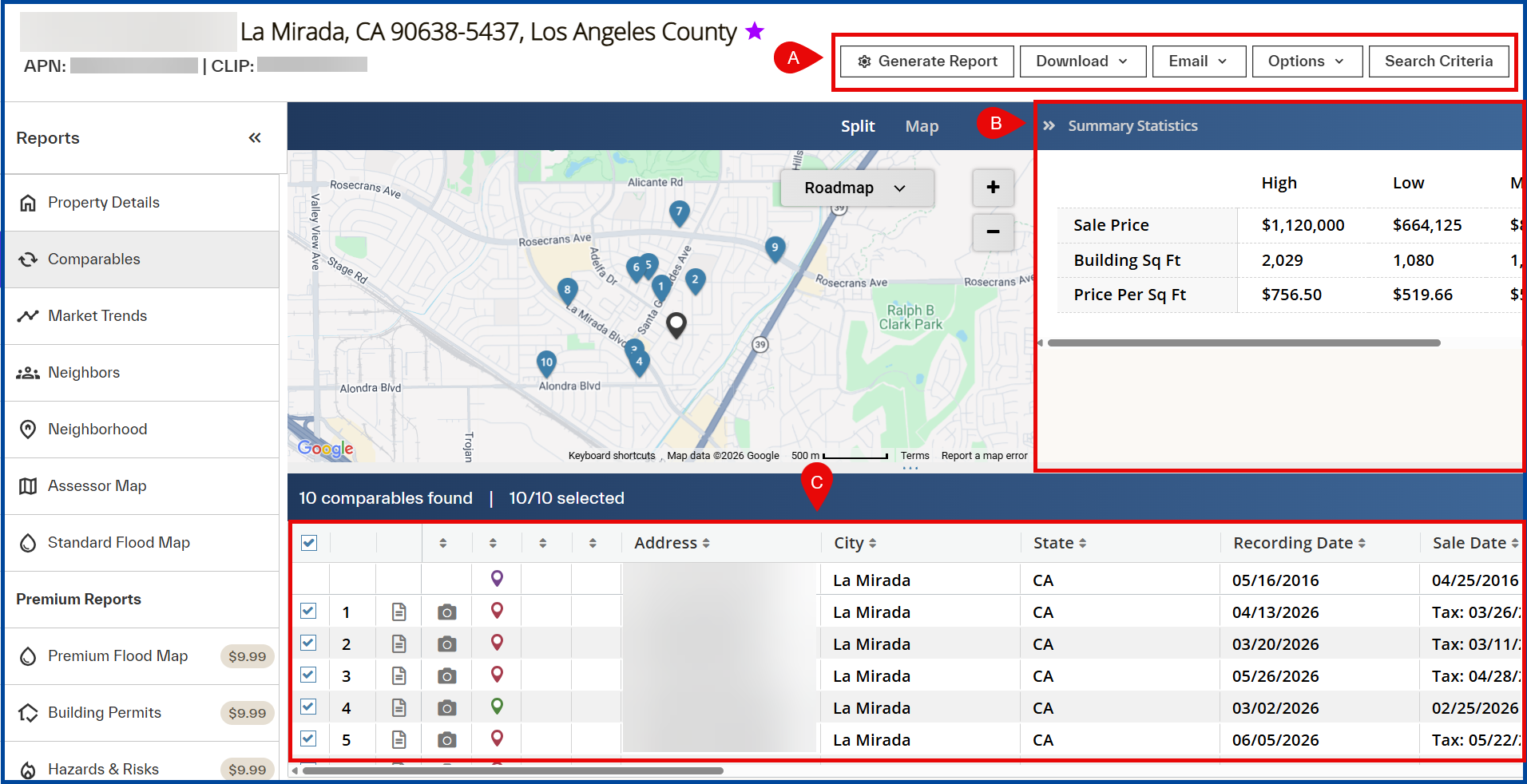
The system will automatically attempt to find at least 10 recently closed comparables from the MLS.
A: Review the Action Items to generate, share, or manage the report.
B: Review the Summary Statistics for insights to the comparable analysis.
C: Review the list of Comparables to research and manage comparables in the report.
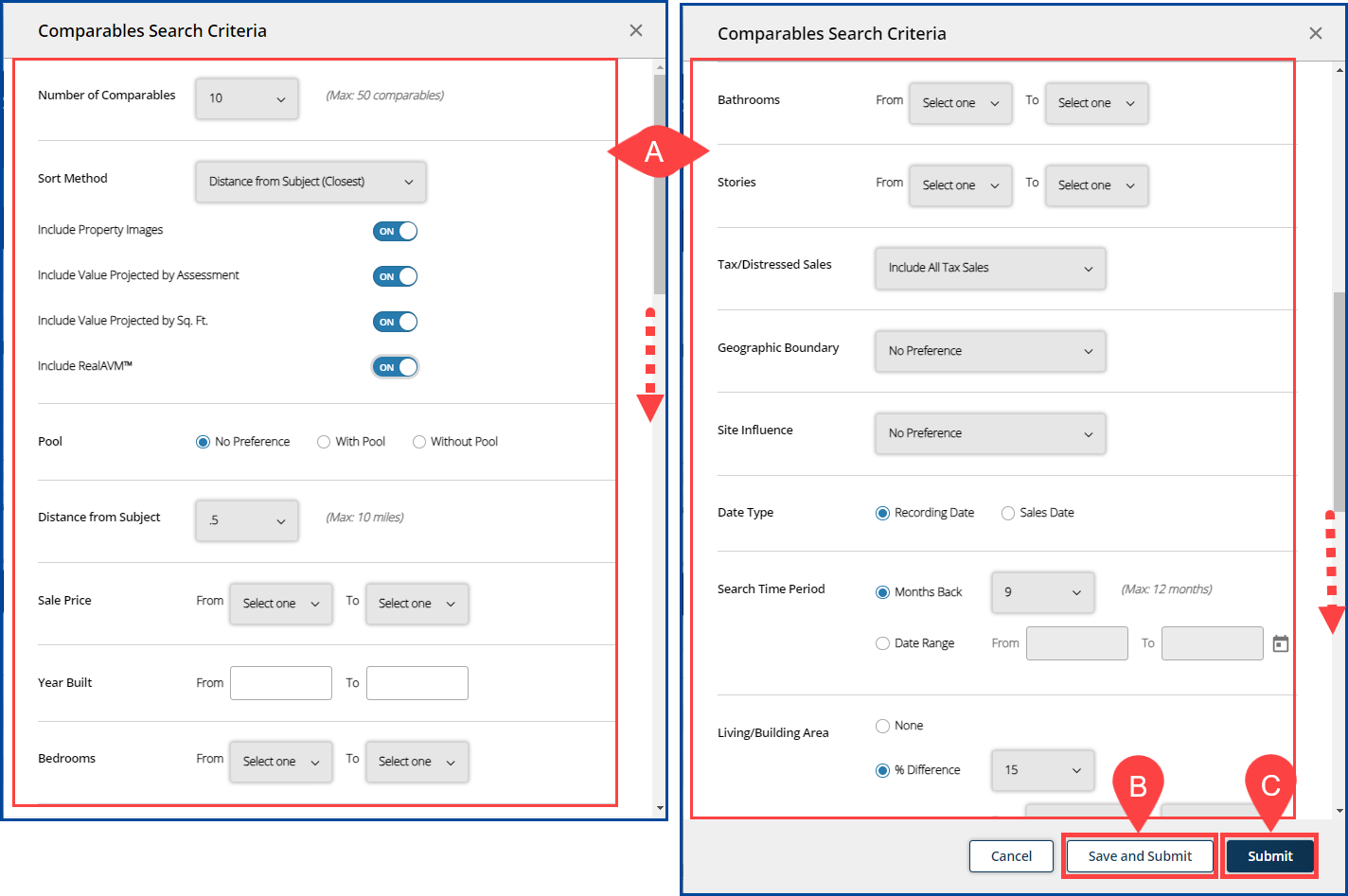
Click Search Criteria in the action items to manage filters and expand the comparables search.

To manage search criteria:
A: Scroll through the list of available filters and adjust as needed.
B: Choose Save and Submit to save these filters for future use or,
C: Choose Submit to apply these filters to this comparable search only.
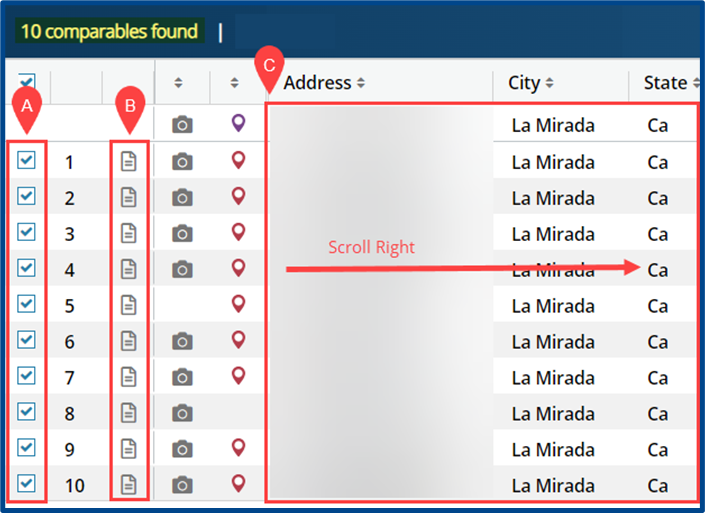
To research and manage the comparables included in the report:
A: Adjust the Checkbox to remove a comp from the report.
B: Select the Document icon to view the comparable property details
C: Scroll right through the list view to see additional facts about the comparables.
Select Generate Report to view or choose to “Print” or “Email” the report.
Note: Select “Options” to customize and remove any sections that you do not want to include in the report, i.e., the search criteria used.
