The latest update adds a Location Radius tool for precise property mapping in Paragon Connect and expands control over client outreach in Paragon Pro.
Paragon Connect
The New Market Hotsheet Widget
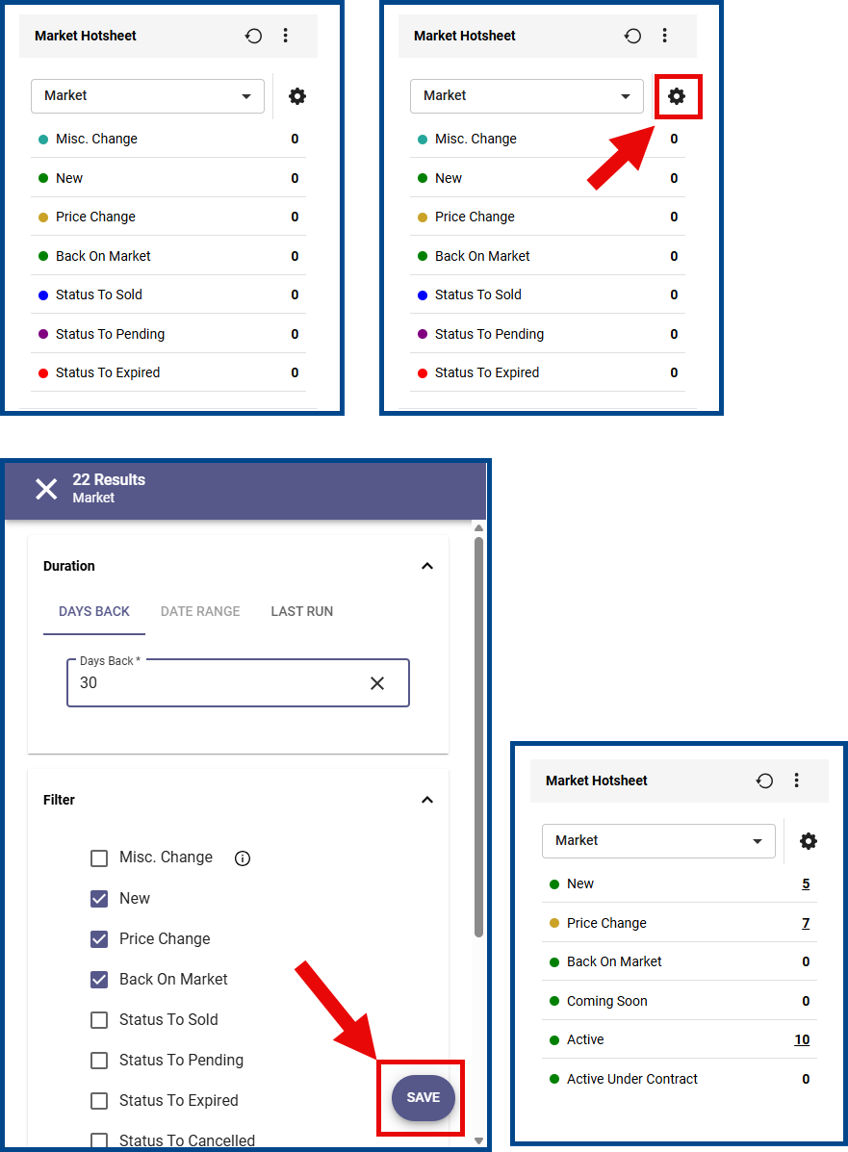
The new Market Hotsheet widget is replacing Hotsheet Alerts on the Paragon Connect dashboard. All existing hotsheets will transfer to this widget automatically.
To customize a hotsheet, click the gear icon, enter the desired criteria, and click Save.
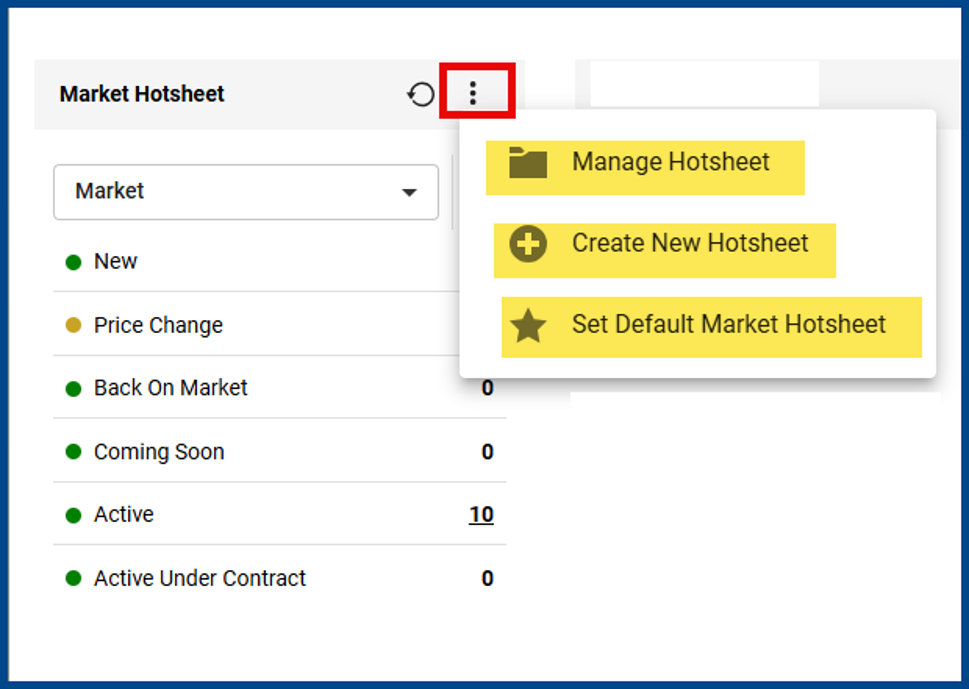
Click the vertical ellipsis icon to select one of the following options: Manage Hotsheet, Create New Hotsheet, or Set Default Market Hotsheet.
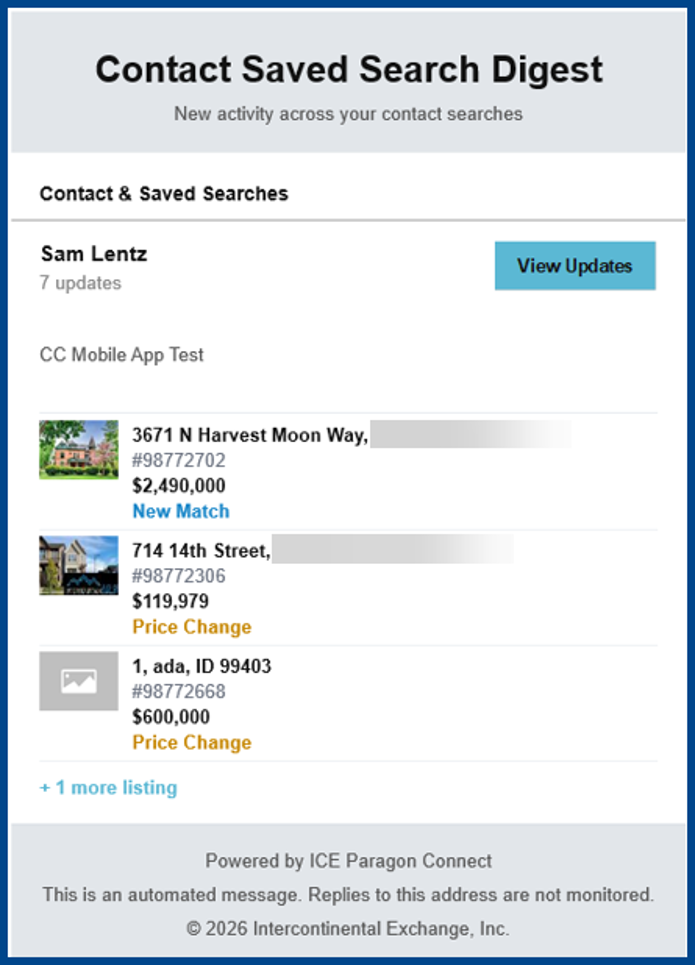
Refreshed Contact Saved Search Digest Email
The Contact Saved Search Digest email layout now displays new activity for client searches and includes a View Updates link in Paragon Connect.
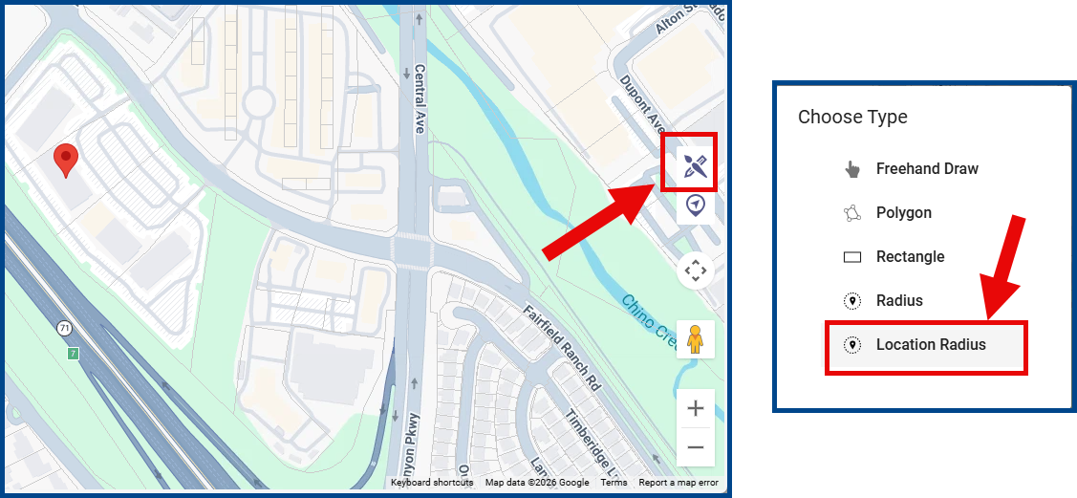
Adding Location Radius to Drawing Tools Menu
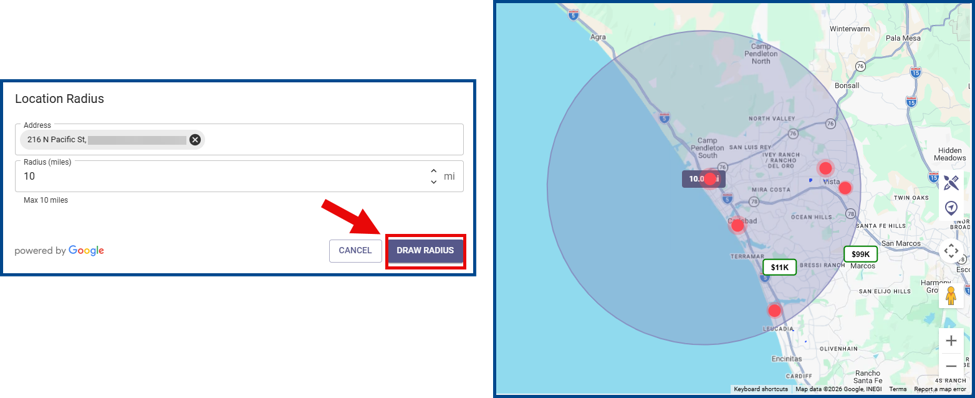
The map search now includes a Location Radius tool for auto-drawing a radius around a specific property. To start, click the drawing icon and select Location Radius.
Enter a specific address, select a radius up to ten miles, and click Draw Radius. A radius will automatically appear based on that address and distance.
Export added to CMA Summary View
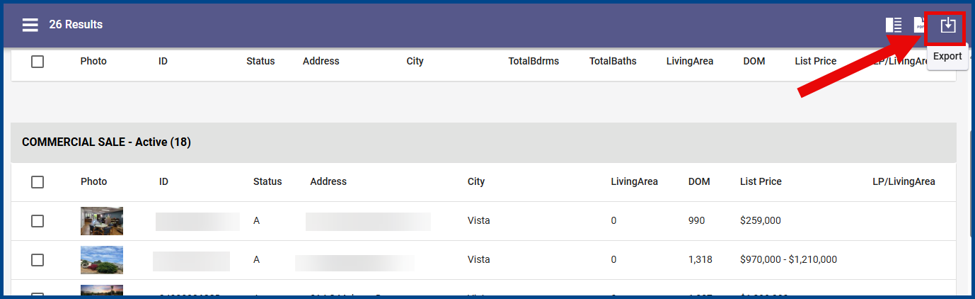
A new export option is now available in CMA Summary View that instantly downloads comparables into a spreadsheet file.
From the top-right corner of the CMA Summary page, click the export icon, then select your preferred spreadsheet program (e.g., Excel, Numbers, Google Spreadsheets, etc.).
Criteria Summary Listing IDs in Result Analytics
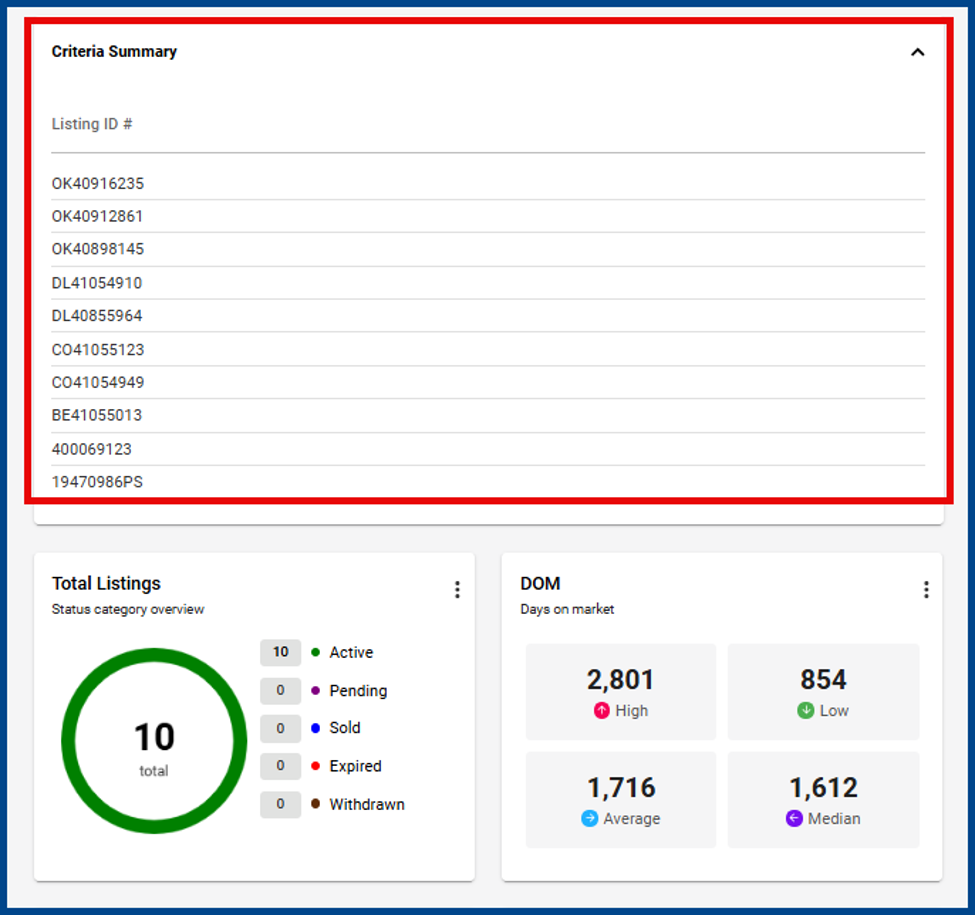
The Criteria Summary within Result Analytics will now show listing ID numbers.
Office Details for the Collaboration Center
The Collaboration Center now displays additional office information on the Contact and About Me pages. This information includes:
- Office Address
- Office Logo
- Office Phone 1
- Office Phone 2
Drawing Tools Tooltip on Map Search
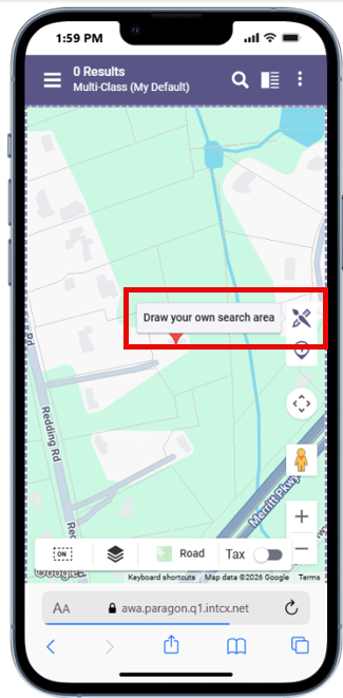
A tooltip will now automatically appear to use or dismiss once a map is opened. Click Draw your own search area to get started.
Paragon Pro
Save Search to Contact Without Automatic Welcome Email
Welcome emails will no longer be sent automatically when you connect a saved search to a client.
From Save Search, either click Save & Notify to send the welcome email or select Save to attach the search to the client without sending a message.
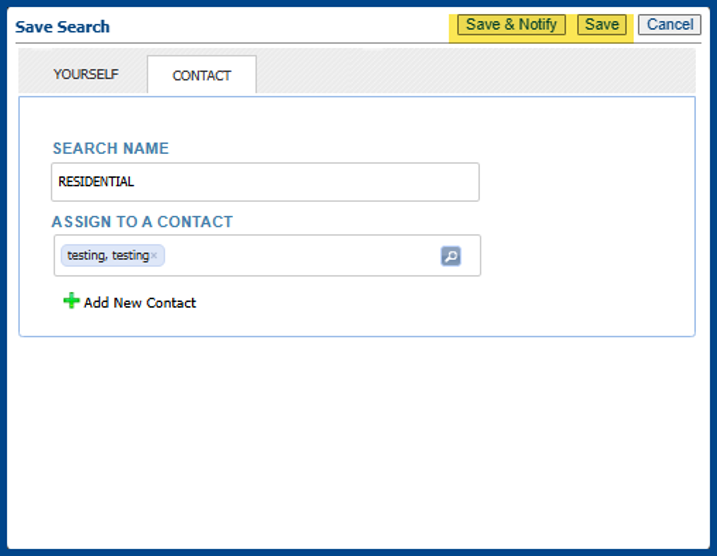
Note: Go to the client’s buyer activity to manually send this message later.