Use this quick reference guide to export data from Realist Tax searches into CSV files, which can be opened in spreadsheet software programs such as Microsoft Excel, Google Sheets, Mac Numbers, etc.
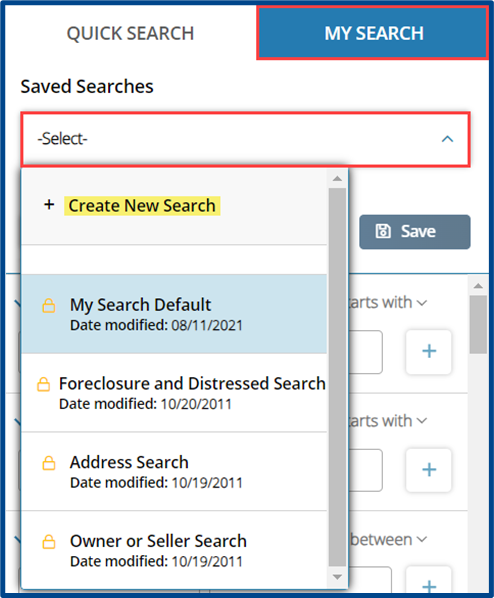
Navigate to the My Search tab and choose a system default search or create a custom search with fields of your choosing.
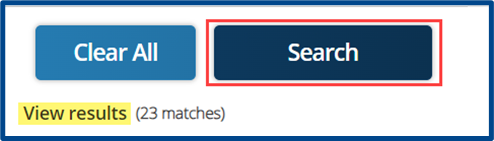
After adding criteria to your search, select Search to see your results in a map or list view.
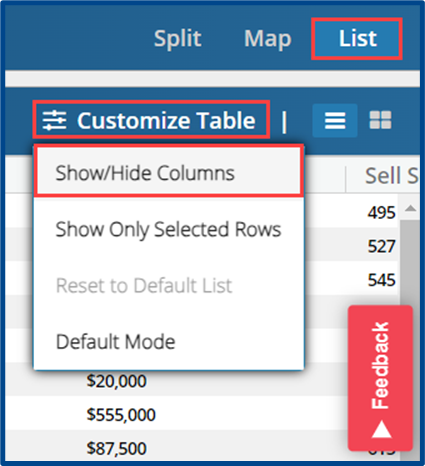
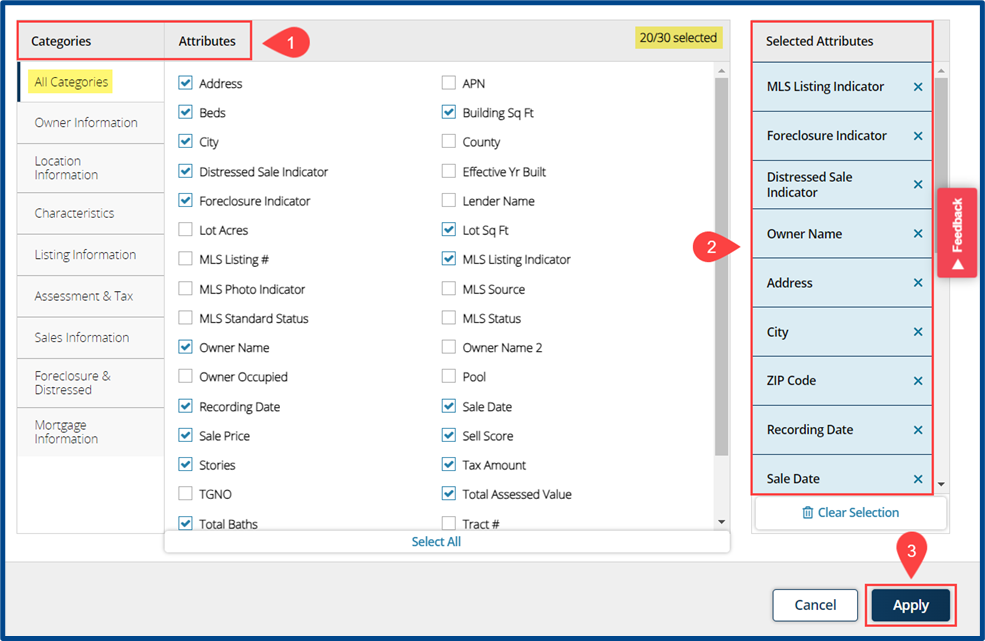
From the List view, select Customize Table and Show/Hide Columns to choose what will appear in the results list and in the exported CSV file.
Note: If a column/attribute is not included in the list view, it will not appear in the Quick Export.
Update the list view by adding or removing “Attributes.”
1: Choose a Category to filter through available attributes (filters).
2: Rearrange and/or remove current Selected Attributes.
3: Select Apply to update your list and return to the results.
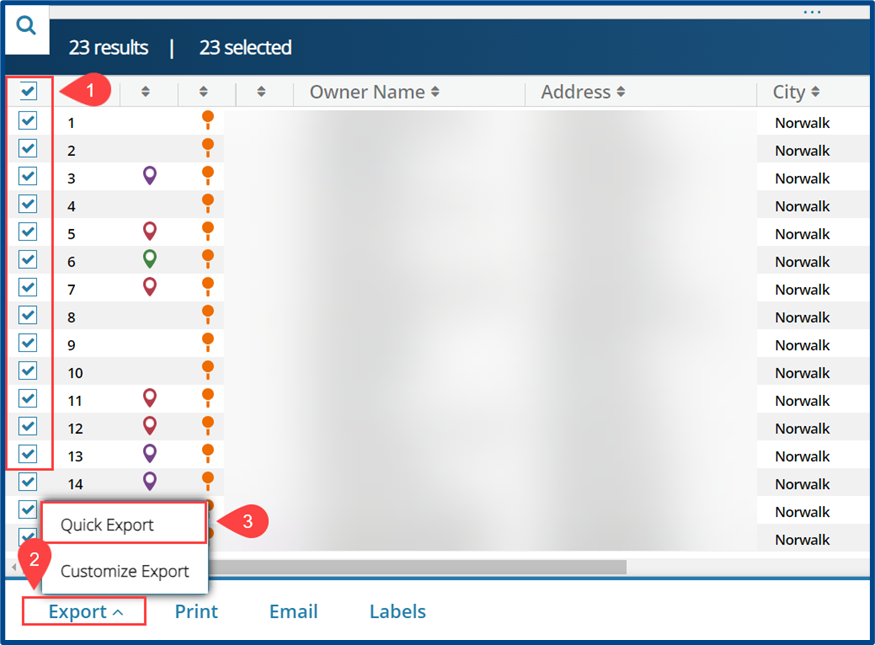
Quick Export of Results
1: Check the box next to the properties to include in the export.
2: Select Export from the action items at the bottom of the screen.
3: Choose Quick Export.
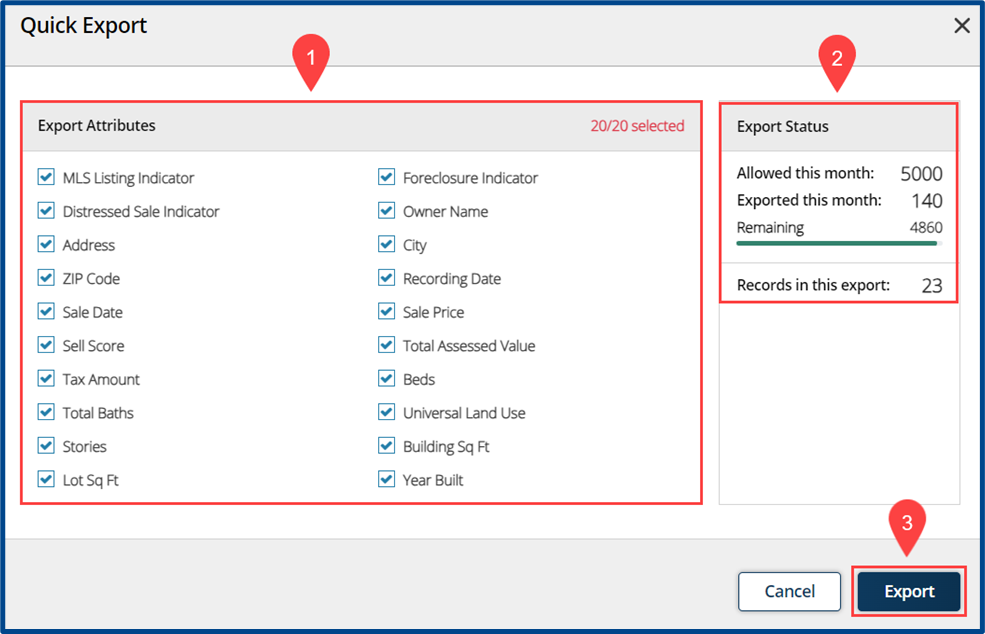
Review the final details before creating the export:
1: Use Export Attributes to manage which fields to include in the export.
2: Review your Export Status. CRMLS members receive 5,000 exports per month at no additional cost.
3: Click Export to generate the CSV file.
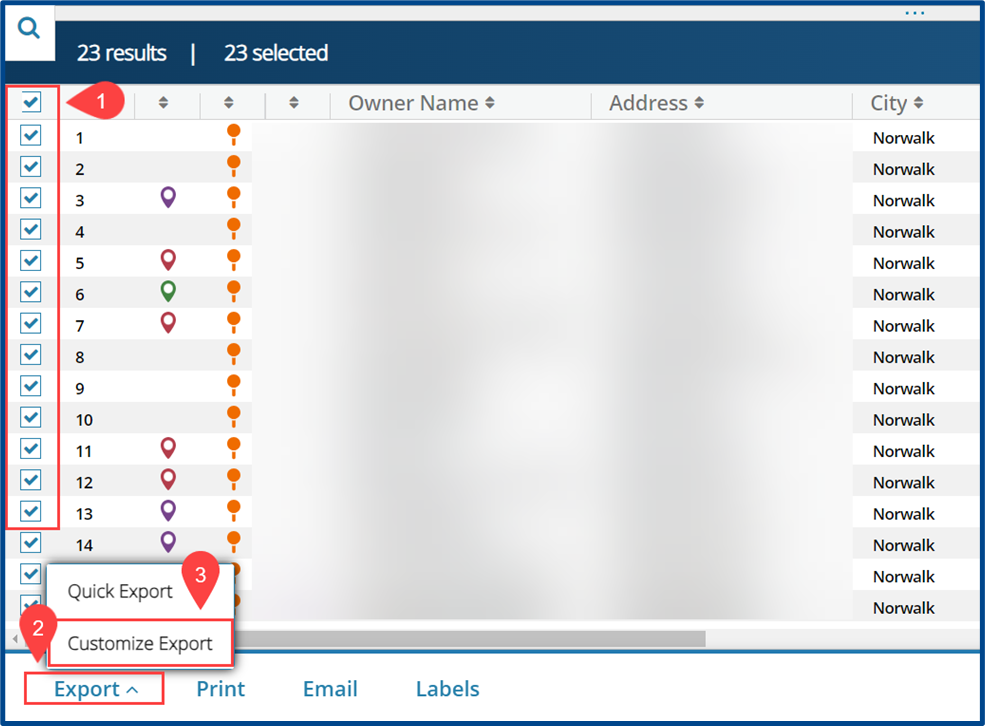
Custom Export of Results
1: Check the box next to the properties to include in the export.
2: Select Export from the action items at the bottom of the screen.
3: Select Customize Export.
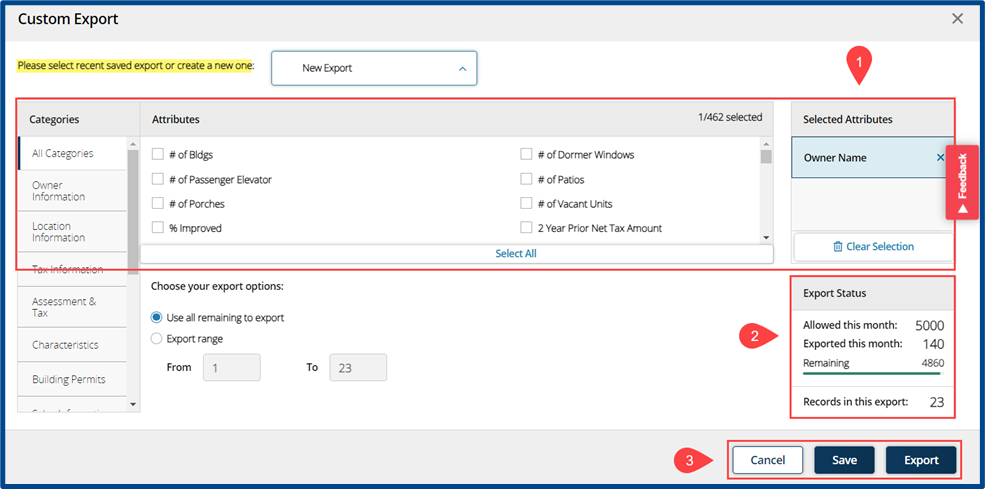
Select attributes to create a customized export.
1: Select which Attributes to include in the export.
2: Review your Export Status.
3: Select Export to generate the CSV file or Save to keep these custom export settings for future use