Under Rule 19.2.10, listings can be included in IDX feeds except where sellers have directed their listing brokers to withhold any or all listing information from online visibility. Listings can be withheld from, but not limited to, publicly accessible websites or VOWs.
Once a listing is finalized, Rule 11.8 of the CRMLS Rules and Policies prohibits removing any historical data, including photographs, from the MLS. If desired, the listing agent can ask their local Association or CRMLS to change a finalized listing to “Internet: NO,” which blocks third-party sites from retrieving listing photos. However, neither the association nor CRMLS can guarantee that third-party sites will remove all historical photos once they have circulated online.
Before the listing is finalized, there are two (2) options to prevent the syndication of media to third-party sites. One option is to turn off the Internet Display by toggling from “Yes” to “No.” The other option is to remove photos at the client’s request, provided the listing is in a non-finalized status, such as Active, Coming Soon, Hold, or Withdrawn, and/or the listing is not subject to a purchase contract (i.e. Active Under Contract or Pending status), and there is at least one (1) photo showing a substantial portion of the property’s exterior.
Note: Removal of photos must be completed while the listing is in a non-finalized status such as Active, Coming Soon, Hold, or Withdrawn. Additionally, photos may not be removed while the listing is subject to a purchase contract. The listing agent is not required nor obligated to remove photos from a finalized listing.
Keep in mind, once a listing enters a finalized status (Closed, Leased, Cancelled, or Expired), only the primary photo remains visible, and all other images will no longer appear on third-party sites. The photographs will still remain visible on the MLS.
To withhold online listing information (per the seller’s request) or switch Internet Display at closing (per the buyer’s request), follow these steps:
Matrix
In your Listing page, click the Office/MLS tab.

Scroll down to the Contact Information section and go to the shaded Internet Entire Listing Display? box on the left. Then, using the dropdown menu, update the setting to “No.”
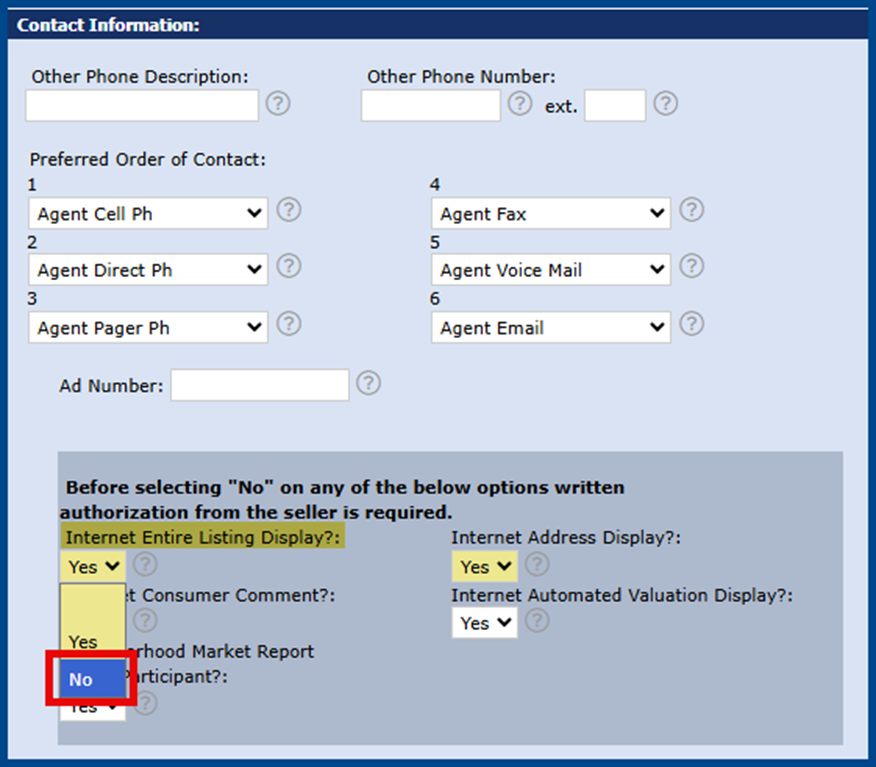
Once you’ve completed your desired changes, click the Submit Listing button to save your updates.
Paragon
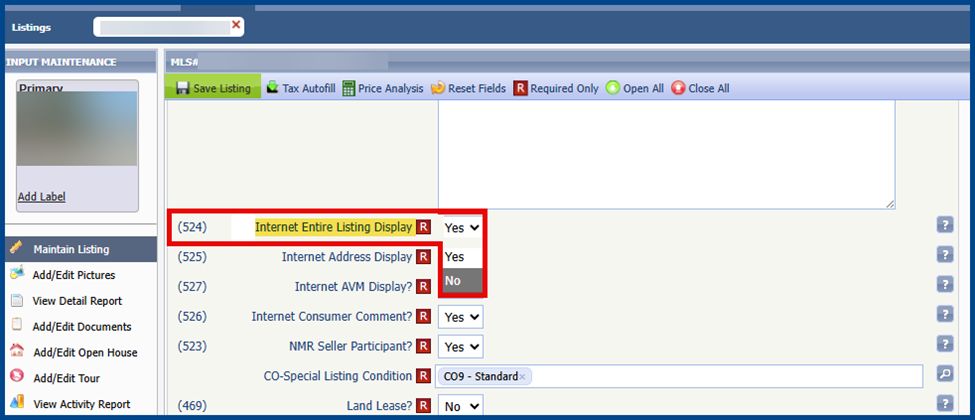
In the Maintain Listing section of your Listing page, find field (524) Internet Entire Listing Display. Then, using the dropdown menu, update the setting to “No.”
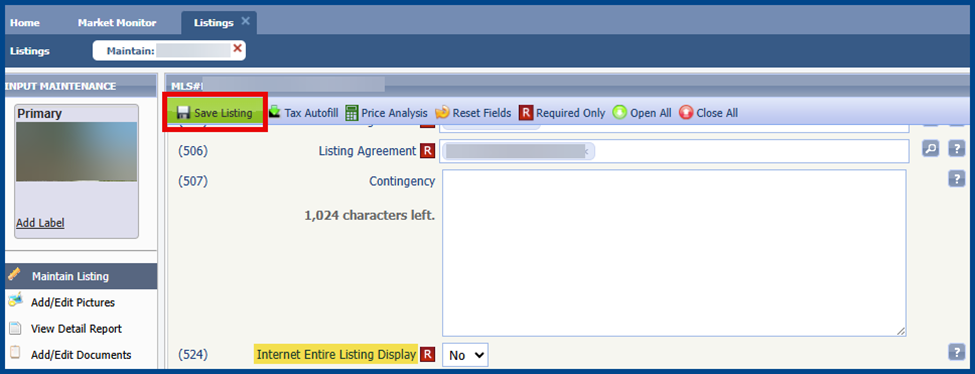
Once you’ve completed your desired changes, click the Save Listing button in the top left corner to confirm your updates.
Flexmls
In your Listing page, under General, select Listing Information.
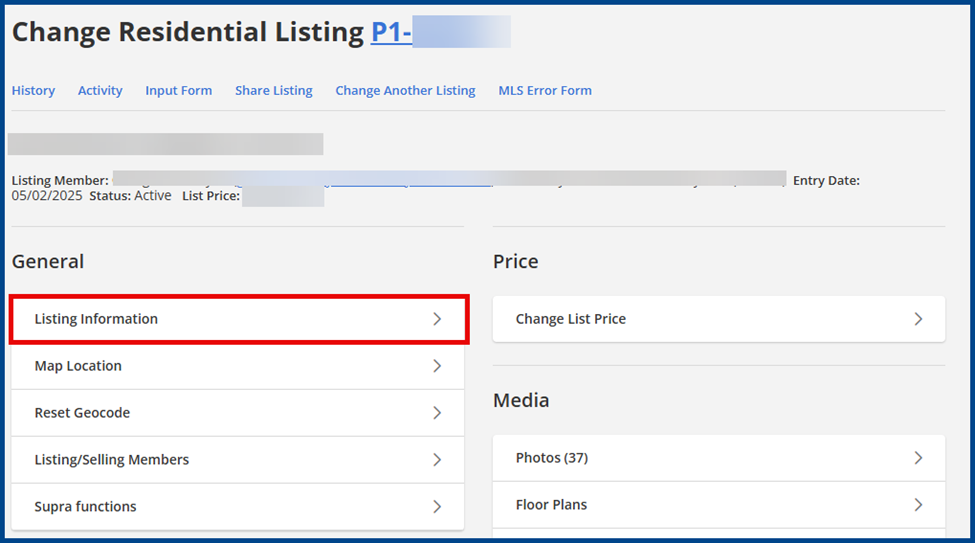
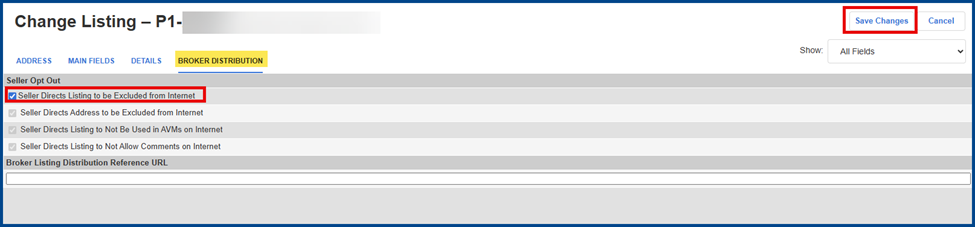
From there, click the Broker Distribution tab, then check the Seller Directs Listing to be Excluded from Internet box. Click the Save Changes button on the top right corner to confirm your updates.