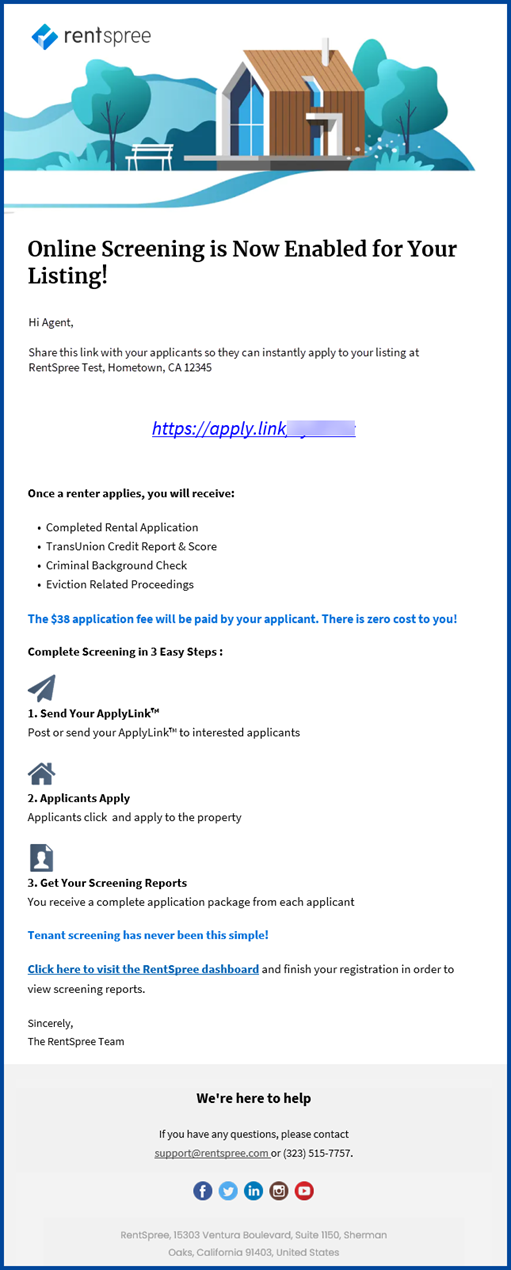
All CRMLS systems now include RentSpree’s online application link: ApplyLink. This guide covers how to access the new Online Screening field and subsequently the ApplyLink from Flexmls, Matrix, and Paragon.
The Online Screening Field
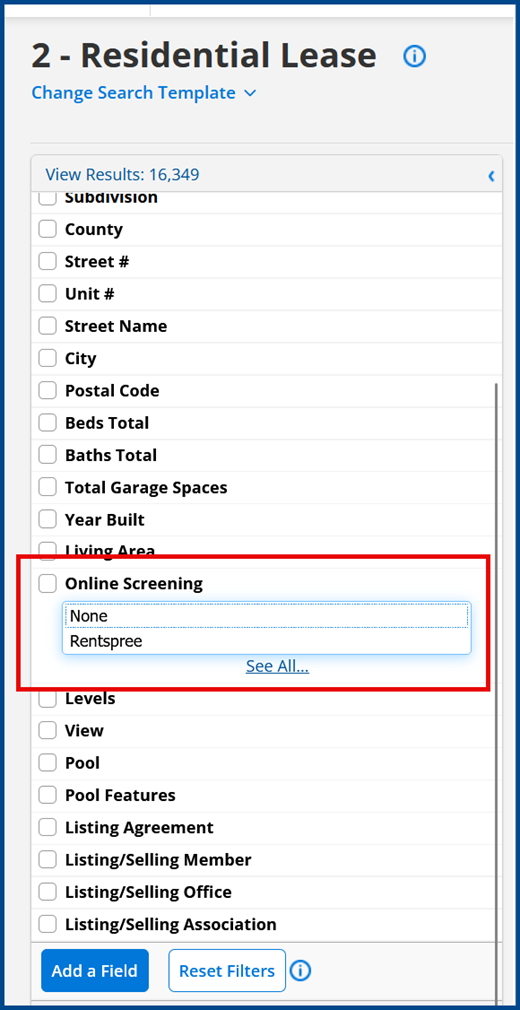
The Online Screening field is accessible from the Residential Lease input form. This field is required for lease listings across all CRMLS-supported systems and can be used to find properties that match the search criteria in CRMLS Flexmls and Matrix.
Note: While the Online Screening field is available in Paragon, it does not have the ability to search for properties that match that criteria.
For more details, click on your system below:
Flexmls
Matrix
Paragon
Flexmls Input Form
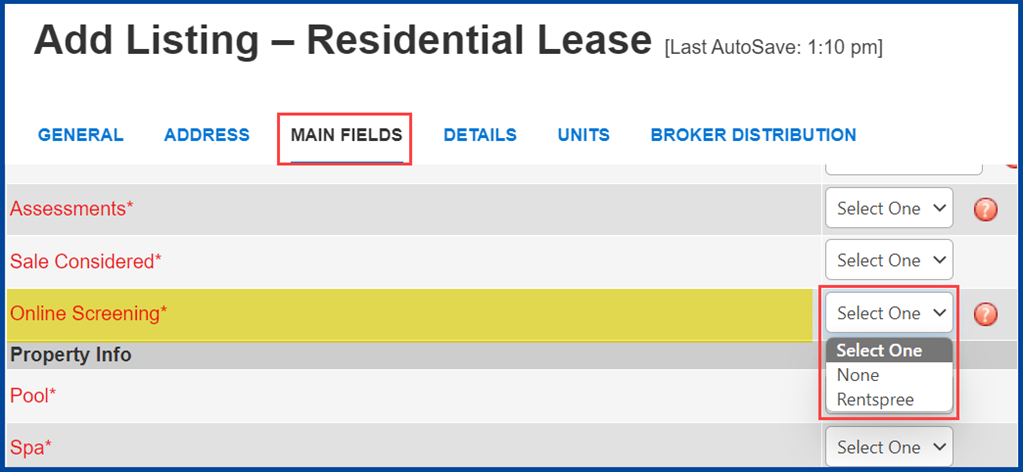
Access the Online Screening field under the Main Fields tab of the Residential Lease input form.
- Click the drop-down arrow to select None or RentSpree
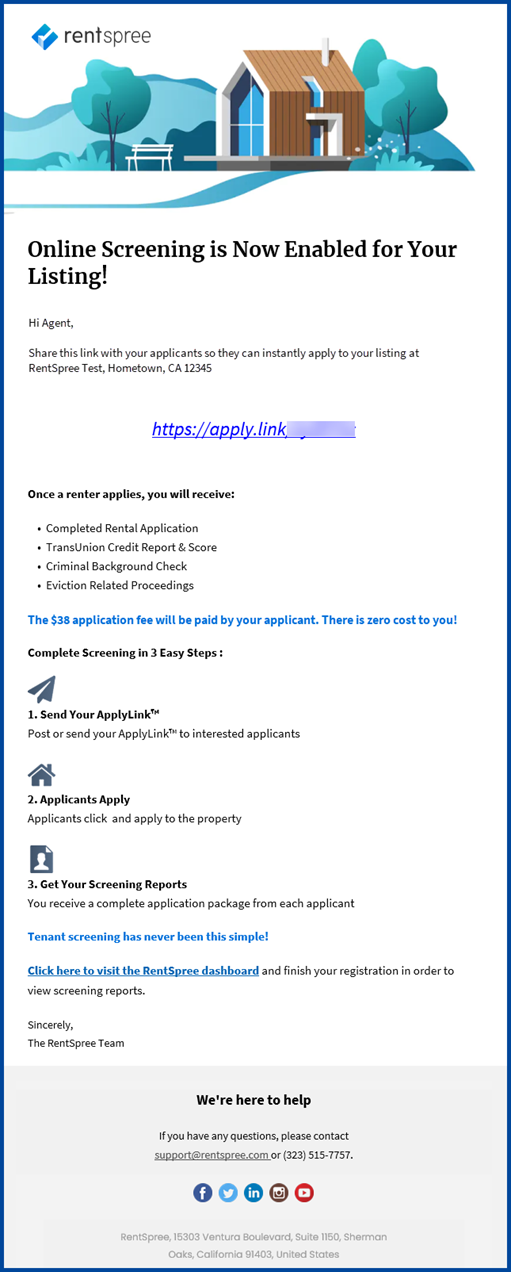
- When RentSpree is selected, the listing agent will receive a notification email containing a rental application link to share with prospective tenants
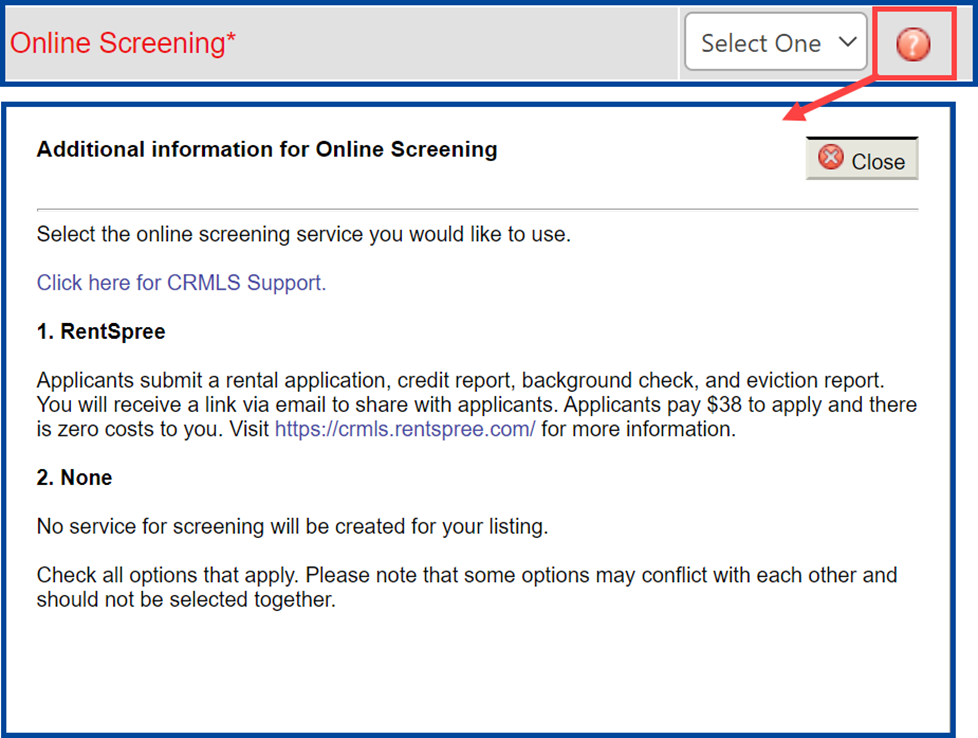
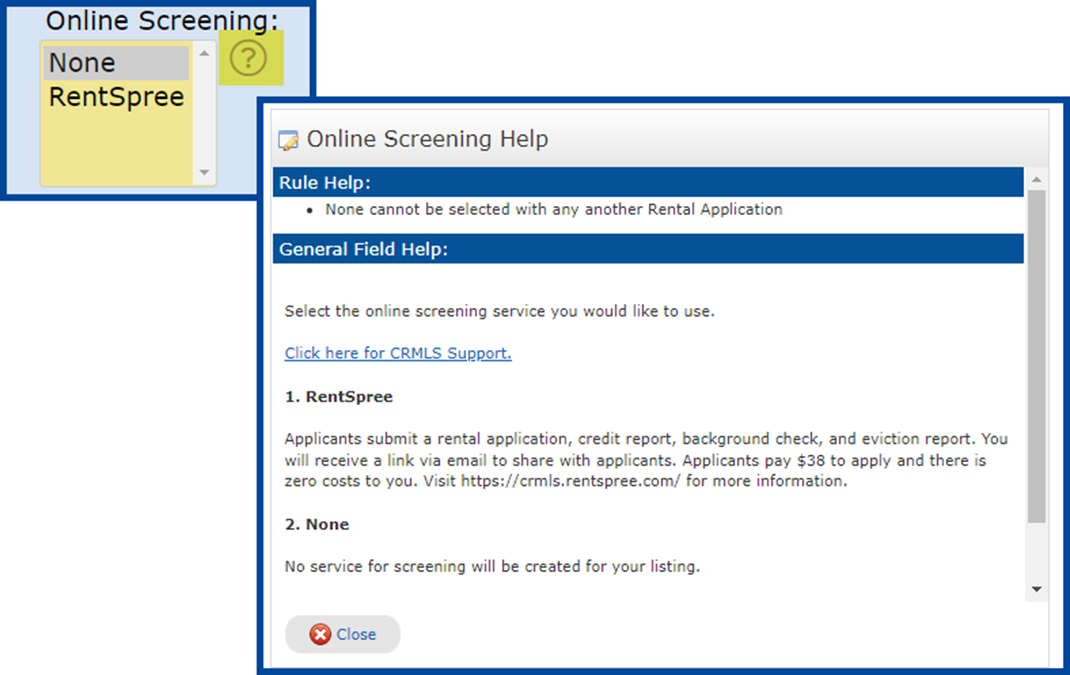
If needed, click the question mark icon for additional information on Online Screening.
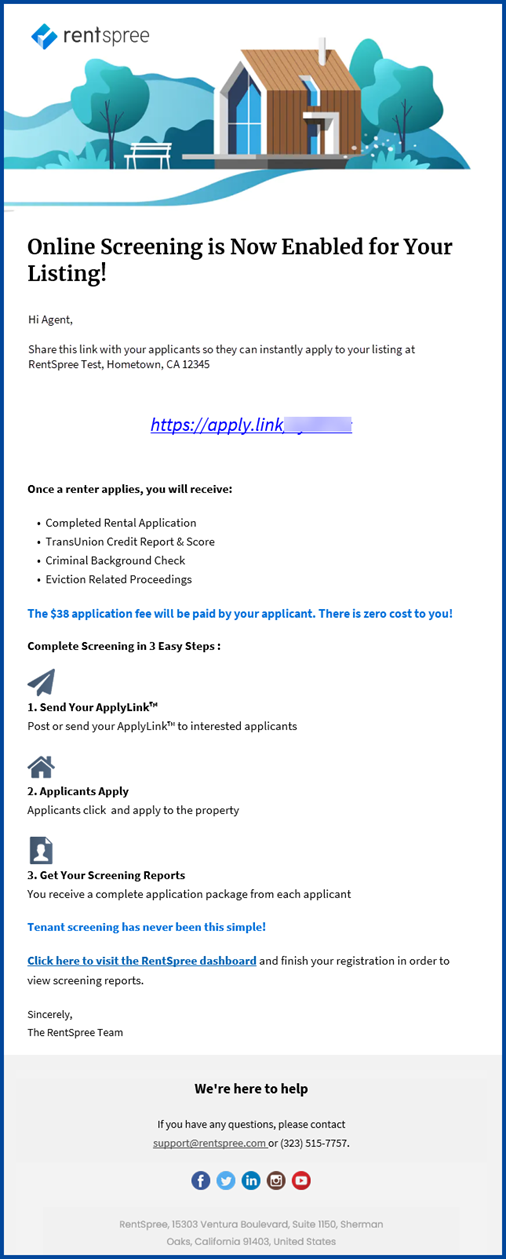
Sample RentSpree Notification Email
Matrix Input Form
Select the Online Screening field under the Land/Leasing tab of the Residential Lease input form.
- Click None or RentSpree under the Online Screening field
- When RentSpree is selected, the listing agent will receive a notification email containing a rental application link to share with prospective tenants
If needed, click the question mark icon to access Online Screening Help.
Sample RentSpree Notification Email
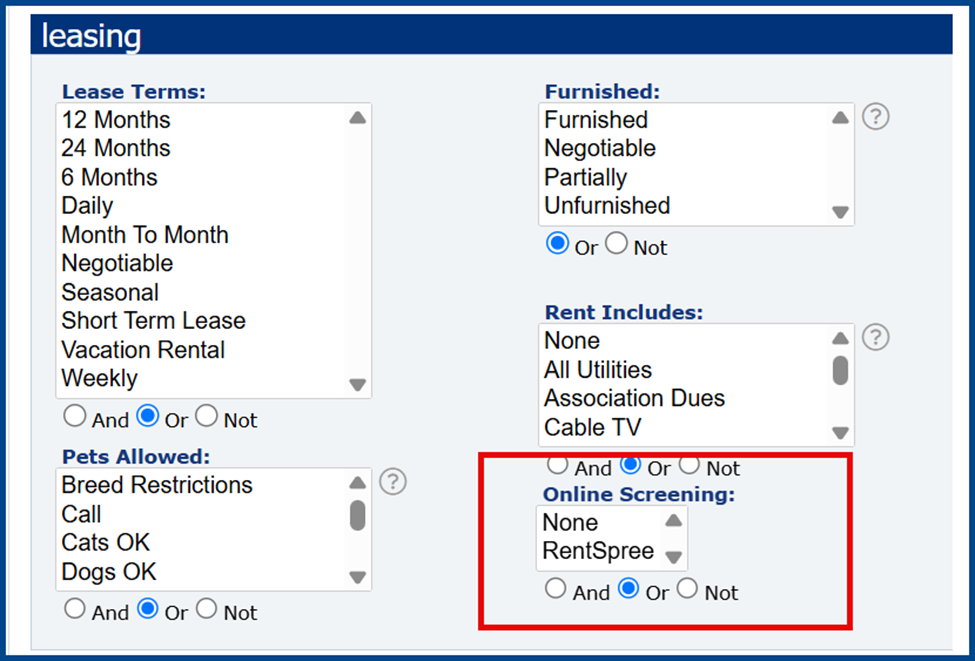
Online Screening can also be accessed from the search page for residential leasing. Click the drop-down arrow under Online Screening to select None or RentSpree.
Paragon Input Form
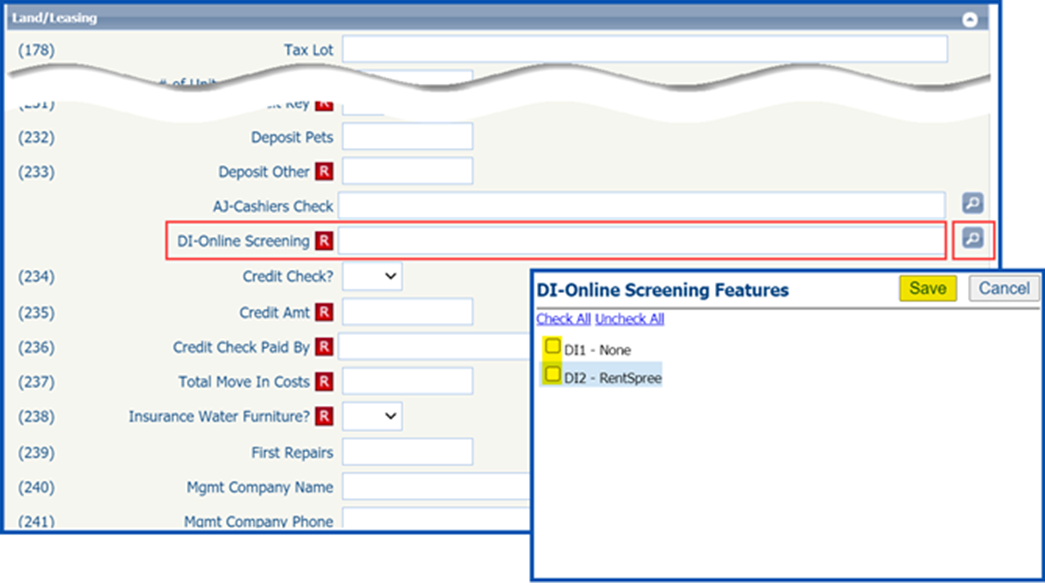
- Select DI-Online Screening under the Land/Leasing section of the Residential Lease input form.
- Click the magnifying glass icon to the right of the field. When the pop-up window for DI-Online Screening Features appears, select either None or RentSpree, then click Save.
- If RentSpree is selected, the listing agent will receive a notification email containing a rental application link to share with prospective tenants
Sample RentSpree Notification Email