This brief guide covers the basics of scanning a property with the CubiCasa app. For a more extensive overview, check out CubiCasa’s videos on scanning in portrait orientation, best scanning practices, our helpful tips for scanning, and information on creating an account.
To begin scanning:
- Open the CubiCasa app
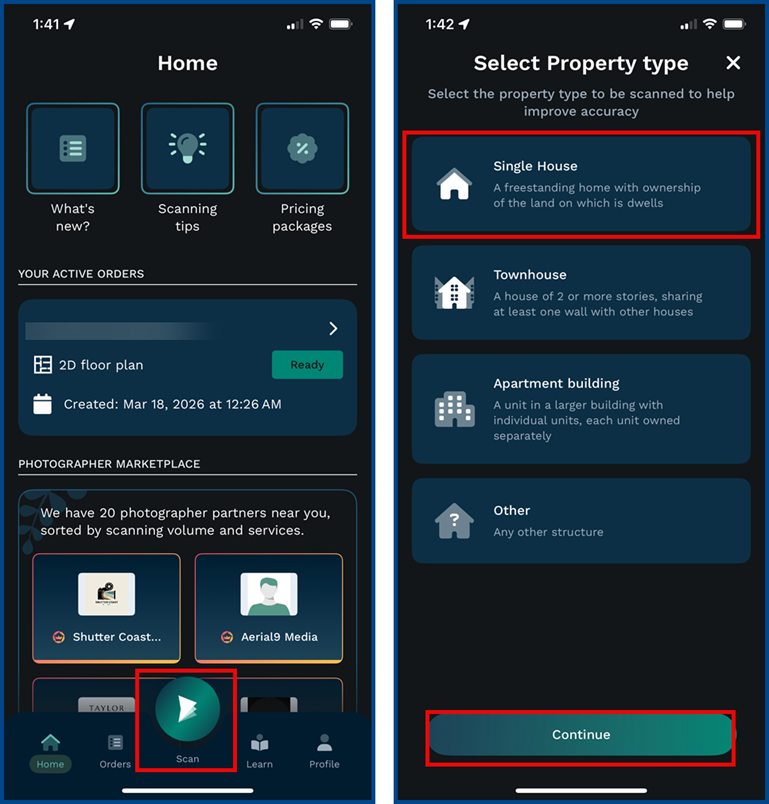
Once the camera settings are enabled, click Scan and - select a property type from the following:
- Single House
- Townhouse
- Building Apartment
- Other
- Click Continue
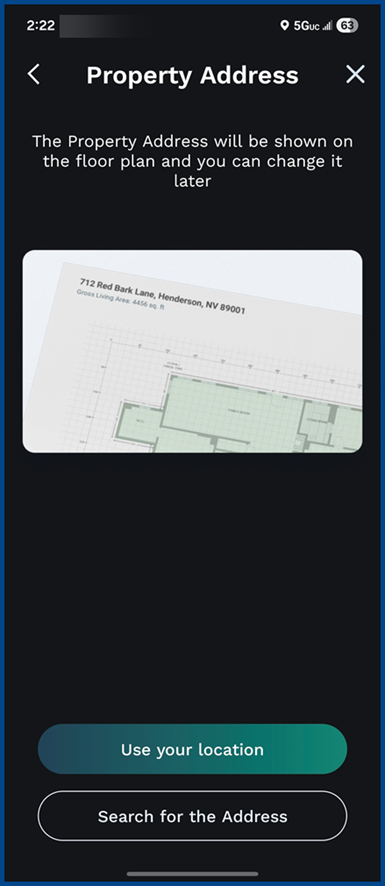
- Search for the location in the Property Address screen.
- If Location Services are enabled, CubiCasa will pin the address location on the map
- If Location is disabled, click Search for the Address. Enter the street name, address number, and suite number (if applicable).
- Click Confirm Note: The Property Address will appear on the floor plan and can be edited later.
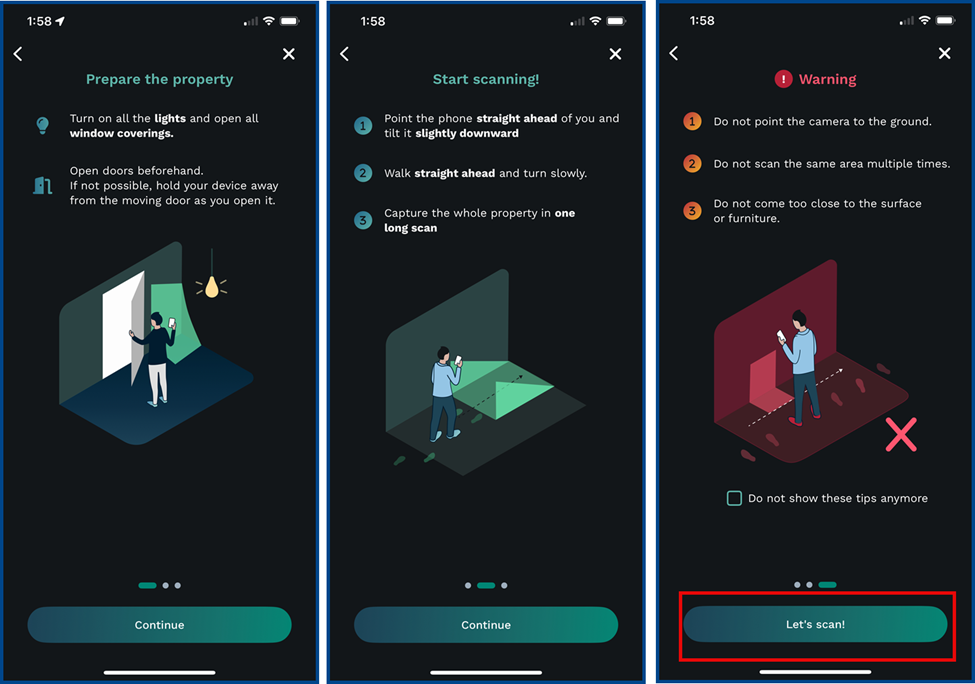
- Follow the provided instructions then click Let’s scan!
Once the device is inportrait position, click Record and start moving to scan. - Note: A warning message may pop-up if errors in scanning are detected.
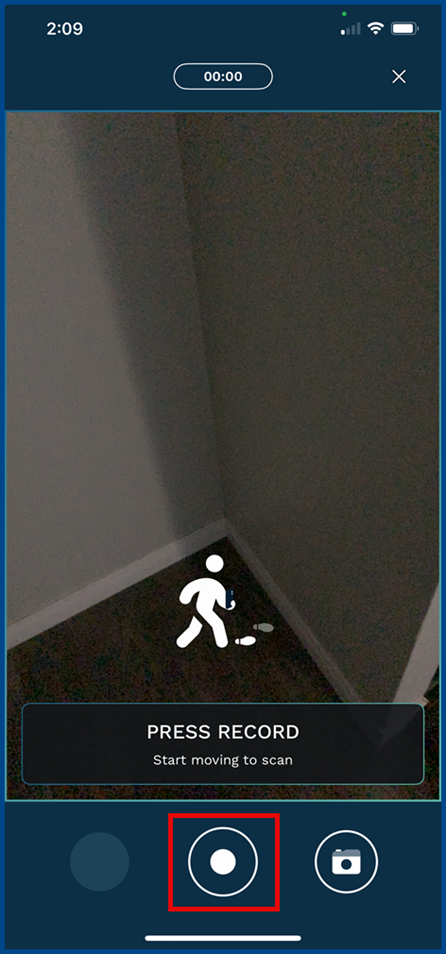
Click Record again to stop recording. Select Yes to finish the scan.
Keep your device on while the app processes the scan. - Note: Turning off your device prematurely may result in losing the entire scan. It will NOT be recoverable.
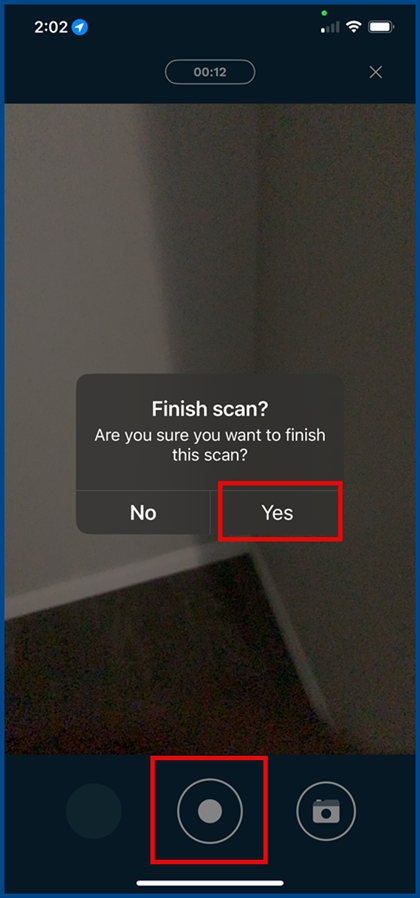
- Once the scan is complete, view it in the Preview screen
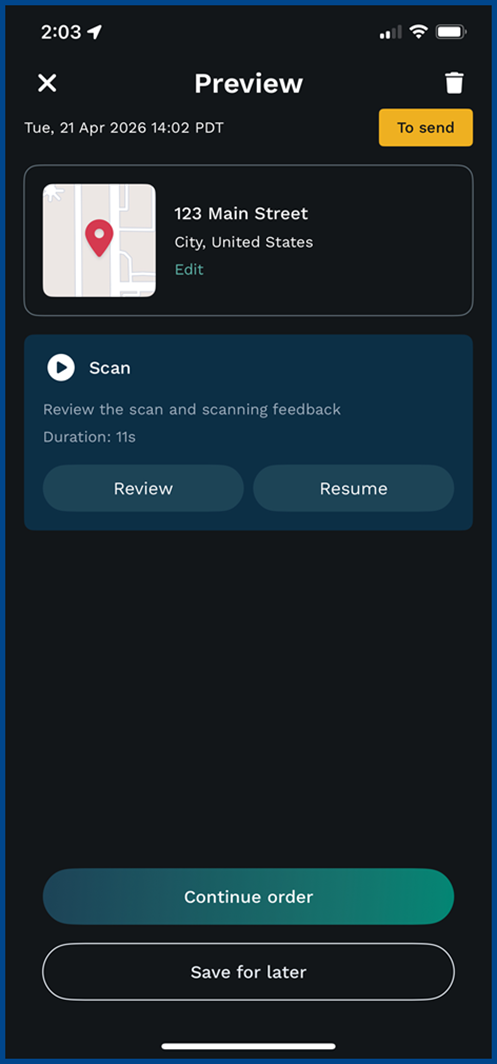
Select Review to check the scan and scanning feedback. - If the scan is acceptable, click the back arrow in the top left corner.
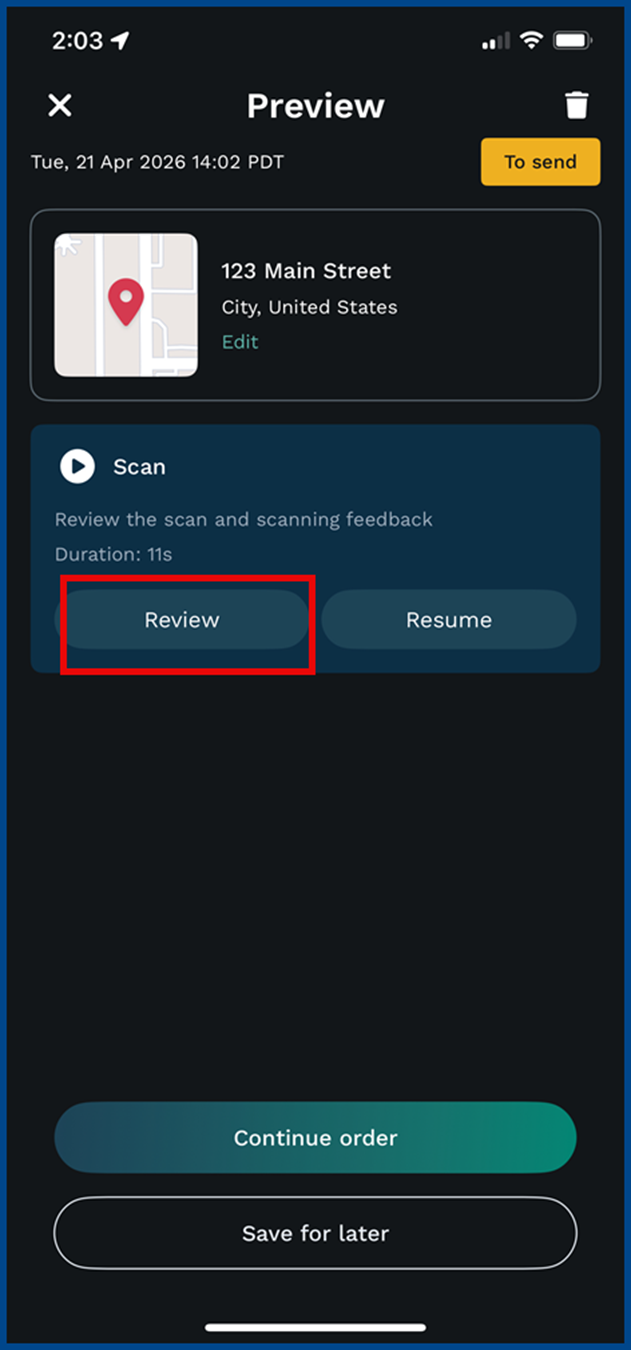
Click Continue order to send the scan directly to CubiCasa to create your floor plan.
If internet access is unavailable, return to a location with a secure and stable connection (e.g., home, office, etc.) before clicking Continue order.
Note: Mobile data connections are much less reliable for sending scans, so a wi-fi connection is encouraged.