Use this guide to learn how to add and manage contacts in the CRMLS Flexmls system.
Access The Contact Management Menu
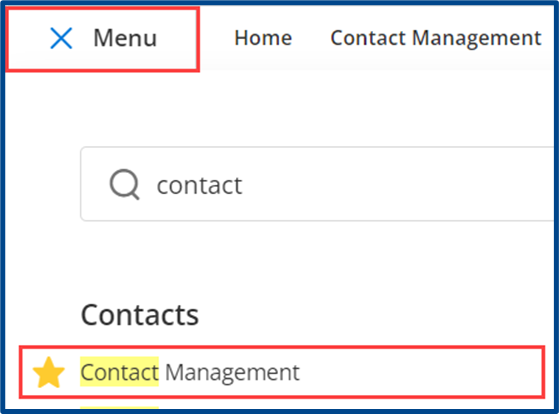
From the Main Menu, search for or locate the Contact Management menu.
Add a New Contact
Click Add Contact at the top right of the page.
Note: You can mass import or export contacts using the “Advanced” options.

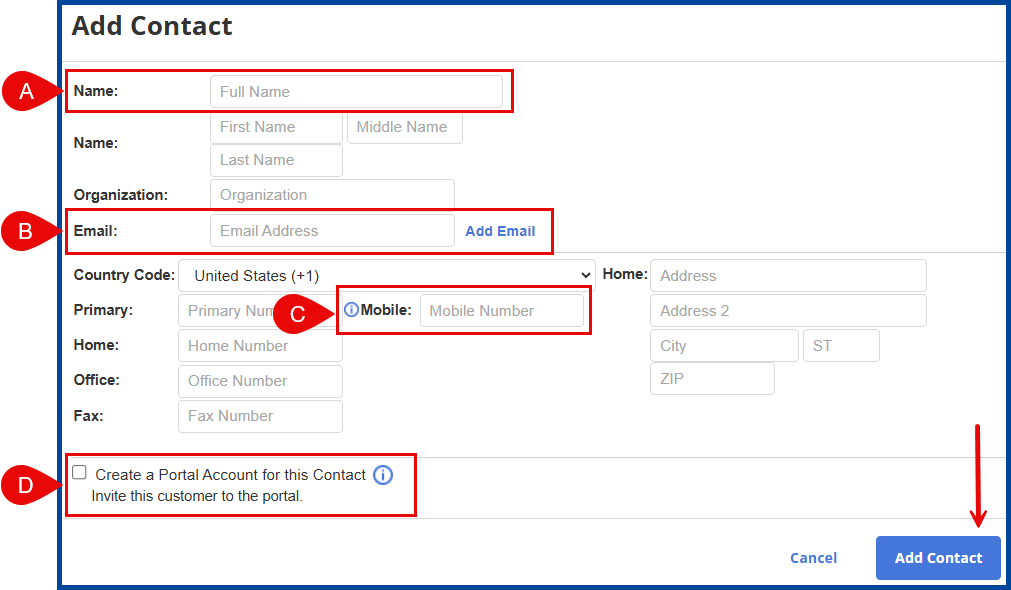
A pop-up will appear prompting you to add contact details.
A: Add Contact Name
B: Add Contact Email (to deliver listings, reports, etc.)
C: Optional, Add Contact Mobile number (to text listings)
D: Optional, Create a Portal Account for this Contact
Quick Add a Contact
Optional, use the Quick Add feature at the top of the page.

Advanced Options
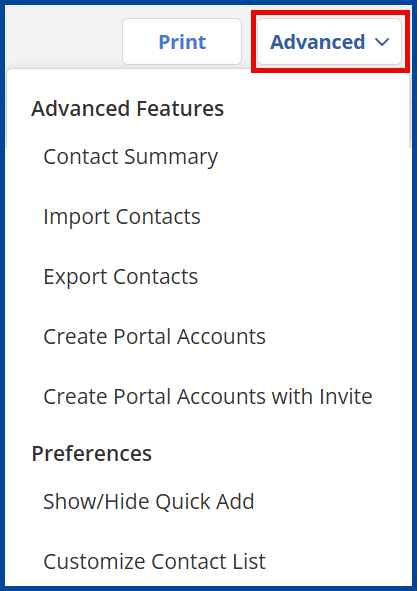
Contact Summary: View an activity report for portals, messages, emails, and searches for each contact.
Import/Export Contacts: Import or Export a csv. file of contact information.
Create Portal Accounts: Turn the portal on for all contacts.
Create Portal Accounts with Invite: Turn the portal on for all contacts and send an email invitation.
Show/Hide Quick Add: Show or Hide the Quick Add feature (see above).
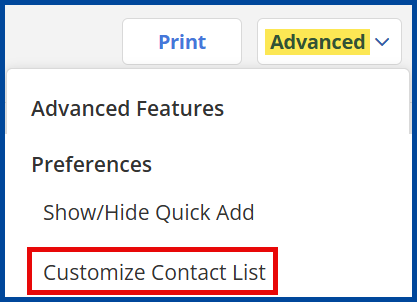
Customize Contact List: Customize which columns appear on the Contact Management page (learn more below).
Customize Contact List
Customize which columns of information appear on the Contact Management menu.
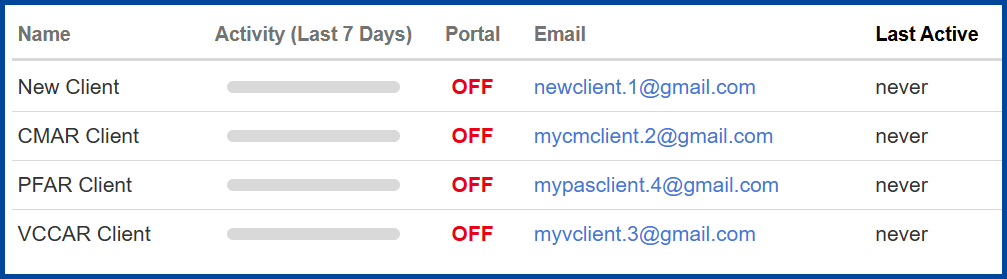
Select Customize Contact List from the “Advanced” options.
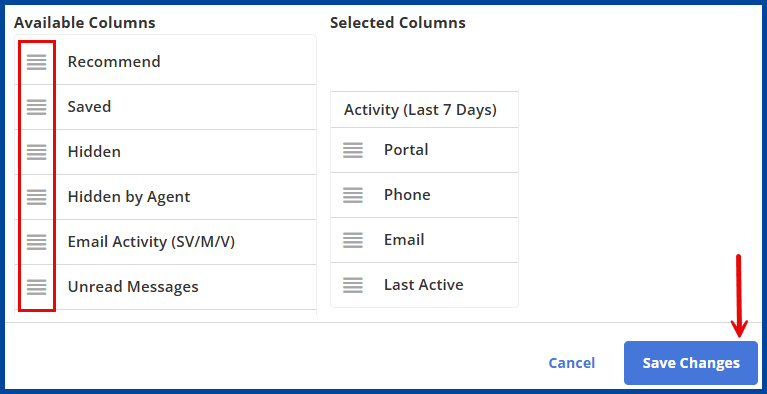
Drag items from the Available Columns to the “Selected Columns.”