This guide covers how to create a buyer or seller presentation with Rayse that includes information such as previous examples of client success, payment information, and more.
To begin, create a Journey for the client or make a sample one using a generic client name.
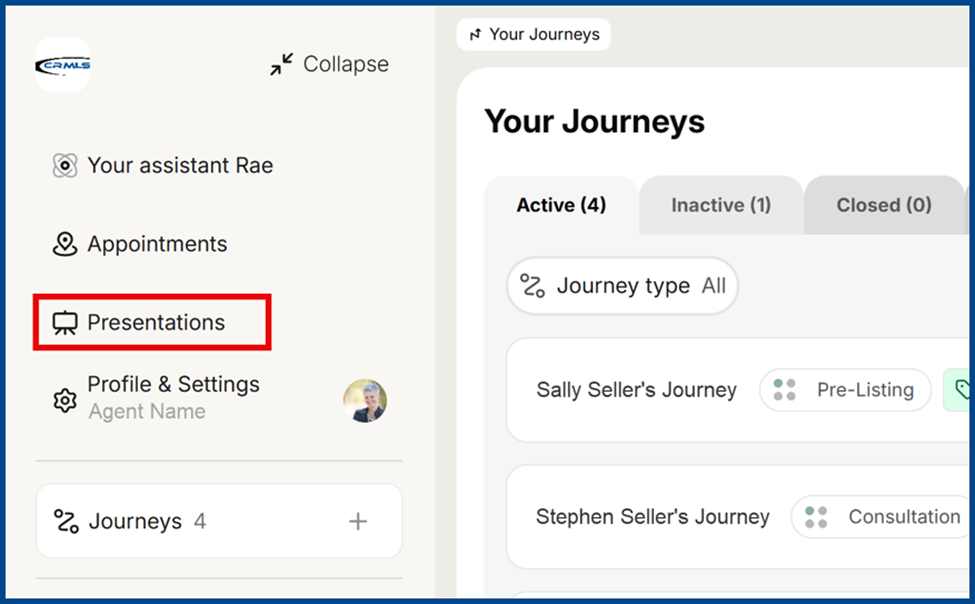
- Go to Presentations on the left-side menu bar.
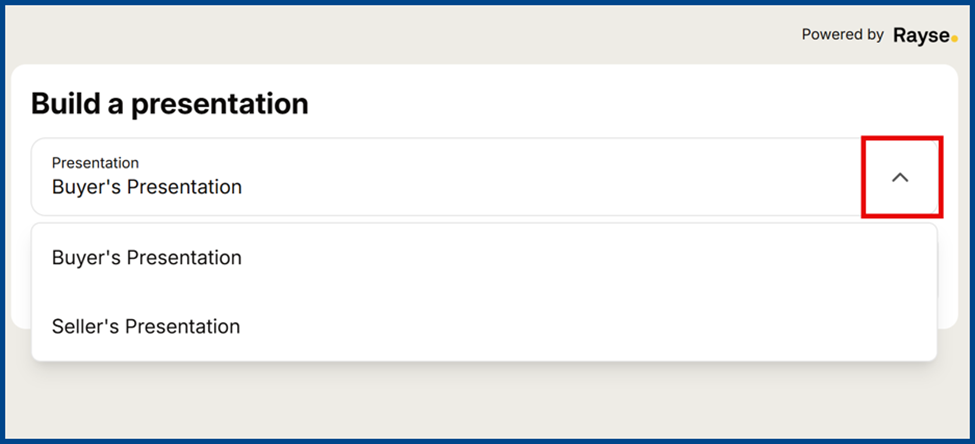
2. Choose Buyer’s Presentation or Seller’s Presentation from the drop-down arrow on the right
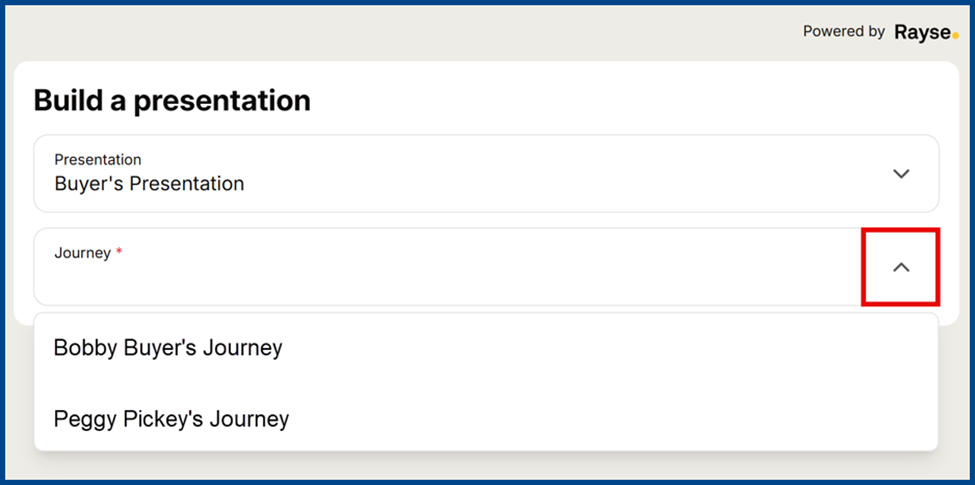
3. Click the next drop-down menu arrow and select the client’s Journey.
4. Review the fields. If the data has been previously entered, the fields will auto-populate. If not, enter new data or edit existing information as needed.
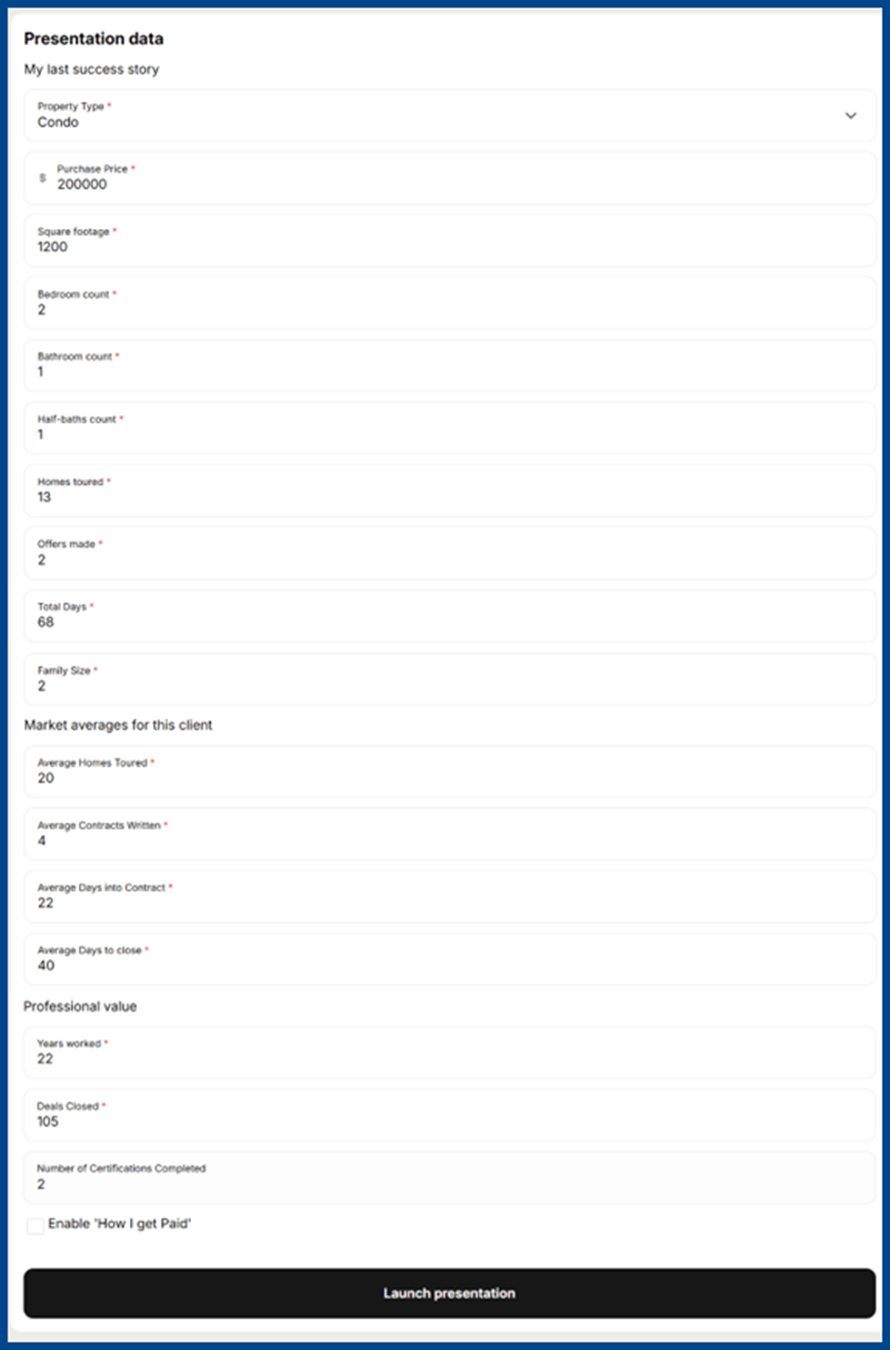
5. Click the box next to Enable ‘How I get Paid’ to add details about your compensation, broker split, referral fees, or other expenses that may lower your take-home amount.
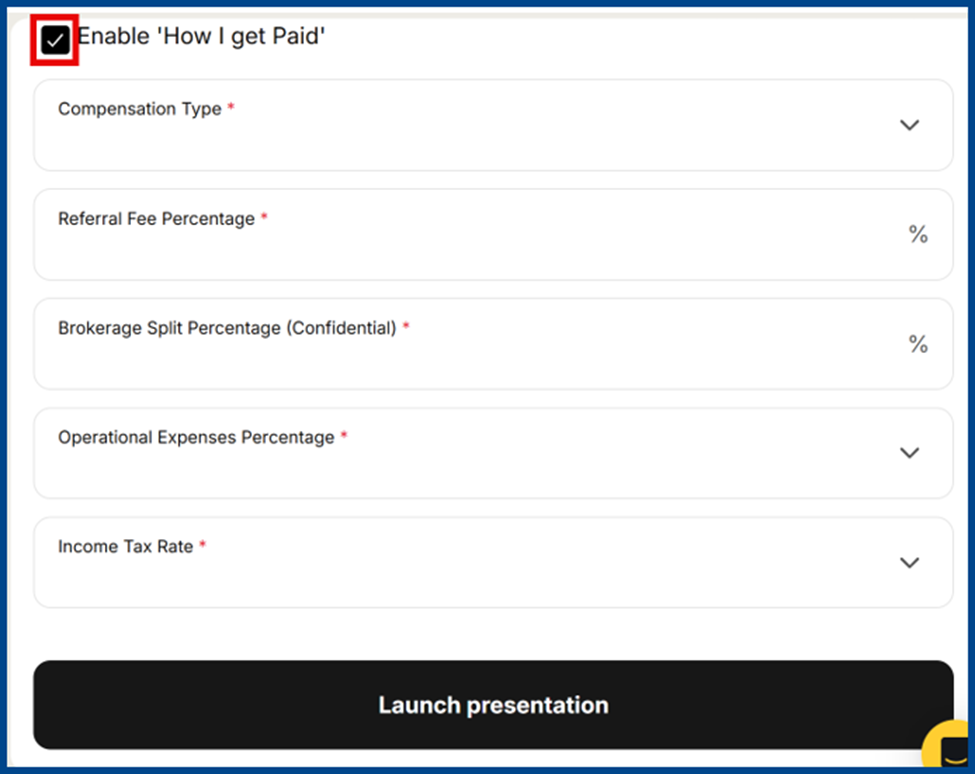
Note: If enabled, this information will appear in the presentation.
6. Click Launch Presentation at the bottom to open a new browser tab.
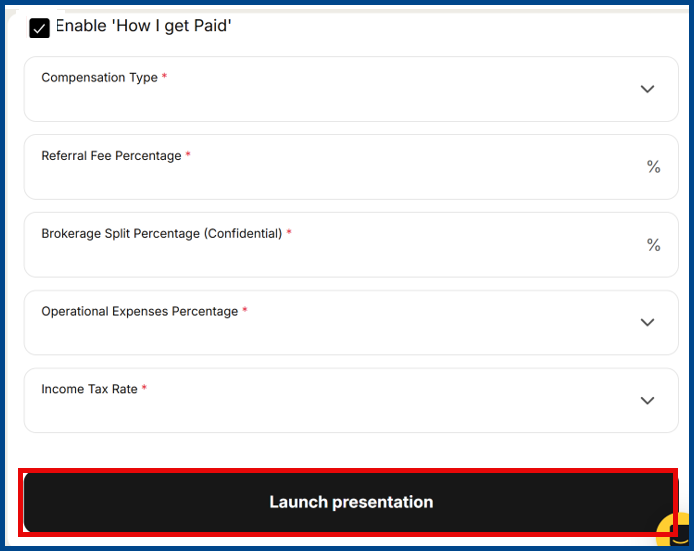
Note: Presentations can be shown in person or shared during a virtual meeting.
7. Arrange images and data as desired. Click on each section to open more information and add to the details from previous pages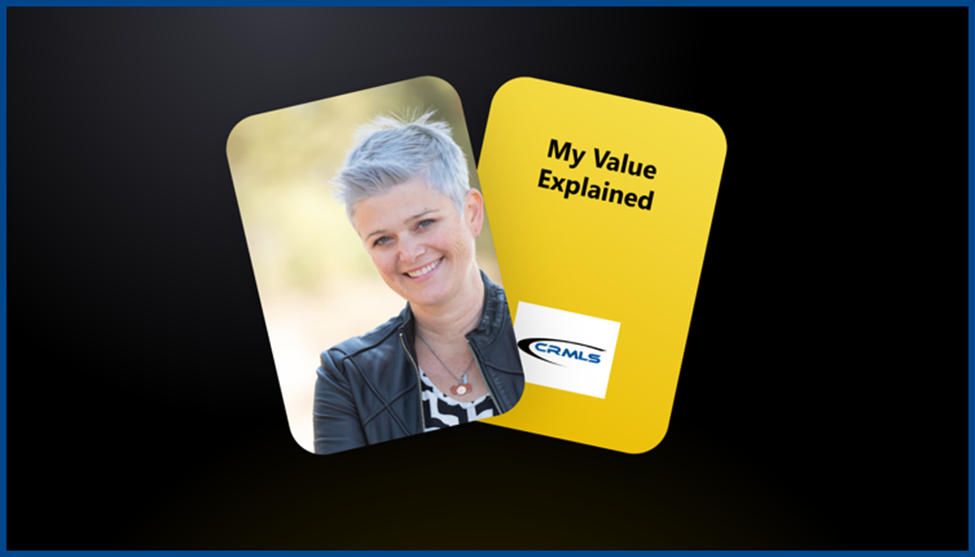
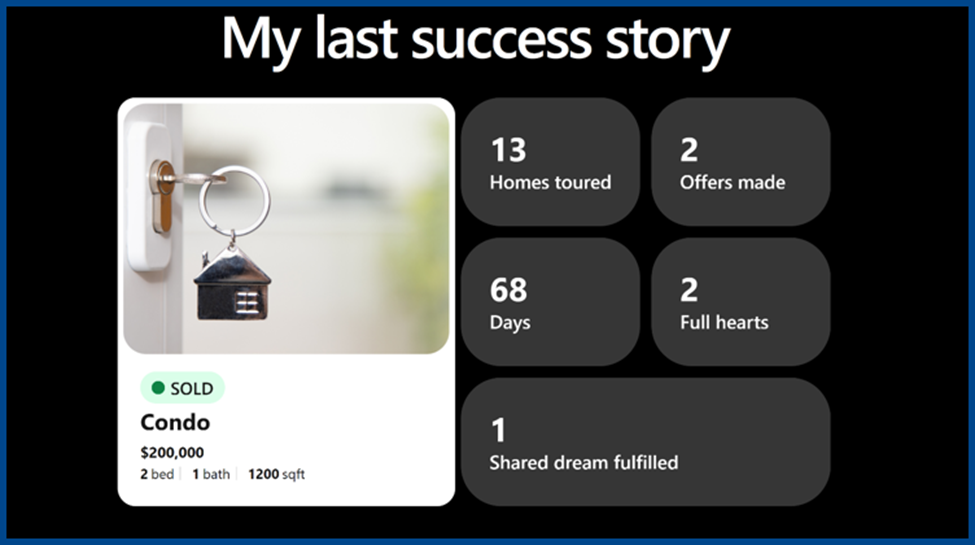
Presentations cannot be saved. However, upon entering the Journey details in the presentation builder page and launching the Seller or Buyer presentation, Rayse will store those details so that it can auto-populate data when creating a new presentation in the future.